

In Lightroom Classic, Desktop, and Camera Raw, a yellow warning icon often appears in the AI Edit Status panel. This happens when you perform edits out of the recommended "order of operations," signaling that certain AI-generated layers need to be updated or rerendered.
While you can still edit in any order, jumping around can lead to unpredictable results. For example, applying an adaptive color profile and then using the "Denoise" or "Remove" tool might cause the colors and highlights to shift once the AI is forced to update.
The Recommended Workflow: Prepare, Repair, Finesse
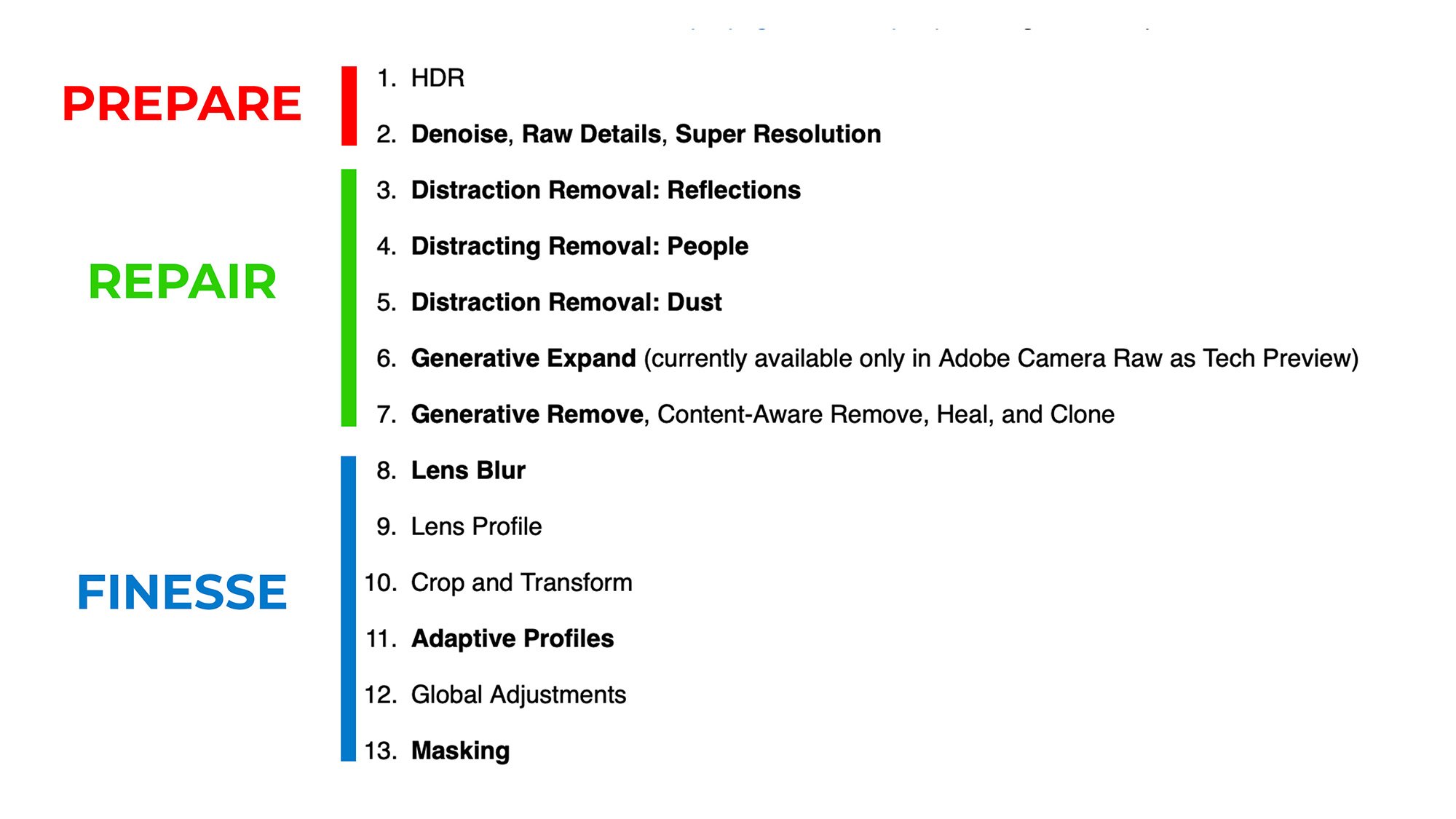
To maintain total control over how your image looks, it is best to follow this three-step sequence:
Prepare: Start with edits that affect the entire image, such as Denoise, Raw Details, Super Resolution, or HDR. This is the foundation of your edit.
Repair: Next, clean up the image by removing distractions. Use the Remove tool (with Generative AI) or Distraction Removal for things like reflections, dust spots, or unwanted objects.
Finesse (or Finish): Once the image is prepped and repaired, move on to creative adjustments, such as Adaptive Color Profiles or intricate masking.
Handling the AI Edit Status Warning
If the yellow icon appears, it is a reminder that your AI edits may no longer be perfectly synced with the current state of the image.
Click to Update: Always click the icon and select "Update" before finishing your edit.
Reassess: After updating, look closely at your image. Because the AI is rerendering, the results might look slightly different than before.
Don't Just Export: If you try to export while the icon is yellow, a popup will warn you. Instead of clicking "Export" anyway, it is safer to cancel, update the edits manually, and ensure you are happy with the changes before saving the final file.
By following the Prepare, Repair, Finesse order, you ensure your editing remains predictable and that the final export looks exactly as you intended.