
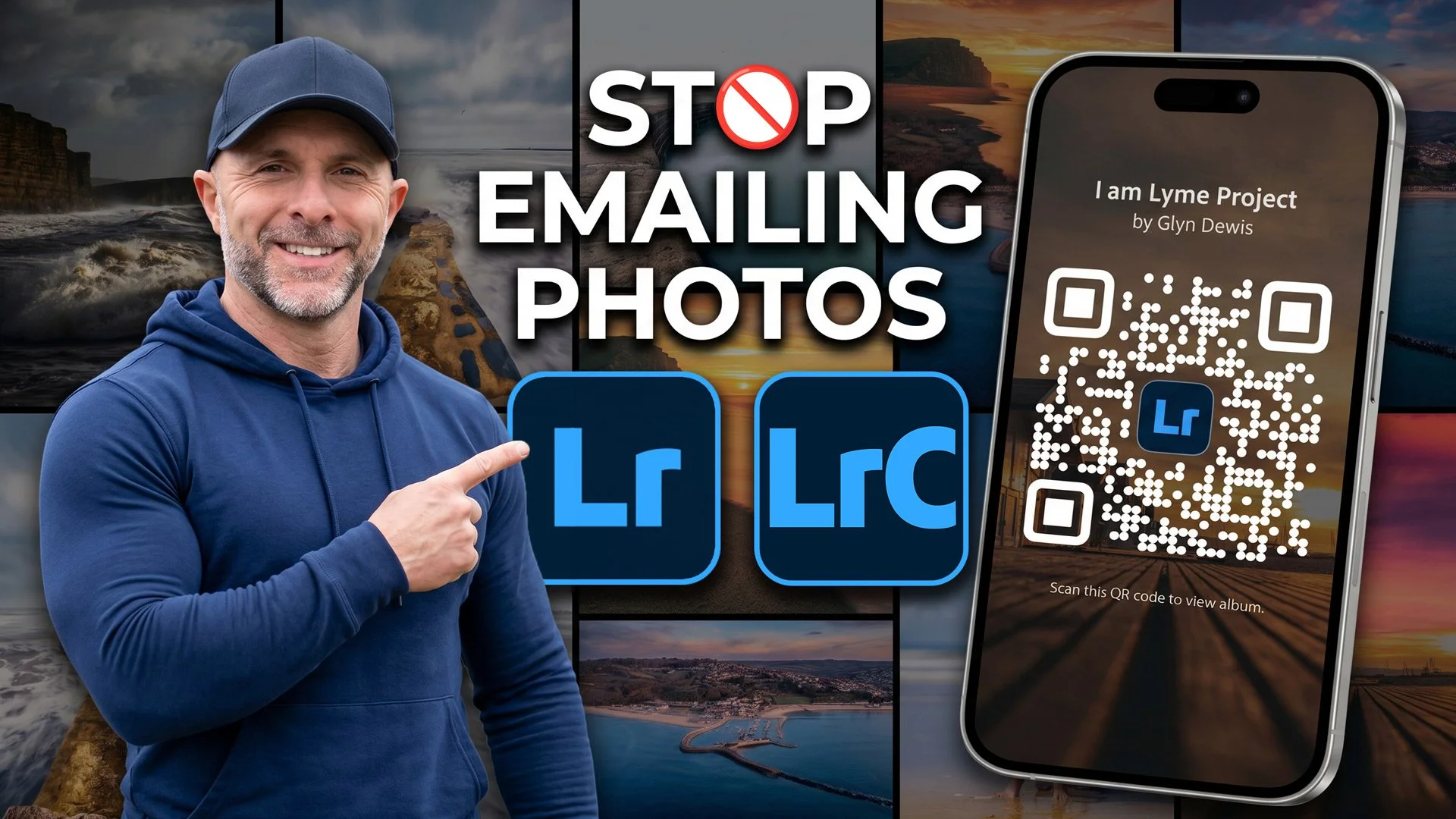
My next project involves my local harbour and town, Lyme Regis in the southwest of the UK where I’ll be photographing the people who truly make the town what it is - the fishermen, cafe owners, restaurateurs, B&B hosts, ice cream sellers, and anyone else who steps in front of my camera.
Because a project like this has a lot of moving parts, I want the process to be completely frictionless. I need a seamless way for the people I photograph to access their portraits without chasing email addresses or risking sending files to the wrong person.
The perfect solution is the Share function in Lightroom. Whether you use Lightroom Desktop, Lightroom Classic, or Lightroom Mobile, this feature turns your cloud-synced albums into functional web galleries.
Here is exactly how to set it up and make it work for you.
1. Getting Your Images into the Cloud
To share an album, the images must be in the cloud so Lightroom can generate a web page.
In Lightroom Desktop (Local Tab): If you keep files offline on hard drives, you can easily select a single image, multiple images (using
ShiftorCommand/Control), or an entire folder. Right-click and choose Copy to Cloud. You can then add them to an existing folder or create a new album.In Lightroom Desktop (Cloud Tab): Simply click the + icon next to Albums and select Create Album. You can create an empty album and drop photos into it later.
In Lightroom Classic: You work with Collections instead of albums. Create a new collection, give it a name, and ensure you check the box that says Sync with Lightroom.
Once synced, any collection from Classic or album from Desktop automatically populates across the entire cloud ecosystem, including Lightroom Mobile.
2. Managing Share Settings and Permissions
Once your album is in the cloud, right-click the album name in Lightroom Desktop and choose Share and Invite. This generates a dedicated web address for your gallery. Before sending it out, you can completely customize the experience.
Link Access: Set the permissions to public or private depending on your audience.
Settings & Interaction: You can allow viewers to download JPEG versions of the images, which is exactly how I handle the I Am Lyme project. You can also let them like and comment (which requires a free Adobe account) or toggle metadata and location visibility.
Submitting Photos: There is an option to allow others to add photos to the album. This is brilliant if you are hosting a photo walk and want everyone to contribute their shots to a single gallery.
Customization: You can alter how the page looks to visitors without changing your internal album settings. Change the display title, hide or show the author name, choose the layout grid (photo grid, column, or one-up), and switch between light and dark themes.
3. Sharing via Lightroom Mobile (and the QR Code Secret)
If you are out in the field like me, using Lightroom Mobile on your phone is the ultimate workflow hack.
Open your synced album on your mobile device, tap the Share icon in the upper right, and you will find the exact same options available on desktop.
The real magic here is the QR Code option. Lightroom Mobile can generate a unique QR code for that specific web gallery. You can show it directly on your screen for someone to scan, or download the QR code to your camera roll to print out. People can scan it, instantly view the gallery, and download their photos on the spot.
4. The Workaround for Pure Lightroom Classic Users
If you strictly use Lightroom Classic and prefer not to use Lightroom Mobile or the Desktop app, you can still easily use this feature.
Once you have created your collection and checked the Sync with Lightroom option, open your web browser and go to lightroom.adobe.com. Log in, find your synced collection under your albums, and click the Share icon on the right side. You will have full access to the web link and the QR code generator right from your browser.
Using shared albums keeps your client interaction simple, organized, and professional. Give it a try on your next project, and let me know if you have any questions in the comments below.