
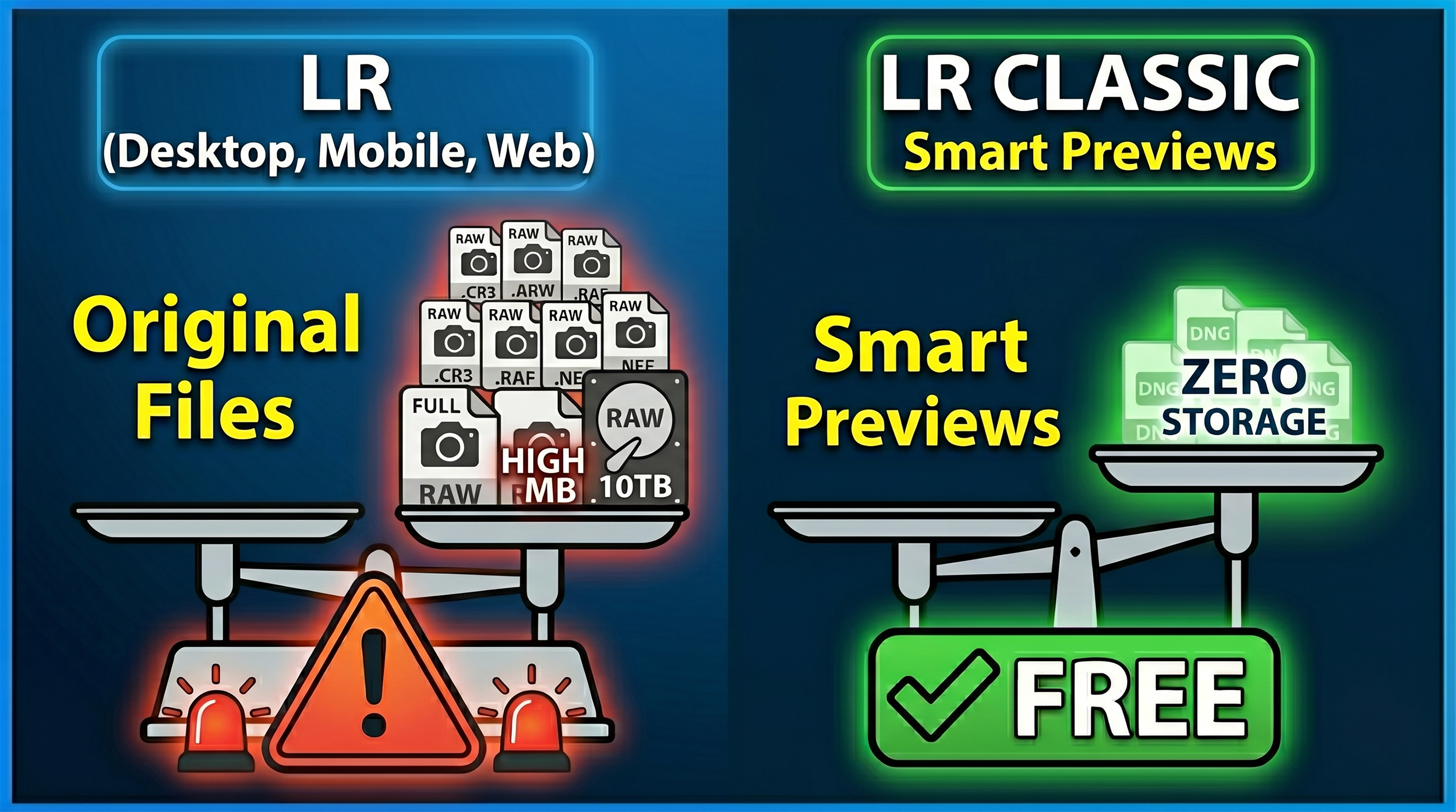
Something that catches a lot of people out is the difference between how Lightroom Desktop/Mobile handles your photos in the cloud versus what happens when you sync from Lightroom Classic.
They look similar on the surface but behave very differently, especially if you're using the Share and Invite web gallery feature.
Here's how it breaks down.
Uploading from Lightroom Desktop or Mobile
When you copy photos to the cloud using Lightroom Desktop or Mobile, you're uploading the original file, whether that's a RAW or a JPEG.
Cloud storage: This counts against your Adobe storage allowance. Every file you add uses the same amount of space as the original. Upload 100 RAW files at 25MB each and you've used 2.5GB of your plan's storage, whether that's 20GB or 1TB.
What your “client” downloads: A full-resolution JPEG. The pixel dimensions match your original, so a 24-megapixel file stays 24 megapixels. Adobe converts the RAW to JPEG for delivery, so a 24MB RAW might come down as a 4 to 8MB JPEG, but the detail is all there.
Official Adobe Reference: You can read the storage rules directly in the Adobe Help: Lightroom Cloud Storage FAQ. Look under the "How does storage work in Lightroom?" section, which details how original files consume your plan's space.
Syncing from Lightroom Classic
When you tick the Sync with Lightroom box on a Collection inside Classic, your original files stay on your hard drive. What goes up to the cloud is a Smart Preview.
Cloud storage: This uses none of your allocated storage. Adobe syncs these Smart Previews completely free of charge, and they count for nothing against your 20GB or 1TB limit.
What your “client” downloads: A reduced-resolution JPEG, capped at 2560 pixels on the longest edge. That's it. Because the cloud only holds the Smart Preview, that's all anyone can download.
Official Adobe Reference: This storage exception is outlined in the Adobe Help: Sync Lightroom Classic with Lightroom Ecosystem guide. Check the "Sync overview" and the "FAQ" at the bottom, which explicitly states that Smart Previews do not consume your cloud storage quota.
Quick Summary
If you're sharing a web gallery and have Allow Downloads switched on, what your viewer receives depends entirely on where the file came from:
Lightroom Desktop or Mobile as the source: Uses your cloud storage. Viewer downloads a full-resolution JPEG.
Lightroom Classic Collection as the source: Uses zero cloud storage. Viewer downloads a 2560px JPEG, maximum.
Official Adobe Reference: The download behavior for shared galleries is documented in the Adobe Help: Share Photos and Albums from Lightroom Web guide under the "Allow downloads" and "Shared Album Settings" toggles.
The practical takeaway is straightforward; if your “clients” need full-resolution files, upload via Lightroom Desktop or Mobile and keep an eye on your storage. If they just need to view images or grab web-sized copies, syncing from Classic is far more efficient and won't touch your storage allowance at all.