

If you spend any amount of time in Adobe Photoshop, you become very familiar with the document tab at the top of your workspace. It tells you the filename and the current zoom level.
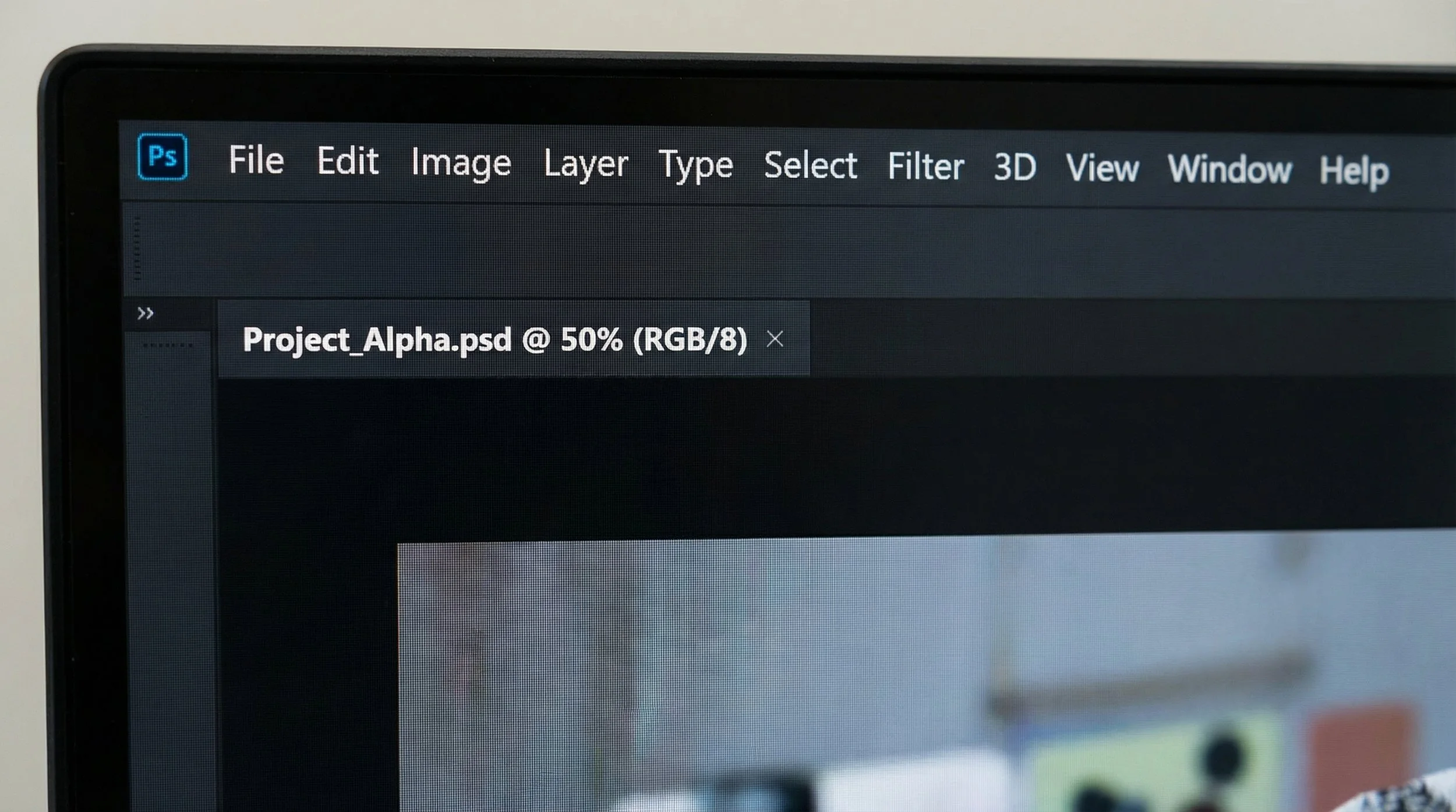
But sometimes, little cryptic symbols appear next to that information. Have you ever looked up and wondered, "Why is there a random hashtag next to my image name?" or "What does that little star mean?"
Nothing is broken. These symbols are just Photoshop's way of giving you a quick status update on your file and its colour management, without you needing to dig through menus.
What These Symbols Tell You
The symbols represent:
The save state of your document
Whether it has a colour profile attached
Whether the document's profile differs from your working space
Here is a quick guide to decoding those little tab hieroglyphics.
1. The Asterisk After the Filename ("Save Me!" Star)
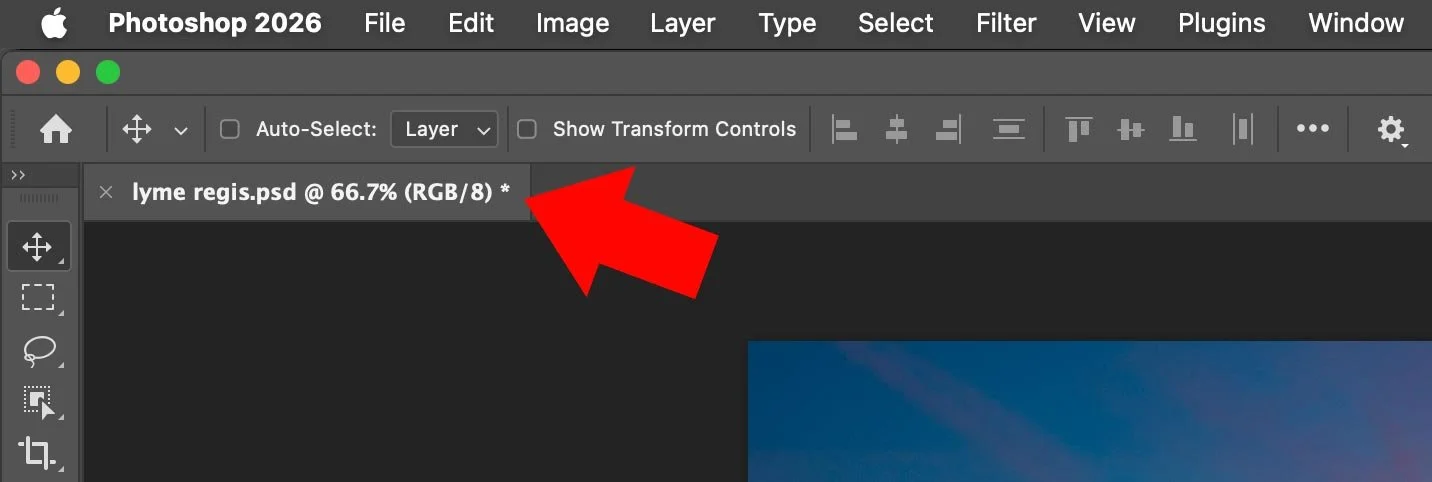
What it looks like: … (RGB/8) *
What it means: An asterisk hanging right off the end of your actual filename means you have unsaved changes.
When it appears: Photoshop is hypersensitive here. The star will appear if you:
Move a layer one pixel
Brush a single dot onto a mask
Simply toggle a layer's visibility
Do pretty much anything
It's a gentle reminder that the version on screen is different from the version saved on your hard drive. If the computer crashed right now, you would lose that work.
The fix: Press Cmd+S (Mac) or Ctrl+S (Windows). The moment you successfully save the file, that little star will disappear because Photoshop now considers the document "clean" again.
2. The Asterisk ("Profile Difference" Star)
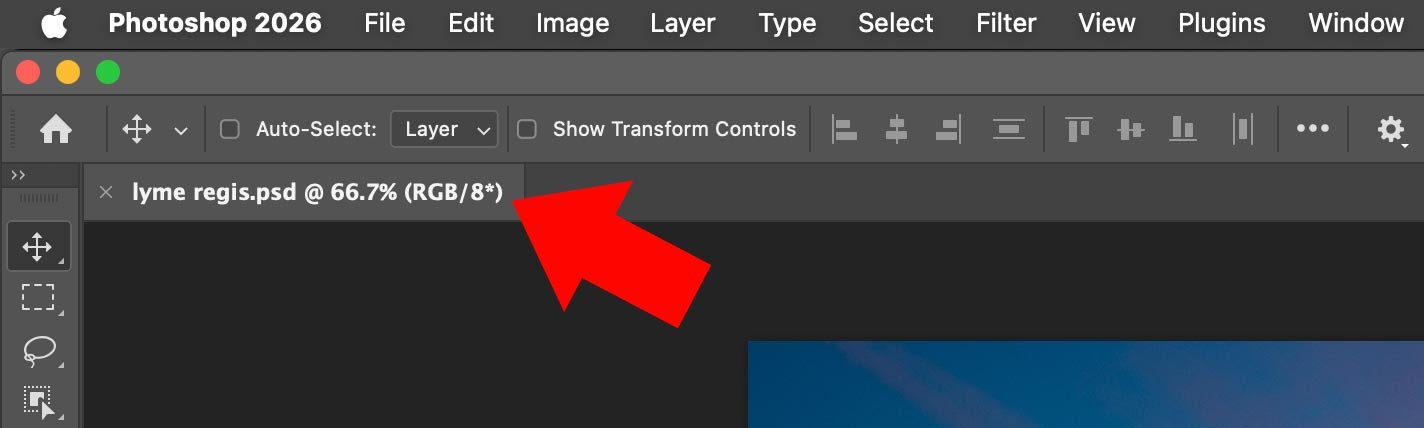
What it looks like: … (RGB/8*)
What it means: This is a different symbol in a different spot. If the star is tucked inside the parentheses next to the bit depth (the 8 or 16), it's no longer talking about unsaved work but about colour management.
In current Photoshop versions, an asterisk here generally means the file's colour profile situation does not match your working RGB setup. For example, you're working in sRGB as your default, but the image you opened is tagged with Adobe RGB (1998). In other words, the document is "speaking" a slightly different colour language than your default workspace.
Should you worry?
Usually, no. As long as you keep the embedded profile and your Colour Settings are sensible, Photoshop can still display the colours accurately even if the document profile and working space are different.
It's worth paying attention, though, if you're planning to combine several images into one document. You'll want a consistent profile for predictable colour when you paste, convert or export.
3. The Hash Symbol # ("Untagged" Image)
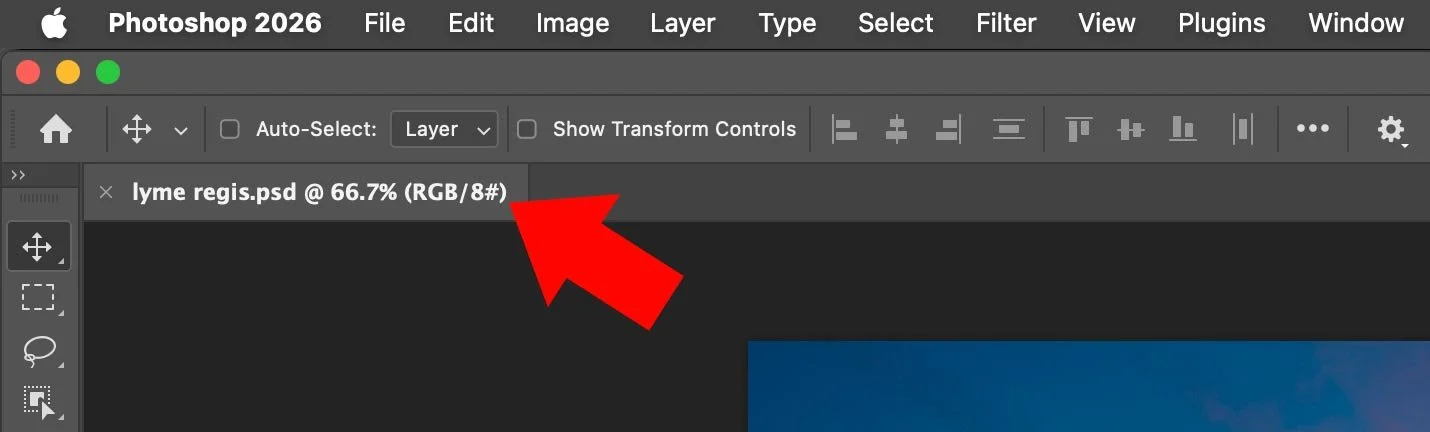
What it looks like: … (RGB/8#)
What it means: If you see the hash/pound/hashtag symbol inside the parentheses, it means the image is Untagged RGB. There's no embedded colour profile at all, so Photoshop has no explicit instructions telling it how those RGB numbers are supposed to be interpreted.
Why this happens: This is very common with:
Screenshots
Many web images
Older files where metadata was stripped out
When Photoshop opens an untagged image, it has to assume a profile based on your Colour Settings (typically your RGB working space, often sRGB by default), which may or may not match how the file was originally created.
Should you worry?
If colour accuracy is critical (printing, branding, matching other assets), yes, you should pay attention to that
#. Different assumptions about the profile can easily lead to differences in appearance between systems.You can fix this by going to Edit > Assign Profile and choosing the correct profile. For many web-style images, assigning sRGB is a sensible starting point, but be aware that assigning the wrong profile will change how the image looks, so use it when you have a good idea of the original intent.
Summary Cheat Sheet
(RGB/8) *
This document has unsaved changes
Save the file and the star will disappear
(RGB/8*)
There's a colour-profile difference or related colour-management status
Typically means the document's profile is not the same as your current working RGB space
(RGB/8#)
The image is Untagged RGB, with no embedded colour profile
Photoshop has to assume a profile based on your settings