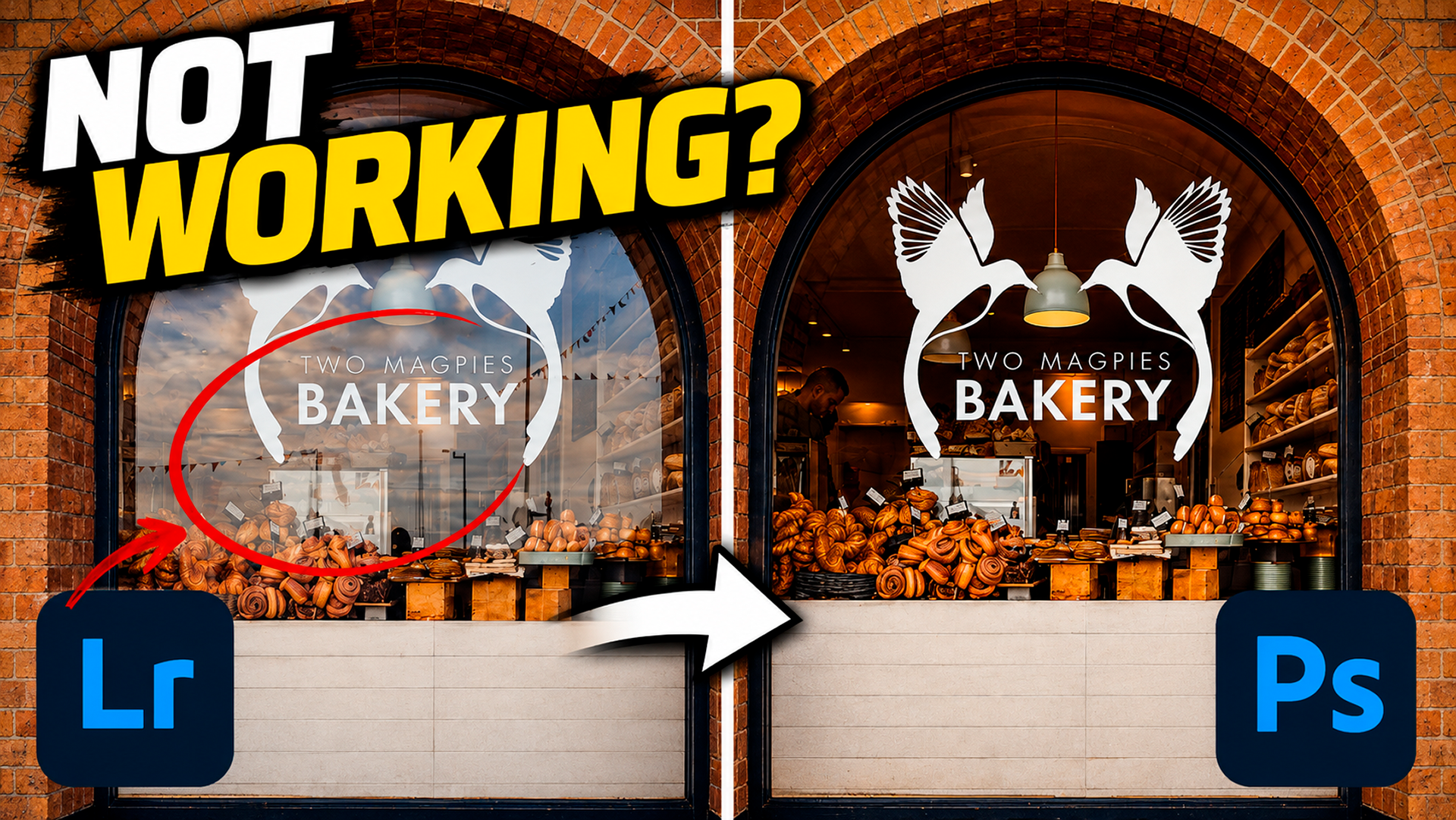
The Reflection Removal tool in Lightroom and Camera Raw is a brilliant addition, but it does have its limits at the moment, and that comes down to the way it's been designed. As things stand it's built for windows that are the dominant part of the picture, so if the glass you're working on is only a small part of the frame, you can hit apply, watch the bar do its thing, and end up with an image that looks exactly the same as it did before.
Someone in my photography community got in touch about this. He had a raw file of a cabinet indoors, he'd followed all the usual steps, and the reflections just wouldn’t shift.
However, there's a good reason for that, and there's a simple way round it.
Why it ignores some reflections
Reflection Removal sits under Distraction Removal, and right now it's looking for a big window; a properly dominant one, filling a good chunk of the frame.
Put it on a glass display case, or a pair of glasses, or a window that only takes up a modest part of the scene, and the algorithm often does nothing at all. It isn't broken; it just doesn't think there's anything there worth working on.
I'd expect that to change. These tools tend to get better quickly, and smaller areas will almost certainly be handled in time. For now though, we take a slightly different route.
The Photoshop route
Worth saying first, doing it in Camera Raw or Lightroom doesn't use any generative credits, which is one of the nicer things about it, but taking the file into Photoshop and using AI will use a credit, but you do get total control over what happens, and the result is clean.
It works like this.
open the image in Photoshop, which from Lightroom is a right click and Edit In > Adobe Photoshop
grab the Polygonal Lasso Tool, or whichever selection tool you get on with, and draw around the glass with the reflections in it
click Generative Fill on the Contextual Taskbar
in the model picker, choose Firefly Image 5
type in the prompt: remove the reflection from off the glass do not change the original content
hit Generate
That's it.
Firefly Image 5 is the part that matters here; it's designed to edit while holding on to the detail that's already in the file, so Photoshop isn't off inventing new objects and quietly swapping your subject for something it made up.
What comes back
Because it's a detail-preserving model, you get one result rather than the usual three variations to choose between.
The reflections go, and the things that were sitting behind the glass all along, book spines, shelves, whatever happens to be in there, come through properly. It looks very much like you'd screwed a polariser onto the front of the lens and dealt with it at the time of shooting, which is the bit I really like about it.