
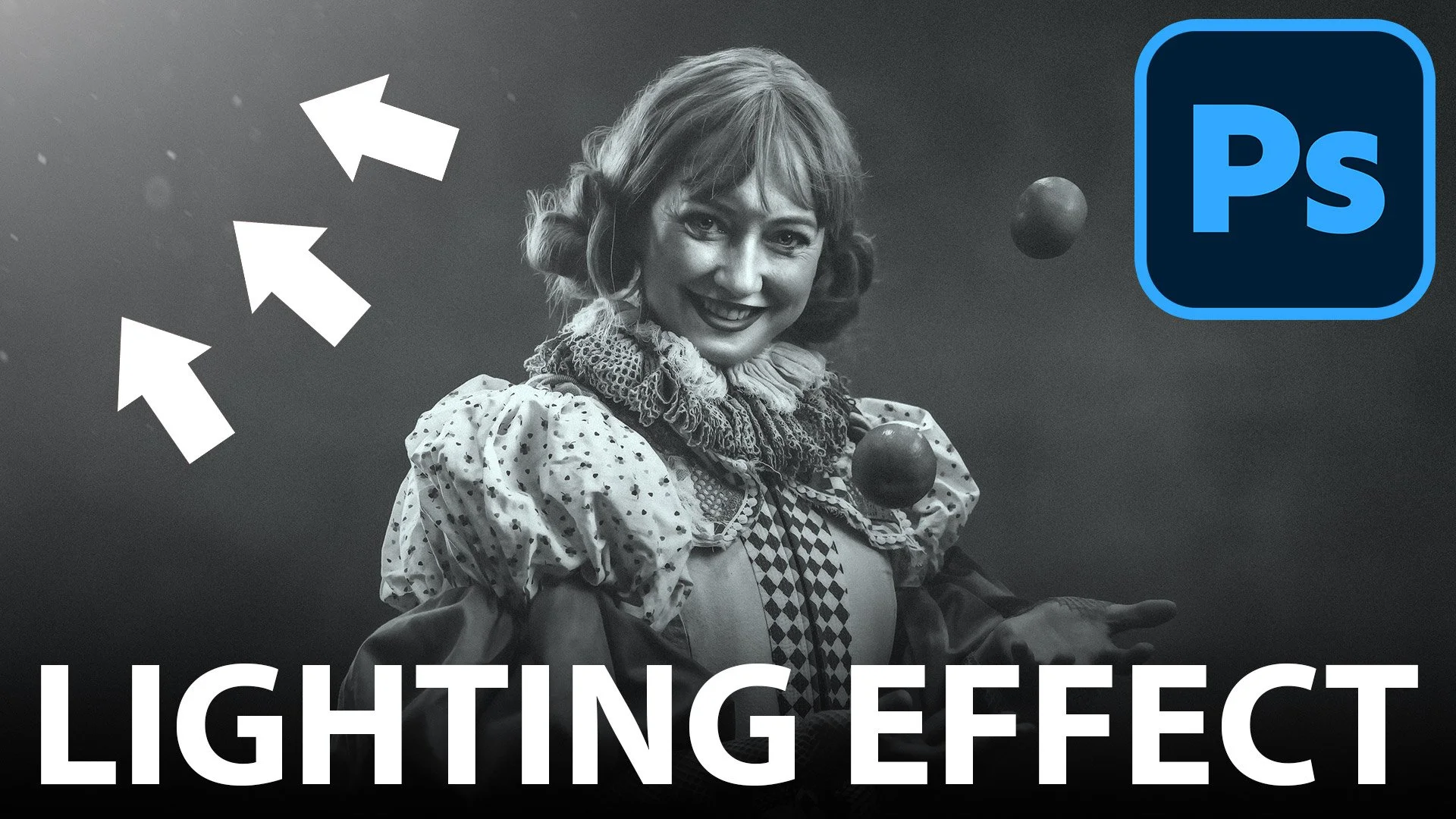
This is one of those techniques I absolutely love. Adding a lighting effect to a portrait can completely change the mood of an image, and it really doesn't take long once you know the steps. What I want to share here is an upgraded version of what I used to call the "world's simplest lighting effect," but this time with realistic floating dust and a bit of atmospheric depth thrown in.
The Secret to Realism: Highlights
Before you even open Photoshop, there's one thing you really need to look for in your original photo, and that's existing highlights. For a lighting effect to look convincing, your subject needs to already have highlights on the side where you're going to place the light source. If you're adding light coming down from the top left, for example, there need to be highlights there already. Without them, the effect just never looks right no matter how much you tweak it.
Step 1: Creating the Light Source
A common mistake I see is people grabbing a massive brush and clicking once. The trouble is that with a huge soft brush, the feathered edges often get clipped by the edge of the canvas, leaving a harsh, ugly line.
Here's a better approach. Create a new blank layer, then select a standard round soft brush from the toolbar with the hardness set to 0%. Set your foreground colour to white and click once in the middle of your image with a relatively small brush. Now go to Edit > Free Transform (Cmd/Ctrl + T), hold down Shift and Option on Mac or Alt on Windows, and drag a corner handle to scale that brush stroke up proportionally until it's nice and large. Then grab the Move tool and reposition the light into the corner so that only the soft, feathered edge spills into the frame.
Step 2: Adding the Atmospheric Dust
This is where you take the effect to the next level. Those tiny bits of dust and debris that become visible when caught in a beam of light make all the difference. I tend to use a texture that looks a bit like a photograph of rain at night, shot looking upwards and slightly out of focus.
To apply a dust overlay, place the image over your work and use Free Transform to scale it so it fills the whole image. If the layer is a Smart Object, right click it and choose Rasterize Layer. Then go to Image > Adjustments > Desaturate so the dust doesn't introduce any unwanted colour. Change the Blend Mode to Screen, which knocks out the black background and leaves only the bright dust particles. Finally, add a Layer Mask to the dust layer. Grab a soft brush with a black foreground colour and paint away the dust where you don't want it. Keep it concentrated near the light source and off the main parts of your subject.
Step 3: Adding Movement
Static dust can look a bit "stuck on," so adding a touch of motion blur makes a huge difference. Go to Filter > Blur > Motion Blur and adjust the angle so the blur follows the direction of the light beam, usually from top left down to bottom right. Keep the distance quite small. You just want a subtle sense of movement, as if the particles are caught in a gentle drift.
How to Create Your Own Dust Textures
If you haven't got a dust overlay to hand, you can actually use AI to generate one. Using a tool like Adobe Firefly or Google Gemini, try a prompt along the lines of "dark atmospheric bokeh background with falling rain or snow particles." I find that asking for a 4x3 aspect ratio works well for most portraits.
I hope you find this upgraded technique useful for your own retouching. It's a quick way to add a lot of drama and production value to your images without needing any kind of complex setup.