
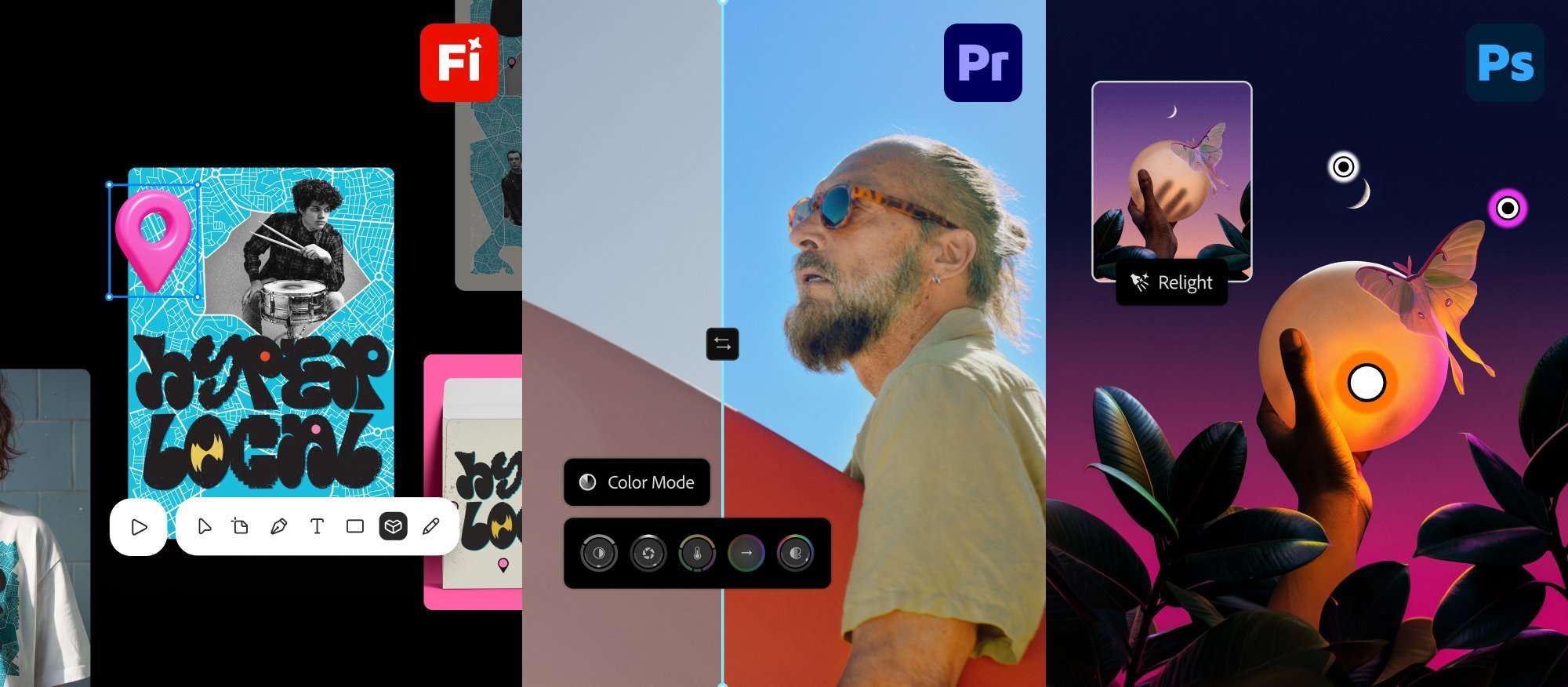
Adobe MAX opened in Miami Beach on the 10th November 2026, and as usual it came with a big round of updates across the Creative Cloud apps. The conference runs from the 10th to the 12th November, with the keynotes and Sneaks streamed online at max.adobe.com. I’m going to leave Premiere, Illustrator and the rest to one side here and focus purely on Photoshop and Lightroom. The good news is that most of what was announced is available now in the November updates, although a few of the more experimental AI features, including the conversational Photoshop AI Assistant and the local MCP integrations, are still in beta or preview, so I’ll flag those as I go.
Photoshop 28.0
The new version is Photoshop 28.0, which Adobe also refers to as the November 2026 release, and it runs on Windows 10 or later and macOS 15 or later.
Relight is the one getting the most attention, and it’s easy to see why. It uses generative AI to change the lighting in a photo after it’s been taken; you can add up to three virtual light sources and control the position, colour and size of each one, and every light sits on its own layer so you can come back and refine it later without touching the original. It spent time in the Photoshop beta first, where it cost 30 generative credits each time you committed the result, so it’s worth keeping an eye on your credit balance.
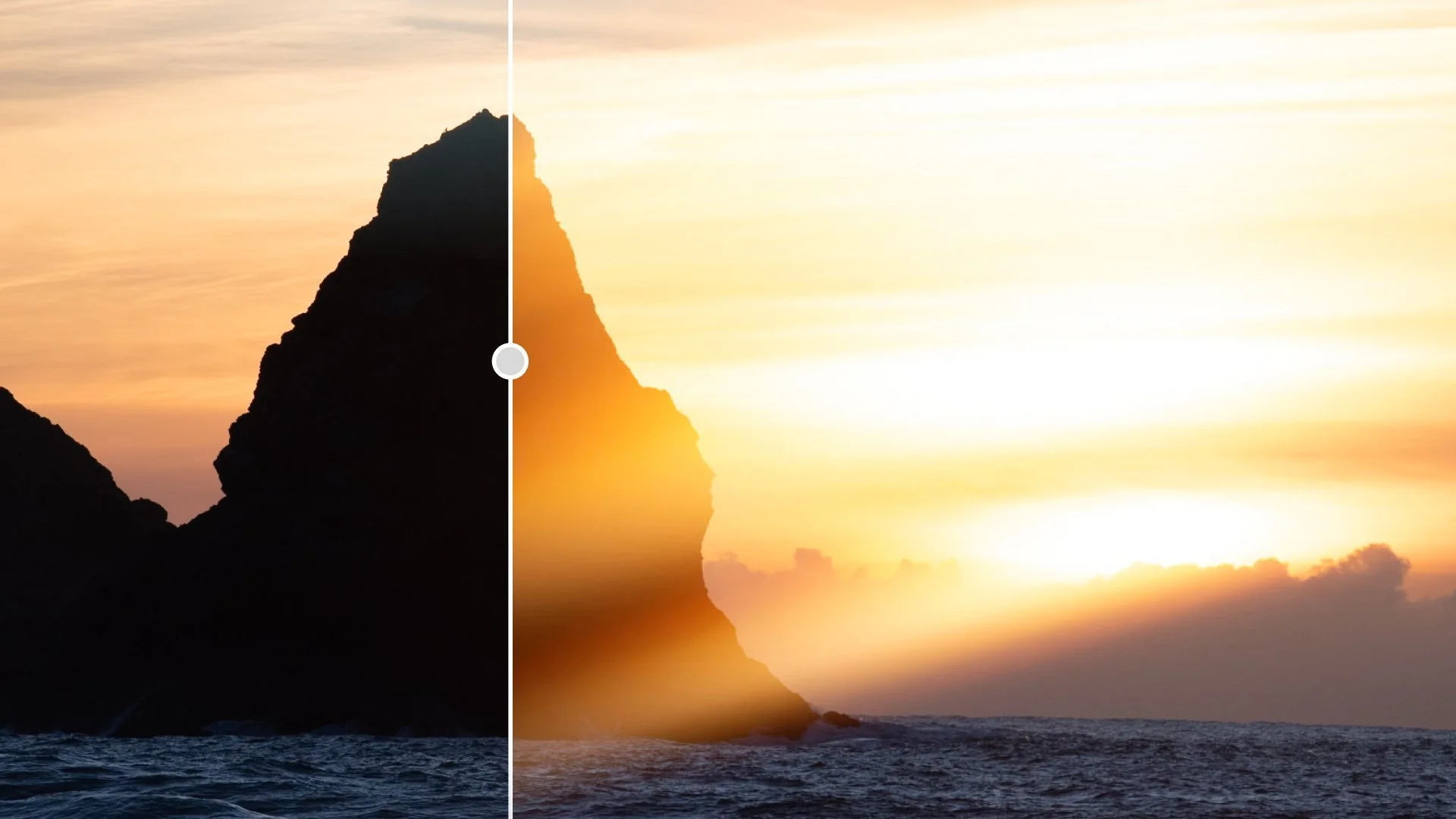
Generative Restyle works hand in hand with Prompt to Edit. You describe the change you’re after, convert the result to a layer, and Photoshop generates a custom slider so you can fine-tune the strength of the effect without having to prompt again. Adobe’s demo reportedly took a midday landscape and turned it into a golden hour scene with a pastel sunset, which gives you an idea of the kind of thing it’s aimed at.
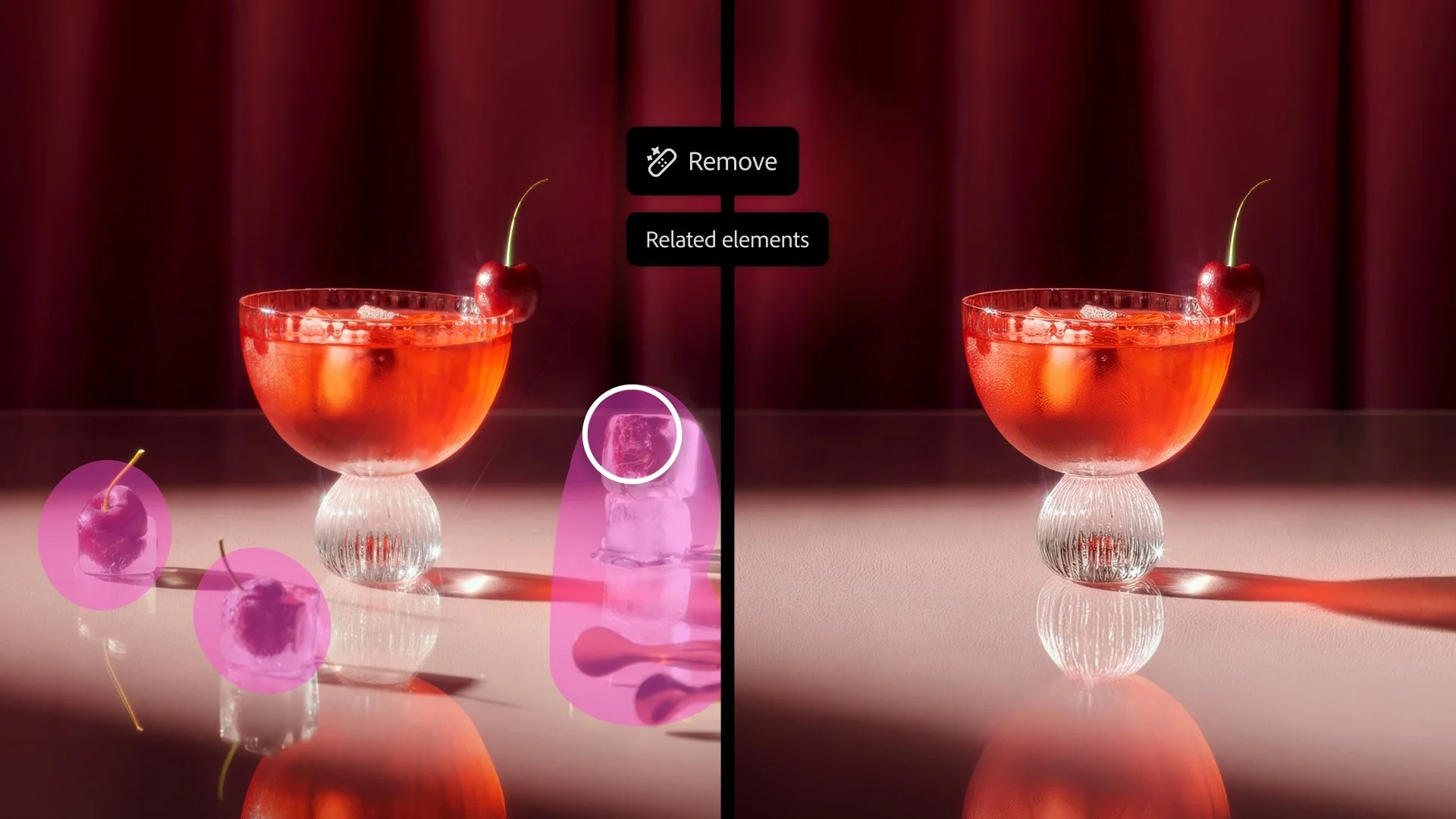
The Remove Tool has had a really useful upgrade with a new related elements option. When you take an object out of a scene, Photoshop now looks for the things connected to it, such as footprints, reflections, shadows and waves, and reconstructs the area more convincingly. That includes the ripples left behind in water, which should save a fair bit of tidying up afterwards.
Quick Compare is one of those small additions that’s likely to get used every single day. It gives you an on-canvas split screen with a slider so you can see the before and after of your edit without manually hiding layers; it’s essentially the before and after view Lightroom users already know, brought into Photoshop.
For anyone who prints, Generative Upscale has moved to a new Firefly Upscaler 2 model, which Adobe says does a better job of holding on to faces and fine detail when you’re enlarging images for print.
The AI Assisted Editor, first introduced in August, has moved out of public beta and into the main app. It’s an optional, simplified way of working built around prompts and the tools people reach for most, such as object removal, Generative Fill and upscaling, and you can switch back to the regular Pro Editor whenever you need full control.
There are some quieter improvements too. Large PSD and PSB files should open and save noticeably faster thanks to multi-threaded reading and smarter saving, and there’s new free access that lets people download Photoshop and sign in with just an email address to try it before subscribing. Adobe and Microsoft are also bringing an optimised version of Photoshop to Windows laptops with Arm-based processors.
If you like to try things early, the Photoshop beta app has a whole batch of new features. Mockups lets you composite an image or design onto an object or surface realistically, Camera Angles explores new viewpoints of an image, Generative Recompose shifts an image into a new aspect ratio while keeping the composition intact, Convert to Text Layers turns text in a flattened image into editable type, Timelapse records your creative process, and Remove Ambient Effect Only takes out things like lens flare, haze and stray reflections without removing any objects.
Finally on the Photoshop side, the AI Assistant on the desktop is still in beta. Adobe also previewed MCP integrations, which will let an AI agent you already use work directly in your Photoshop files while keeping your layers editable; that’s not something you can use yet, as it’s coming to Creative Cloud customers in early 2027.
Lightroom Classic 16.0, Lightroom 10.0 and Lightroom Mobile 12.0
This is the annual major version update for Lightroom, and it’s a big one, with Lightroom Classic 16.0 shipping alongside Camera Raw 19.0. For a while now features have been landing in Camera Raw before Lightroom Classic, and this release closes a lot of those gaps, which will please plenty of Classic users.
New across Lightroom
Glow is the new creative effect, and it first appeared in Camera Raw back in August. It adds diffusion filter and film-style light effects, with five styles to choose from: Bloom, Diffusion, Halation, Motion and Streak, with Motion and Streak also getting Direction and Softness sliders. You can apply it to the whole image or through a mask; however, the style, range, spread and warmth settings are shared, so it’s only the amount you can change from mask to mask. Lightroom Classic also gets six Glow presets, and Glow is in Classic, Lightroom on the desktop, and Lightroom on iPhone, iPad and Android.
The Vectorscope will be familiar to anyone who grades video. It plots the colour in your image on a wheel, with hue shown by position around the circle and saturation by distance from the centre, and there’s a skin tone line for checking faces. In Classic it lives in the Histogram panel (right-click the Histogram) and can preview in Adobe RGB or sRGB, while in Lightroom on the desktop you’ll find it in the right-hand toolstrip.
Depth Range masking now works on any photo. Previously it relied on files with embedded depth data, the kind iPhones save in Portrait mode, so it sat unused by most people shooting mirrorless or DSLR cameras. Lightroom now generates its own depth map using the same AI model as Lens Blur, so you can select the foreground, middle ground or background of an ordinary photo, although Adobe does point out that depth data captured by the device is usually more accurate.
Colour Grading now works inside masks too, so you can warm up just the subject or cool down just the sky using the shadows, midtones and highlights wheels.
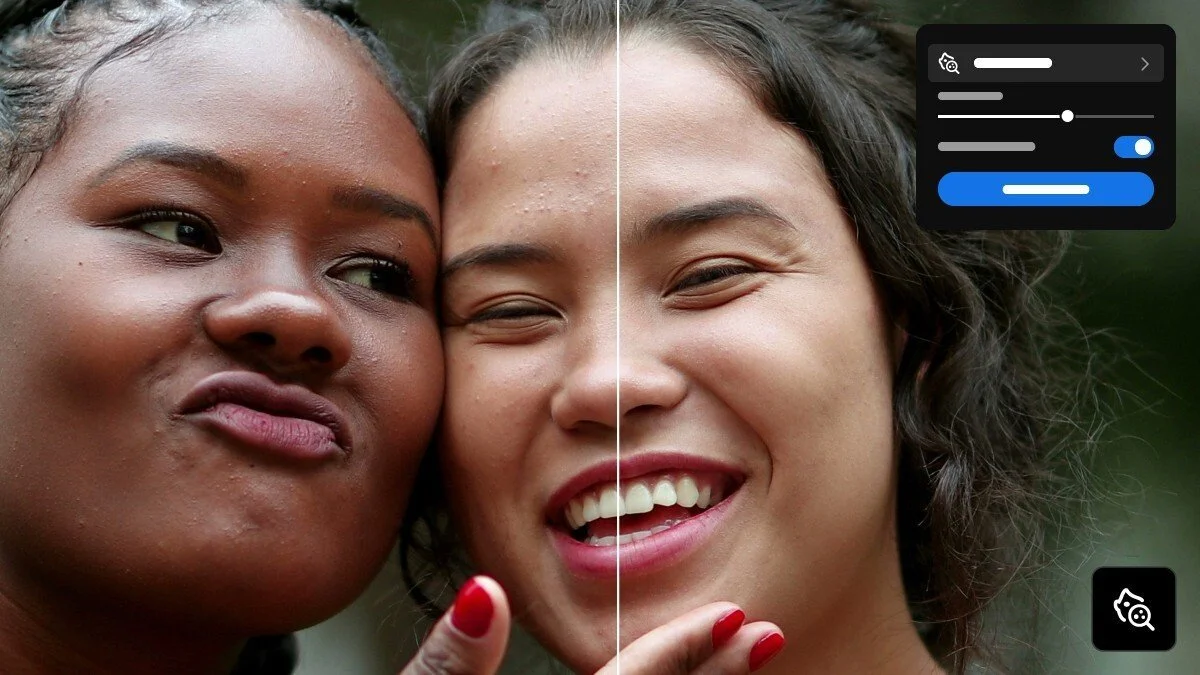
AI Blemish Removal has come across from mobile to the desktop. It detects and removes blemishes with separate sliders for temporary marks and for natural ones such as moles and freckles, there are Remove and Restore brushes for refining the result, and you can adjust individual faces in a group shot separately. The idea is that you retouch in one go and then fine-tune, while keeping natural skin features like freckles.
Two smaller additions are worth knowing about. A new Projection slider reduces the stretching at the edges of wide-angle shots, which is especially noticeable on faces in group photos and selfies, and the Temp slider now goes down to 1500K on raw files and -150 on non-raw files.
Lightroom Classic only
Classic gets a handful of things of its own, and the autofocus point overlay is the one I expect a lot of people will be pleased about. Right-click in Loupe view and choose Show Autofocus Points to see where the camera locked focus on supported Canon, Nikon and Sony raw files, in both the Library and Develop modules. It reads this from the file’s metadata, so it shows you where the focus point was rather than whether the image is actually sharp.
The import filter bar has been redesigned so you can filter by file type, in-camera ratings, colour labels or protected status, and the same filters are available in Assisted Culling. You can now clear your edit history across multiple photos, folders or collections, either manually or on a schedule, to shrink the catalogue while leaving every photo looking exactly as it did. The Masking panel can be rearranged too, with your most-used sliders added to Favourites. The People and Landscape masks get Check All and Check None options, and Classic adds official tether support for a number of older Canon, Leica and Sony cameras.
Lightroom on the desktop, iPad and Mobile
The big one for the cloud-based Lightroom is tethered shooting. It arrives in Lightroom on the desktop and on iPad for the first time, supporting Canon, Nikon, Sony and Fujifilm cameras, with Live View, overlays, multiple connected cameras and presets and keywords applied automatically as the images come in; it also works in Local mode.
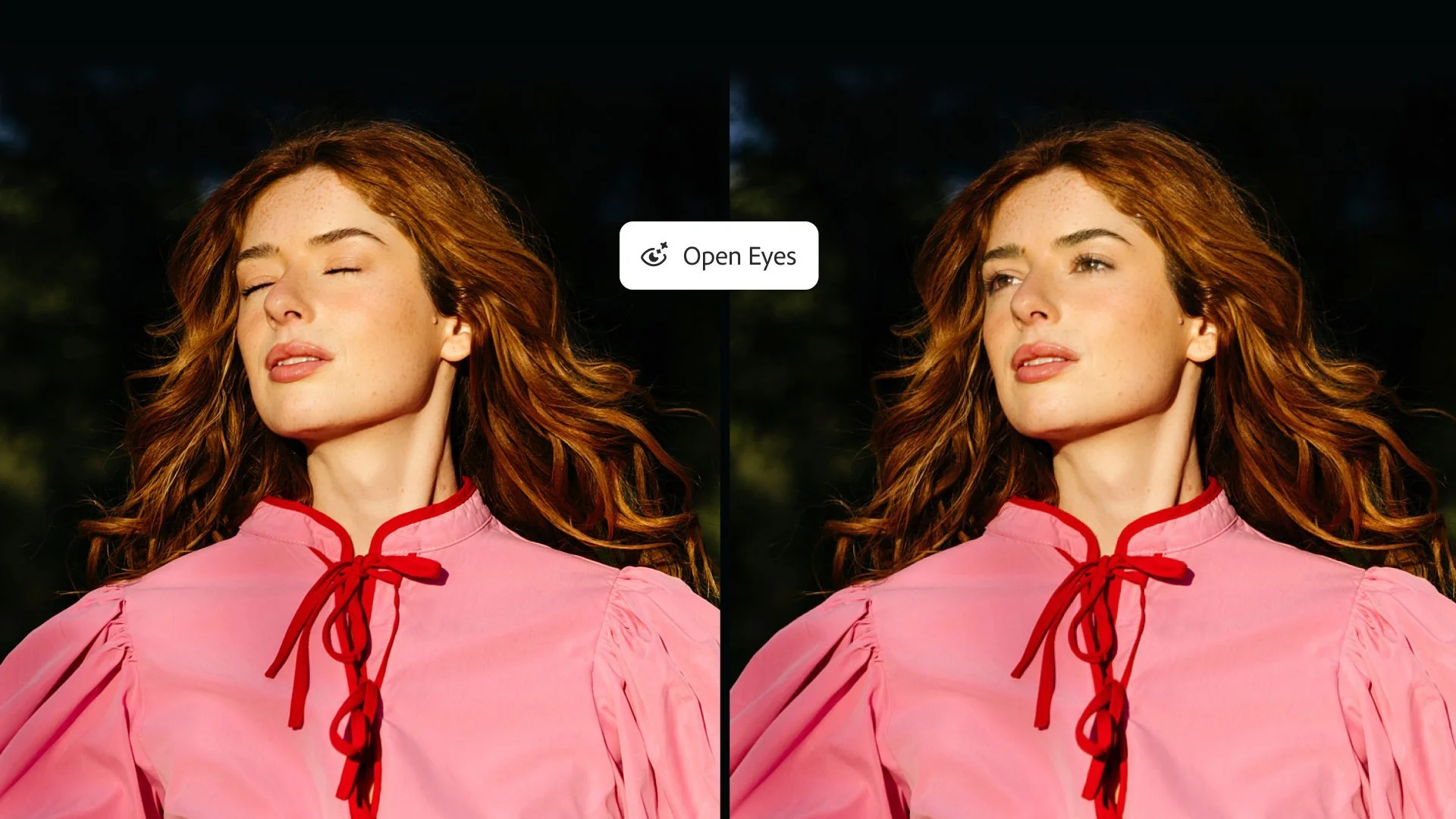
Open Eyes is here as well. It arrived in Lightroom on mobile in October as a Quick Action that appears when Lightroom spots closed eyes in a photo, and it’s now in Lightroom on the desktop as an Early Access feature, using other photos of the same person as a reference. It uses generative credits, saves the result as a new DNG, and isn’t available in Lightroom Classic. You can pick the reference photo yourself or let Open Eyes find one for you.
Lightroom on the desktop also gets a Survey view for comparing a selection of photos side by side, a customisable workspace with Default, Advanced and Classic layouts and Dark, Light and Dusk themes, a Favourites panel you can import and export, support for Lightroom Classic keyboard shortcuts, and named versions in Local mode. On mobile, version 12.0 brings people masking to the iPad, a new Home screen on iPhone and Android, and a tech preview of an AI Assistant.
Before you update
Lightroom Classic 16.0 and Lightroom 10.0 need macOS 15 Sequoia or later, as support for macOS 14 Sonoma has been dropped, so check that before you hit update. Adobe says this version of Classic installs without needing a catalogue upgrade, but they still recommend backing up your catalogue first, which is good advice whichever version you’re moving to.
Images: Adobe