I’ve very recently started getting into wildlife photography, as something different to do when I’m not taking portraits, and over the past week or so I’ve been out as much as I can photographing birds at a local reservoir and wetlands.
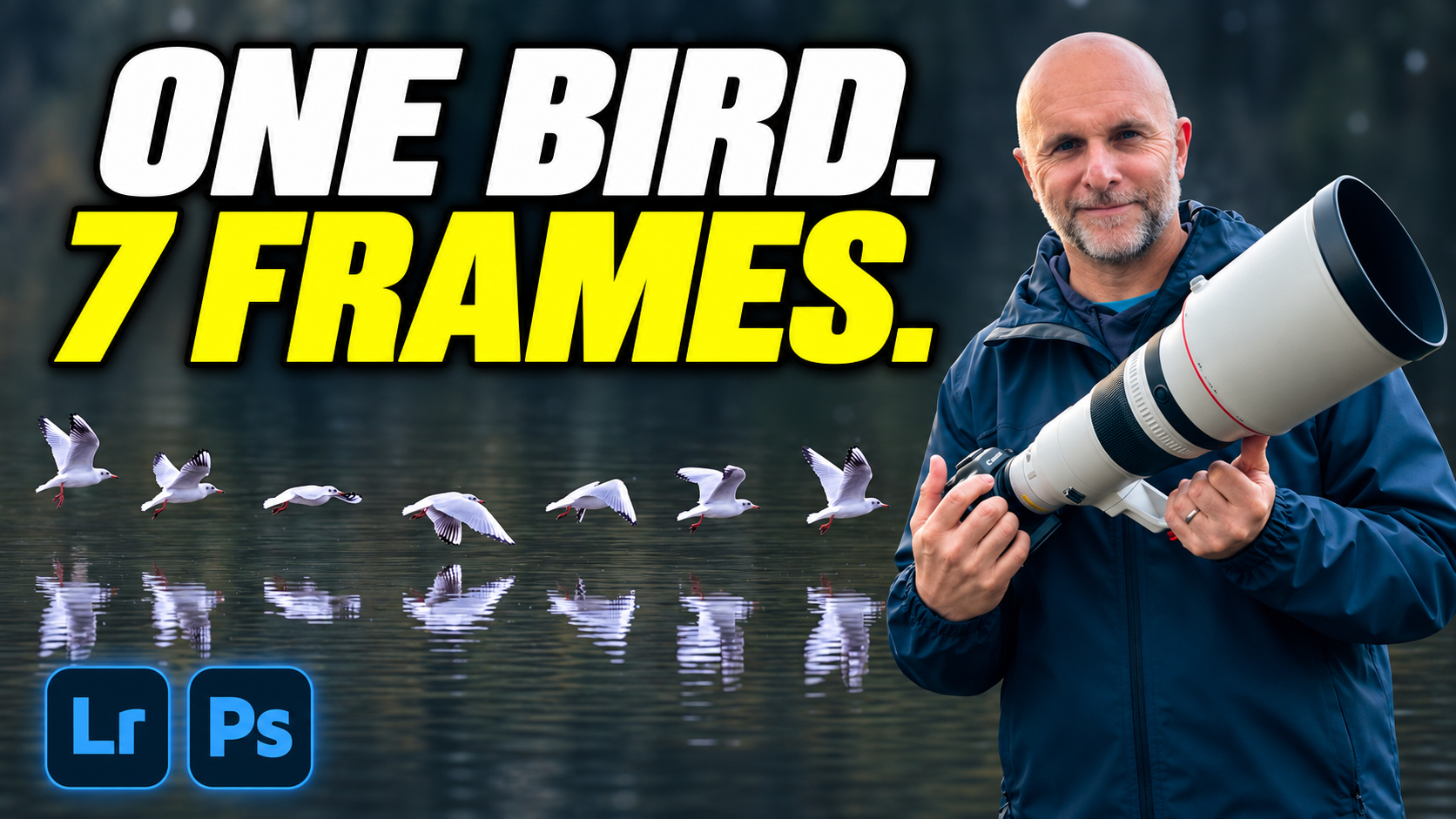
From one of the first shoots I put together a composite of a black-headed gull flying across the water; it’s the same bird at seven stages of its flight, brought together into one image in Photoshop. Since sharing it I’ve been asked a few times how I made it, so this is how.
The kit, and why one frame was never going to do it
The gull was photographed on my Canon EOS R5 Mark II with the Canon EF 400mm f/2.8L IS III, which is so good; razor sharp and super fast. Zoom into any of the frames and the detail on the bird is unbelievable.
None of this could have been done in one shot. As the gull flew across the water I panned the camera to my right to follow it, keeping the bird in the middle of the frame the whole time, and you can see that in the water if you flick through the frames, because the ripples all run the way I was panning. Every frame has the gull sat bang in the centre, so the job in Photoshop is cutting each one out and spreading them across the picture.
Getting organised in Lightroom first
I picked out the seven frames I wanted and, before anything else, renamed them Gull 1 through to Gull 7. I highlighted all seven, right-clicked and chose Rename 7 Photos, then picked Custom Name and Sequence from the dropdown, gave it a name, set the starting number to 1 and clicked Apply.
It’s a small thing, but when you’re dipping in and out of Lightroom it means you can see straight away which frame you need next.
I didn’t do any editing in Lightroom at all; Gull 1 went straight over to Photoshop with File > Edit In > Edit in Photoshop.
The first gull
Gull 1 ends up on the far left of the composite, with the others running across to the right, so the bird needs moving out of the middle of the frame.
It works like this. Grab the Object Selection tool, click on the bird and Photoshop makes a selection of it. The reflection in the water needs to come along too, so hold Shift and drag a box over it to add it to the selection, and it picked that up really well.
Now expand the selection a touch with Select > Modify > Expand; 5 pixels is plenty. You’ll see the selection jump outwards when you click OK, and that’s what you want, because it means there won’t be a faint outline or a few stray bits left behind once the bird’s been moved and the original removed.
Command+J (Ctrl+J on Windows) then puts the bird and its reflection on a layer of their own.
Removing the original, without AI
The original bird on the background layer still needs to go. There are lots of ways to do it, but I wanted to do this one without AI, so I used good old Content-Aware Fill.
Hold Command and click the cutout layer’s thumbnail to load the selection back in, make sure the background layer is the active one, then go to Edit > Content-Aware Fill. The green overlay is the area Photoshop is sampling from, and if you want it to consider more of the water you can add to it with the plus brush; I gave it a bit more above the bird. Set the output to Current Layer, click OK and deselect.
The bird’s gone, and it’s done a really good job of it without any AI at all.
With the cutout layer selected, hold Shift and drag it over to the left. Shift keeps it on the same horizontal line, so the bird stays at exactly the same height above the water and looks as though it was always in that part of the picture.
The other six
These are quicker, because from each of them I only need the bird and not the background.
Gull 2 goes over to Photoshop, Object Selection tool on the bird, Shift and drag to add the reflection, expand by 5 pixels and Command+J. Drag that layer across into the composite with Shift held down and it drops in at the same height it was in the original frame, so all that’s left is sliding it into position. Close the frame without saving and on to the next one.
You can send all seven frames over to Photoshop in one go and have them open as tabs, but that feels a bit messy to me, so I did them one at a time.
Making room with Content-Aware Scale
With all seven gulls in, it was looking pretty cramped, so the picture needed to be wider.
Generative Expand would do that these days, but you get a lower resolution result, and it’s easy to forget there’s technology in Photoshop we’ve had for years that’ll do it at the original resolution. In this case that’s Content-Aware Scale.
Unlock the background layer first, then use the Crop tool to drag the canvas out wider and give the birds a bit more breathing space, with the fill option in the options bar set to transparent. The birds are all on their own layers and don’t get touched; it’s only the background layer, the water, that gets stretched.
With the background layer active, go to Edit > Content-Aware Scale, hold Option (Alt on Windows) and drag the middle handle on the left side outwards. Holding Option stretches the right side by the same amount, so both sides fill in equally.
Photoshop is stretching what’s already there as you drag, but not to the point where you’d really notice. Zoom into the ripples afterwards and they look perfect, and because there’s no generative fill involved, it’s still the original resolution of the image.
Spacing them evenly with guides
The last job is spacing the birds evenly across the width. You could do it by eye, but guides make it much easier.
Go to View > Guides > New Guide Layout, ignore the rows, set Columns to 8 and the gutter to 0. That gives you seven guides across the image plus the ones on the outer edges, so there’s one for each gull. Drag each bird onto its guide, then clear them with View > Guides > Clear Canvas Guides.
That’s it, and the seven gulls are now spread evenly across the water.
You could carry on from there and darken the water down so the birds stand out a bit more, but the composite itself is done, and none of it needed the latest AI features; Content-Aware Fill and Content-Aware Scale have been in Photoshop for years, and they’re more than capable.