A question landed in my inbox this week that I keep getting in one form or another; someone asking about screen calibration and wondering which Calibrite device was best for them.
They've got an M4 Pro MacBook Pro and a BenQ PD2500Q, and they'd noticed that Apple has only approved the Display Plus HL for its own built-in calibration, not the Display Pro HL that I use. Was that right, and does it actually matter?
Yes, they're right, but for that kind of setup it usually doesn't matter. The right device depends less on the brand and more on the screen in front of you.
Why calibrate at all?
Every screen, even a good one, drifts over time. If the display is too bright your prints will come out too dark, and if the colour is off you'll sit there correcting things that were never wrong in the file. That's it.
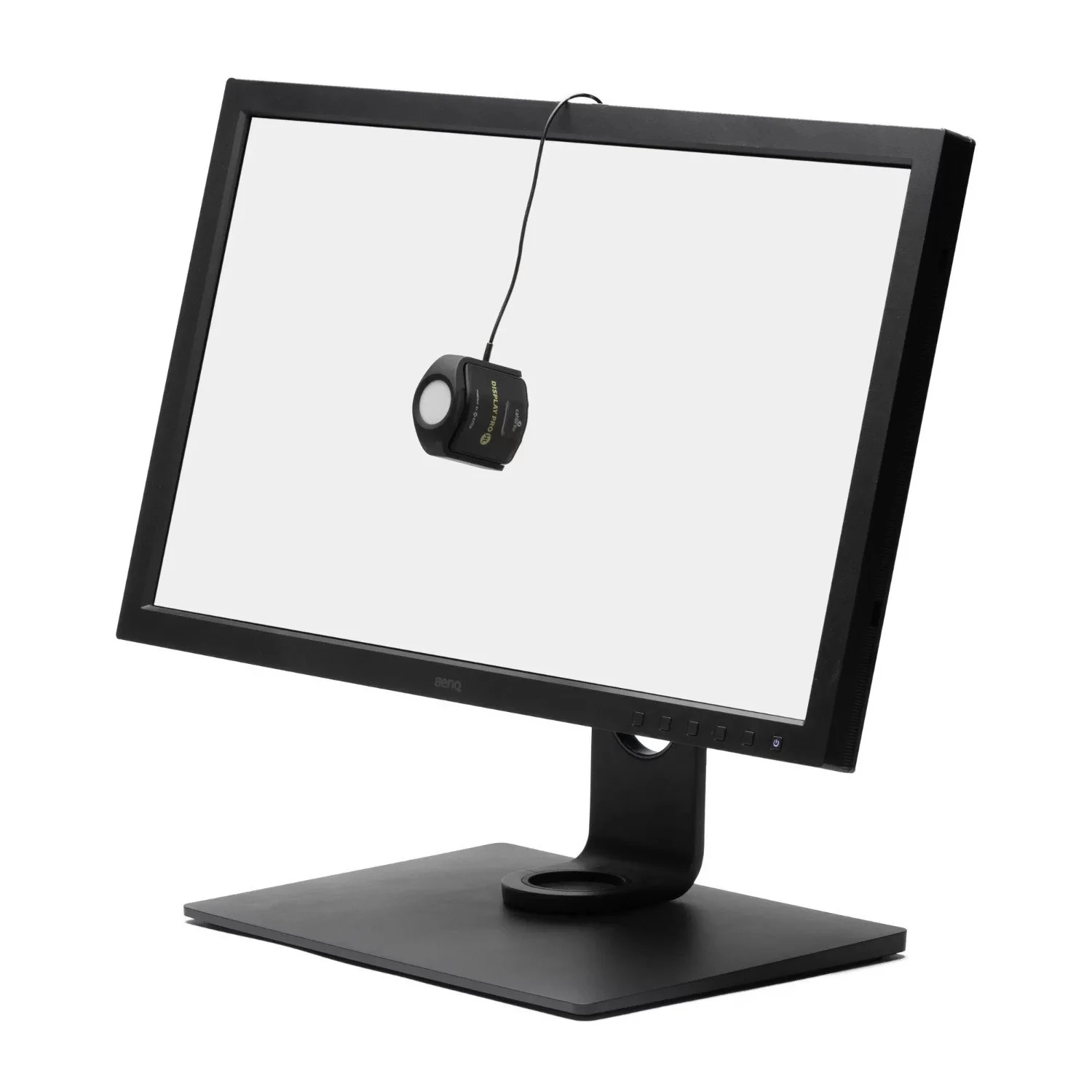
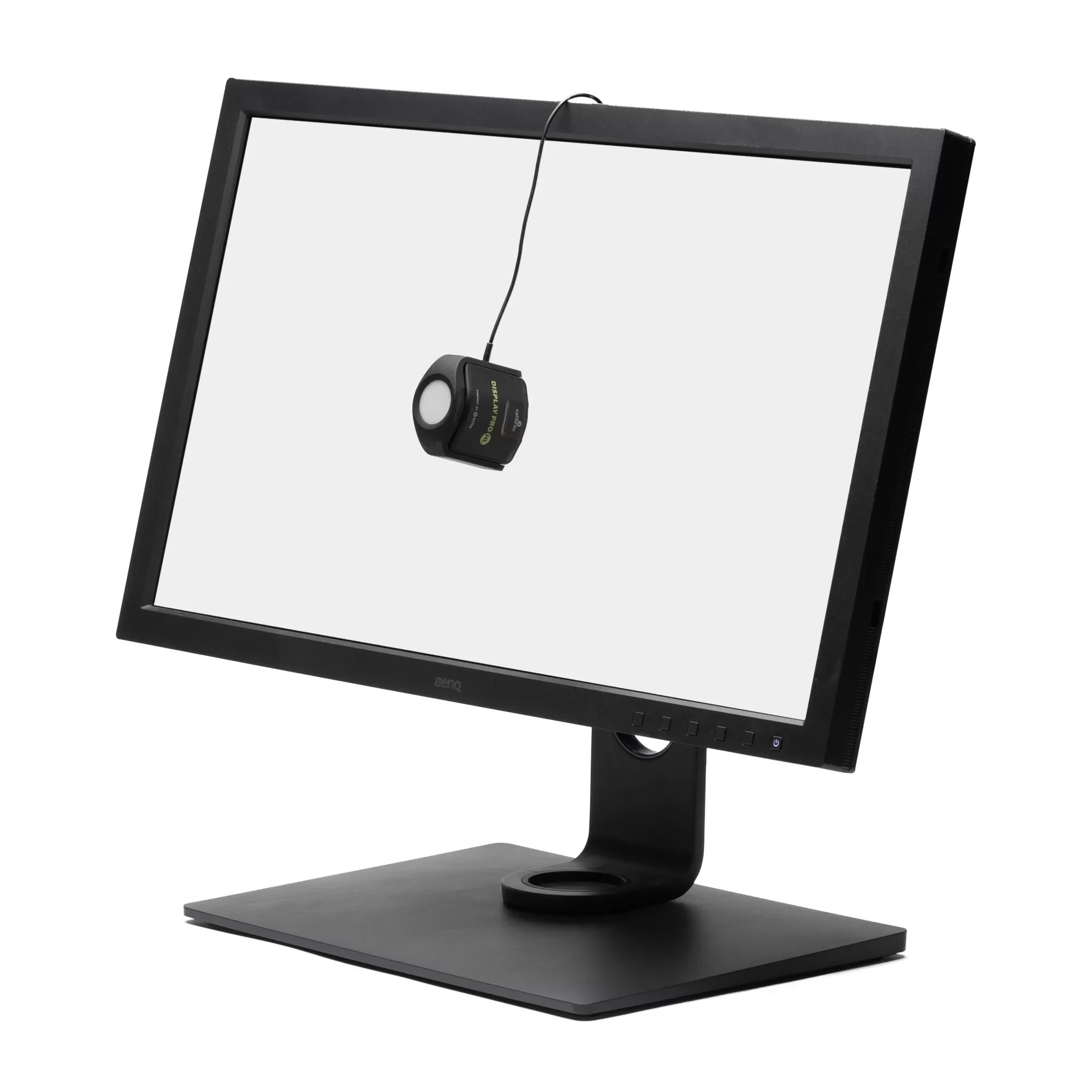
A calibration device measures what the screen is actually doing and builds a profile, so what you see is a trustworthy version of the image. How that profile gets written isn't the same on every monitor though, and that's where people get caught out.
The short answer
Apple's Full Calibration, in the Pro Display Calibrator that arrived with macOS Tahoe 26.4, only supports one consumer device: the Calibrite Display Plus HL. The other instruments on Apple's list are lab spectroradiometers from Photo Research and Colorimetry Research. It works on the Studio Display, Studio Display XDR, Pro Display XDR, and the 14-inch and 16-inch MacBook Pro from 2021 onwards, and it writes the correction into the display hardware itself.
The Display Pro HL isn't on that list. It still profiles those same kinds of screen, including Mini LED and Apple XDR panels, through Calibrite's own PROFILER software, which creates a normal ICC profile, and for a standard IPS monitor like the PD2500Q that's all you need. I use the Pro HL myself, on a BenQ PD3220U. [CHECK: is the PD3220U right? Your gear page lists the SW272U and the PD2770U]
Buy the Plus HL if you want Apple's hardware calibration, or you work on very bright HDR, Mini LED or OLED displays and want the extra measuring range.
Calibrite
Calibrite took on the old X-Rite photographer line, so if you remember the i1Display Pro, this is the current family.
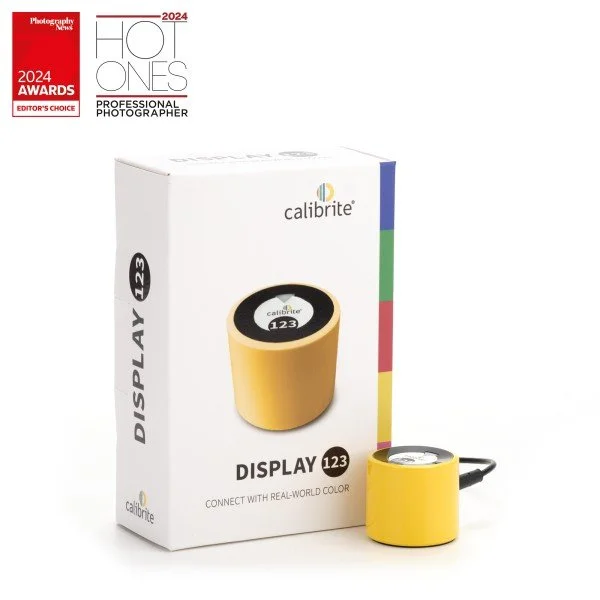
The Display 123 is the simple one. It measures up to 1,000 nits, supports two monitors, and the software pretty much asks you to pick Native or Photo brightness and get on with it. It's fine as an easy first calibrator for a standard screen, but it isn't listed for Mini LED, OLED, BenQ or EIZO hardware calibration, or Apple's own calibrator.
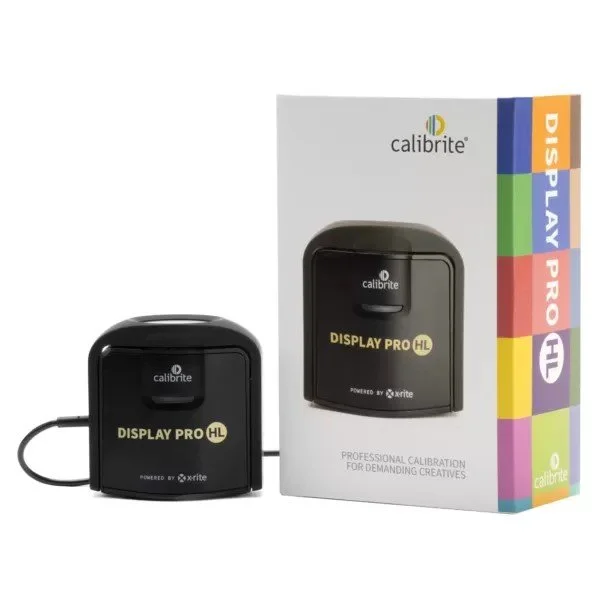
The Display Pro HL is the one I use, and for most photographers it's the sensible place to land. It measures up to 3,000 nits, and Calibrite rates it for LCD, Mini LED, OLED and Apple XDR panels. You do get the full PROFILER software, so you can set white point, luminance, contrast and gamma, run a uniformity check, and profile a projector if you need to.
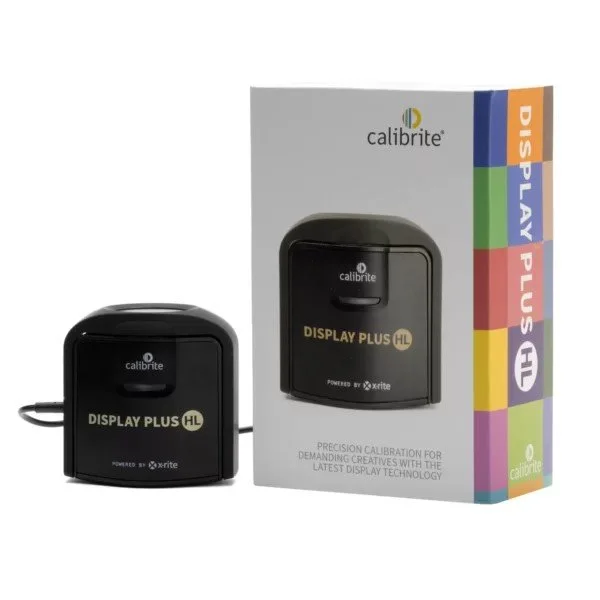
The Display Plus HL goes up to 10,000 nits and is also specified for QD-OLED. It's the only colorimeter Apple has approved for Full Calibration, so if that hardware path matters to you, this is the one.
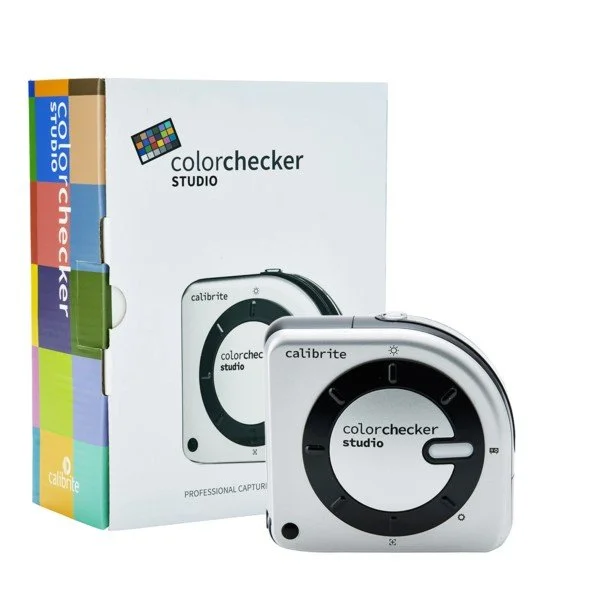
The ColorChecker Studio is a spectrophotometer, not a colorimeter. It can profile printers (RGB and CMYK), cameras and scanners as well as monitors and projectors, but on the display side it only measures up to 1,000 nits, so it's aimed at ordinary monitors rather than very bright HDR panels.
There's also an older Display SL, a 1,000-nit standard-luminance model, in the wider Calibrite range. It wasn't in the UK catalogue when I looked, so I wouldn't treat it as a current UK buy.
Datacolor Spyder
Datacolor's current range is SpyderExpress, Spyder and SpyderPro. None of them is on Apple's Full Calibration list.
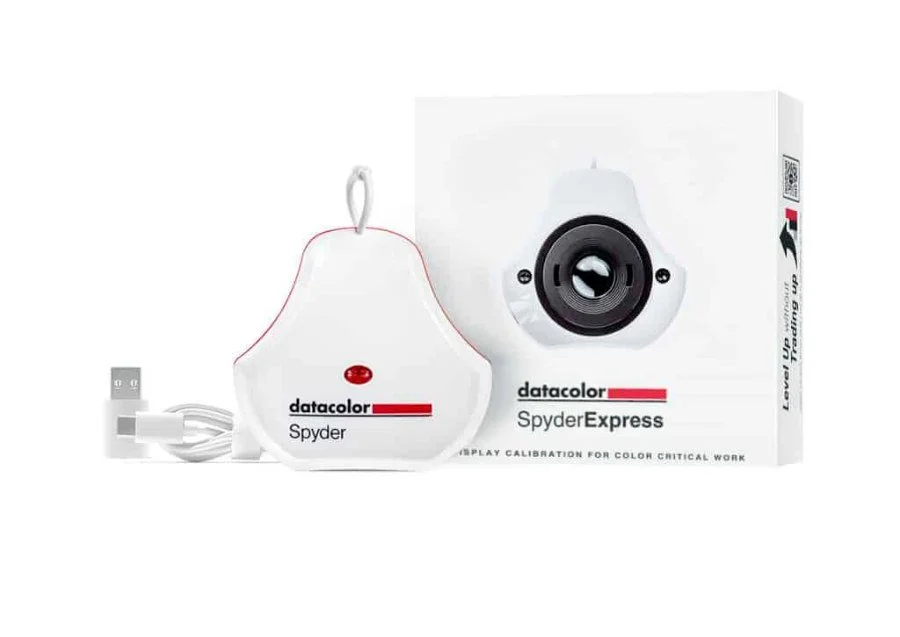
The SpyderExpress measures up to 1,200 nits. Datacolor's own comparison lists it for standard monitors, laptops and Apple XDR, but not for Mini LED, OLED or QD-OLED.
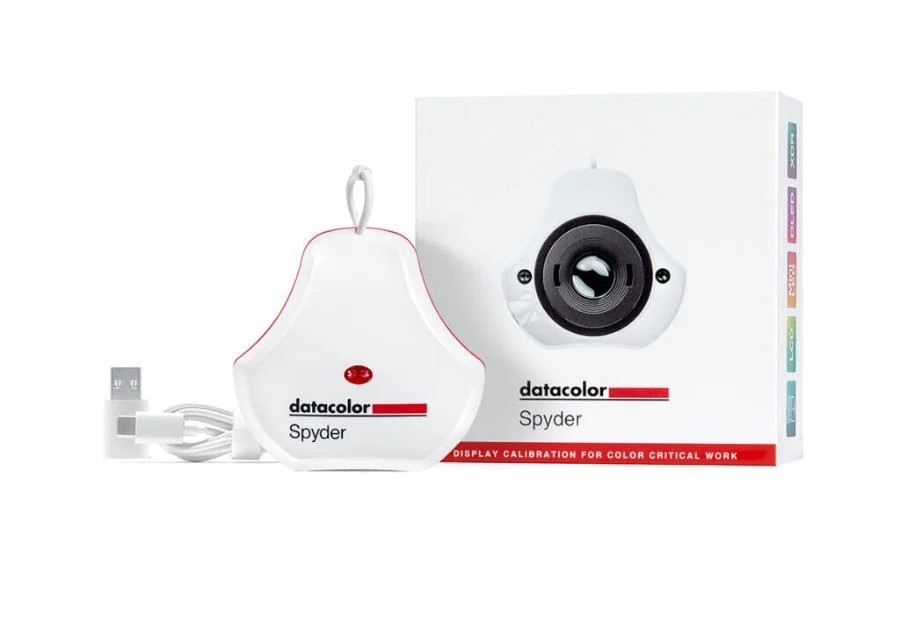
Those start at the mid-range Spyder, which goes up to 3,000 nits and can also measure and adjust for the light in the room.
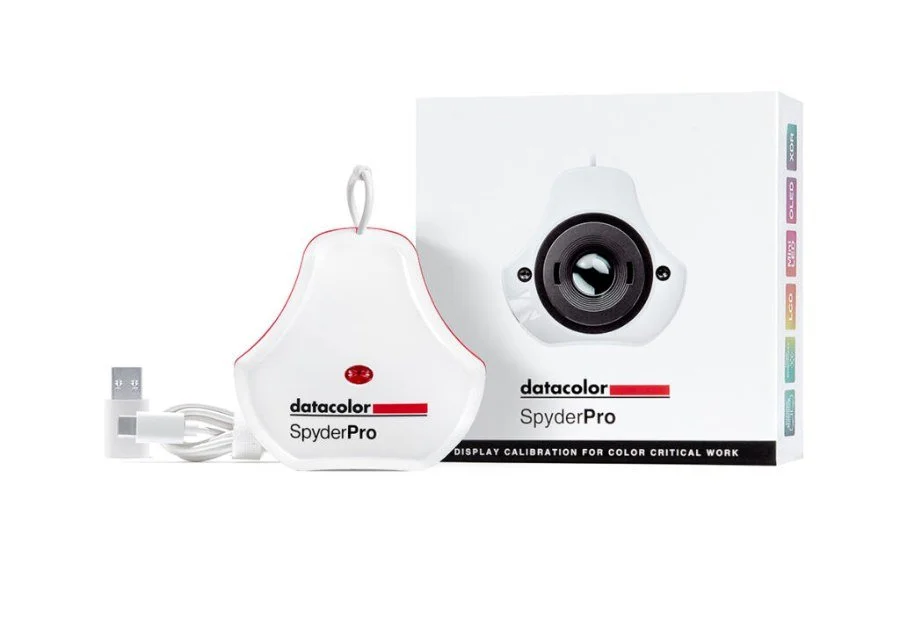
The SpyderPro is the video-minded one. It measures up to 12,000 nits, has a deeper calibration mode, and can export a 3D LUT.
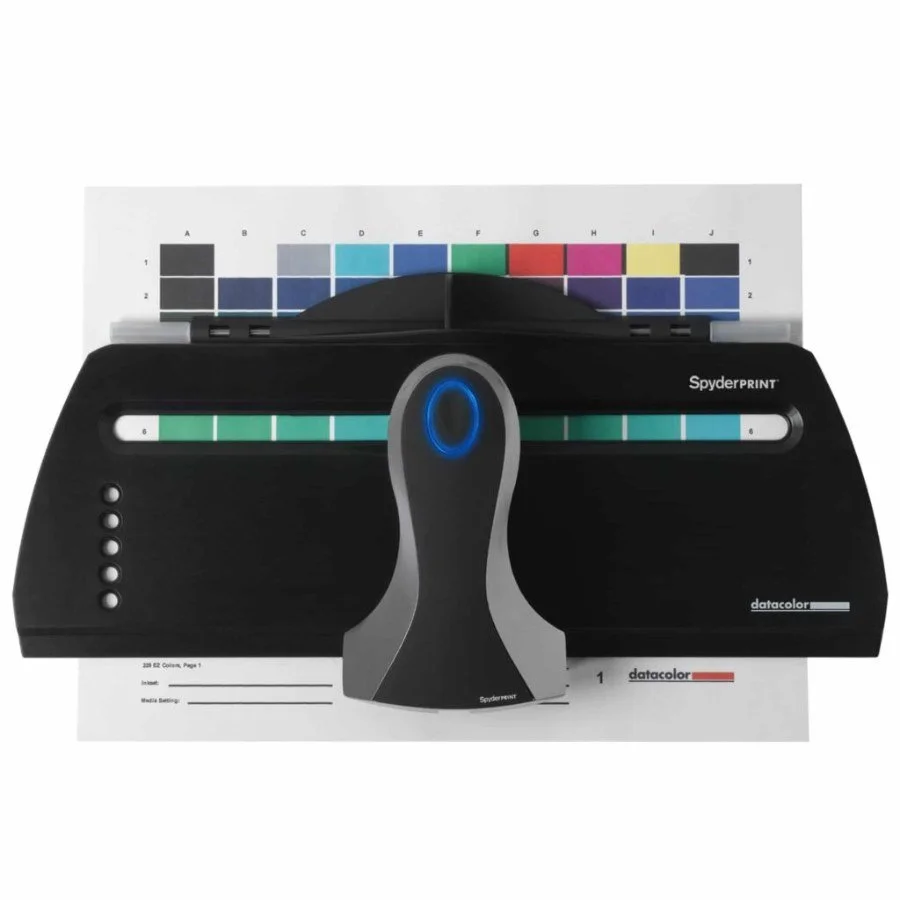
Spyder Print is still sold if you want custom printer profiles from the Datacolor side. It's a separate device for building ICC profiles for a given printer, ink and paper, and it doesn't replace a display calibrator.
BenQ, and hardware calibration
BenQ is the brand I use myself, and this is the bit that catches people out, because not every BenQ behaves the same way.
BenQ's current software is AQCOLOR Pilot, which has taken over from Palette Master Ultimate. On the SW series, and on the PD2770U, it can do hardware calibration; the correction is written into the monitor, not just sat on top as a profile in the computer. Most of the current PD series only get software calibration through that same application.
The devices BenQ lists for the PD series are the Calibrite Display Pro HL and Display Plus HL, the older X-Rite i1Display Pro and Pro Plus, and Datacolor's Spyder X, Spyder X2 and Spyder Pro. The Display 123 and SpyderExpress aren't on that list.
The PD2500Q, and the PD3220U I use, aren't on the current compatible monitor list at all. [CHECK: PD3220U, as above] For those, you just use Calibrite PROFILER, or the Spyder software, and let it build a normal ICC profile. Nothing to worry about; that's how a lot of perfectly good screens are profiled.
EIZO ColorEdge and FlexScan
ColorNavigator 7 is EIZO's own calibration software, and it's only for ColorEdge monitors. The current Mac release is 7.2.9B. [CHECK: I couldn't confirm this version number] It isn't for FlexScan.
On a ColorEdge CG, there's a built-in calibration sensor. ColorNavigator can build a profile with it, and you can schedule SelfCalibration so the screen looks after itself, so you don't have to buy a separate device unless you want to correlate that built-in sensor to an external one.
On a ColorEdge CS, the built-in sensor is only a correction sensor. It can hold the display steady (SelfCorrection), but you still need an external, supported colorimeter to create the profile in the first place.
The consumer devices ColorNavigator 7 currently lists are the Calibrite Display Pro HL and Display Plus HL (plus the older ColorChecker Display Pro, Plus and Studio), Datacolor's Spyder (the 2024 version), SpyderPro, SpyderX, SpyderX2 and Spyder5, and EIZO's own EX3, EX4 and EX5. The Display 123, Display SL and SpyderExpress aren't supported.
If you've got a FlexScan, ColorNavigator won't run on it. You profile it the same way you would any standard monitor, with the software that comes with your Calibrite or Spyder, which writes an ICC profile through the computer.
Which one is for you?
If you only edit on a MacBook Pro and you want Apple's own Full Calibration, it's the Display Plus HL, and you'll need macOS Tahoe 26.4 or later. If you're happy with a normal ICC profile in Calibrite PROFILER, the Pro HL will still do that screen.
If you've got a Studio Display, Studio Display XDR or Pro Display XDR, and you want the correction written into the hardware, again it's the Plus HL and Apple's calibrator.
If you're on a standard IPS monitor, a BenQ PD2500Q or similar, the Pro HL is plenty. The Spyder is the Datacolor equivalent in that brightness range.
If you have a BenQ that supports hardware calibration (the SW series, or the PD2770U), buy a device from BenQ's list and use AQCOLOR Pilot. The Pro HL, Plus HL, Spyder X2 and Spyder Pro all sit on that list.
If you're on an EIZO ColorEdge CG, start with the built-in sensor and ColorNavigator 7. On a CS, you need a supported external device to create the profile; I'd look at the Pro HL first, or the Plus HL if you also want Apple's hardware calibration. On a FlexScan, ignore ColorNavigator and profile it with Calibrite PROFILER or the Spyder software.
If you also want to profile your printer, ColorChecker Studio does screens and printers in one device. Spyder Print does the printer only, so you'd still need a display calibrator alongside it.
There's also a free open-source route through ArgyllCMS and DisplayCAL, which some people use instead of the maker's software. Support for individual devices depends on the version, so check the current instrument list if you want to go that way.
If you're staring at two very similar devices and you're not sure, start with the screen you actually edit on, not the one you might buy later. That's usually enough to make the decision for you.
* Product links are affiliate links, so I earn a small commission if you buy through them.