Look Up Tables (LUTs): THIS is what you're doing WRONG! How to MAKE, SAVE, EXPORT and EDIT

A few weeks ago I shared a video on my YouTube Channel showing how to install and use Look Up Tables (LUTs) in all versions of Lightroom, per it Lightroom Classic, Lightroom, Lightroom Mobile and Lightroom on the Web.

Following on from that I did get a few questions asking about problems using LUTs in Photoshop with error messages being thrown back and images being made to look, well, awful.

So, here’s a video I’ve put together to show how to Make, Save, Export and Edit LUTs without any errors.

Enjoy

Photographing Whiteford Lighthouse in South Wales with my Drone

So a few days ago I headed back to photograph Whiteford Lighthouse in South Wales; the very same place that only a couple of weeks ago I very nearly smashed my camera, lens and a filter.

Not one to give in though, this time I headed back but with a completely different game plan … to use my Drone instead of my main camera.

My reason for this was that ordinarily to photograph the lighthouse, you have to be near to it so that you can photograph it at the right angle and for that you need to wait for the tide to be out as it is such a long way offshore. Trouble is I didn’t want to photograph the lighthouse when the tide was out so that it was stood on a flat, dry, rocky sea bed with no water around it.

The solution would be to use my DJI Air 2 drone; the question though is, would the quality from the drone be good enough?

Well, I’m VERY happy to say the answer to that question is a definite YES…

Whiteford lighthouse

This time everything came together…

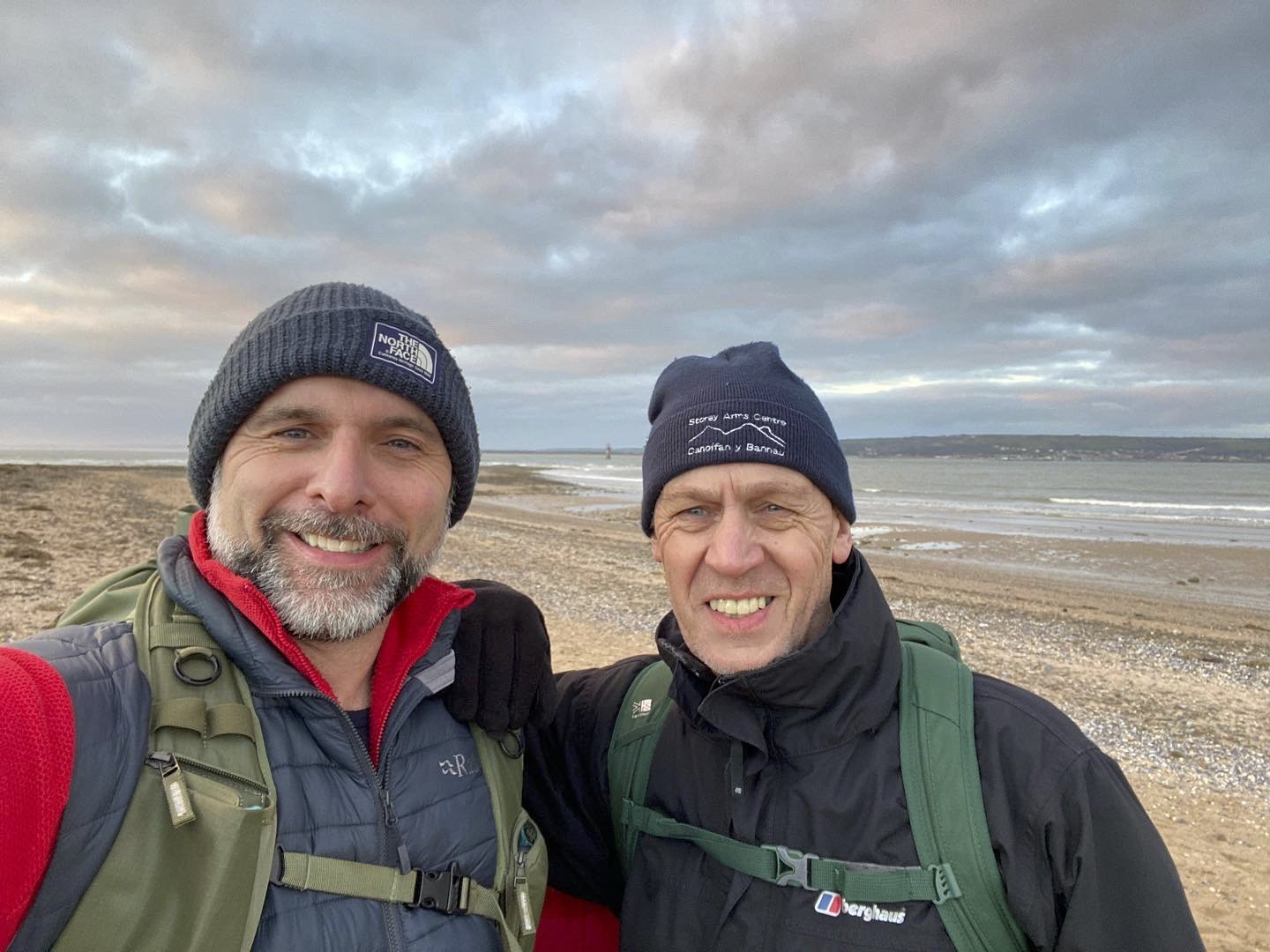
I was joined by my dear friend Anthony Crothers, and having checked the weather, the cloud cover, the tide times and the drone flying zones, when we finally got to the location, it simply couldn’t have been better.

So, here’s a Behind the Scenes video PLUS I go through as bit of the retouching of the final image in both Lightroom and Photoshop…

Photoshop Layers and Selections Webinar with Rocky Nook Publishers

Thursday of last week I presented in a webinar hosted by my publishers, Rocky Nook all about my latest book, The Photoshop Layers and Selections Workshop.

It was so good to see so many people tune in LIVE and also to see the numbers of folks that had signed up to be sent the recording.

If you missy it and fancy checking it out, Rocky Nook have also now posted the webinar on their YouTube Channel that I’ve now added below…

At the end of the presnetation we went through a Q&A and one of the questions posted asked about the new selections and masking function in Camera Raw and Lightroom, and in particular about using the Color Range option…

Susan asked…

“Can you only subtract one colour point at a time or can you click multiple times on slight variations in the color in the same subtract operation?”

Originally I answered that I ‘thought’ you could only do one at a time however a friend of mine Trevor Ager messaged me to say that you can actually add more by holding down the Option (Mac) / Alt (Windows) keys and clicking.

Hope you enjoy the video.

Cheers,
Glyn

Good to be Back! Portraits of World War 2 Veterans

After almost 2 years it felt great the other day to be able to photograph another of our World War 2 Veterans…

Because of the Covid-19 Pandemic it’s not been possible and not been safe to take portraits, especially of people in such advanced years, but thankfully now times have changed and I’m able to resume.

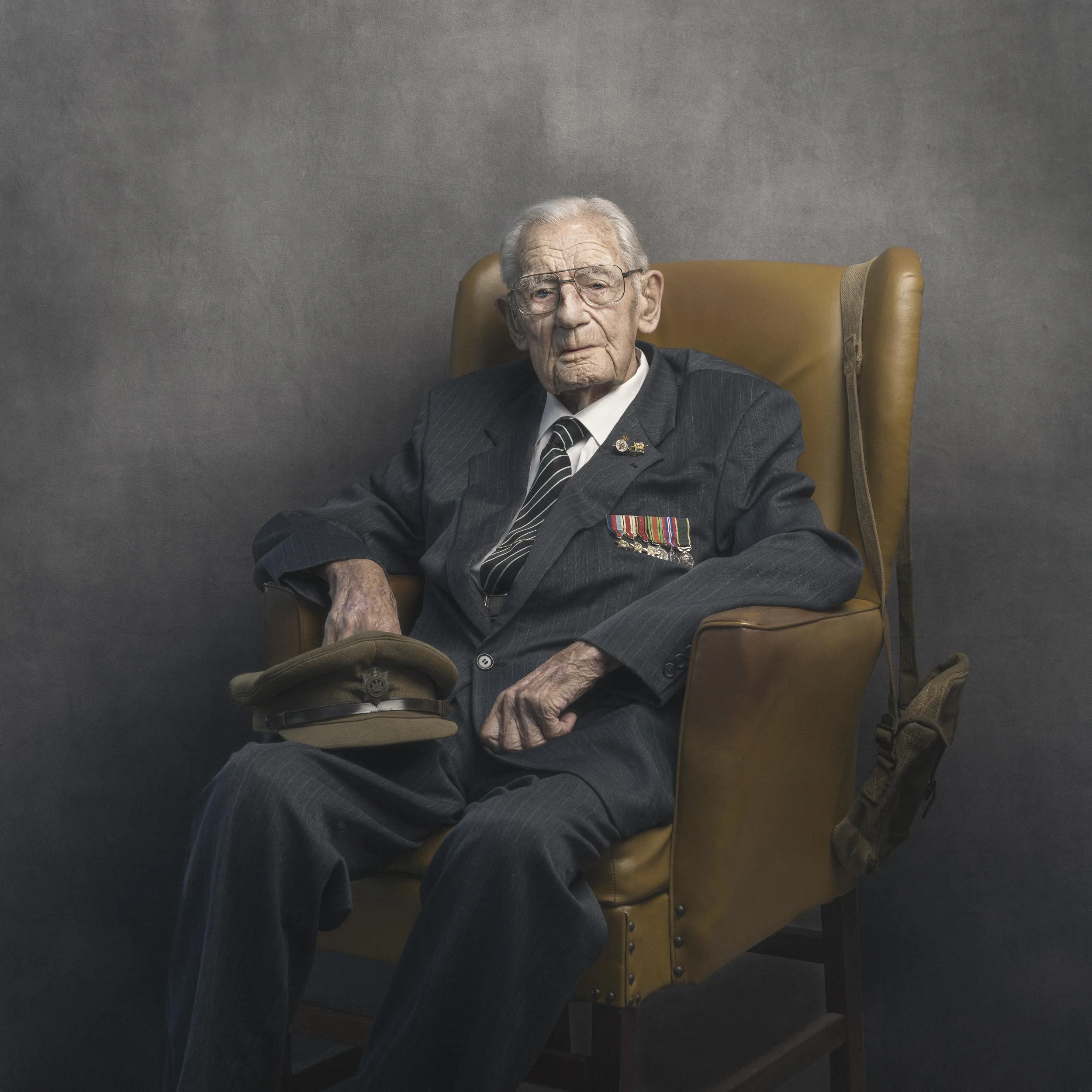
This latest portrait is of 101 year old, World War 2 Veteran, Gordon Short who served in the 9th Devons and was attached to the 4th Battalion the Royal West Kents an served in Burma.

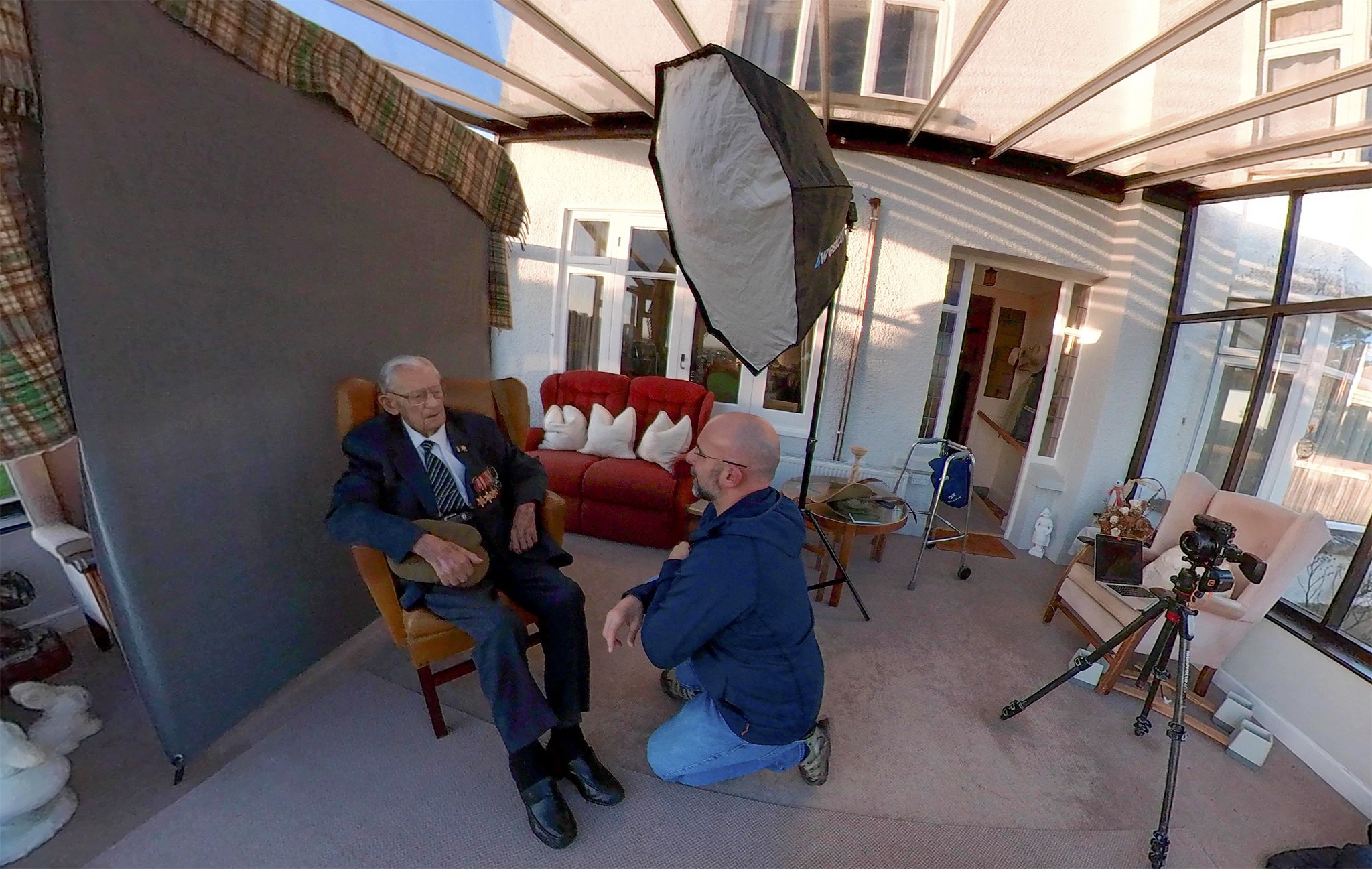
I photographed Gordon at his home in Devon which just happens to be a 10 minute drive from my home in the next village having been contacted by one of his sons who’d heard of my 39-45 Portraits Project.

I kept the set up as had in all the previous portraits to ensure continuity…

  • Lighting: Westcott FJ80 Speedlite in a Westcott Rapid Box Switch Large Octa

  • Background: X-Drop Background using the Grey Material*

  • Camera: Sony A7RIV

  • Lens: Sony 55mm f/1.8 ZA

*Ordinarily I would have used my own branded canvas effect background but not knowing how much space I’d have to work in, I opted to use the grey material that comes included with the X-Drop because it folds up to be really compact and when fixing it to the frame you don’t need to roll it out. I then made it look like my canvas background by adding a texture to it in Photoshop.

In the next couple of days I’m heading back to see Gordon and to present him with his portrait, printed and in a mount … cannot wait!

Rocky Nook Webinar: Photoshop Layers and Selections Workshop

This coming Thursday (13th January 2022) at 7pm (UK) / 11am (PST) I’m joining up with my publishers Rocky Nook to do a FREE webinar based on my latest book, The Photoshop Layers and Selections Workshop.

Registration is FREE by using the link below…

CLICK HERE TO REGISTER

Hope to see you there,
Glyn

EPIC FAIL: My First Photo Shoot of 2022

EPIC FAIL: My First Photo Shoot of 2022

All smiles now but could have been a very different story…

Got up early today for the 3.5 hour drive to Whiteford (Gower Peninsula, South Wales) to photograph the Victorian Lighthouse.

Having arrived at the nearest car park it was then just over a 3 mile walk across boggy wetland / marsh and forest to get to the beach…

FINALLY! Look Up Tables (LUTs) in Lightroom (Install, Use, Manage)

Colour Look Up Tables (LUTs) are a Game Changer when it comes to colour grading your images in Photoshop, but what if you do more in Lightroom or maybe Lightroom is all you use; can you still use them?

The short answer is YES.

However, they do need to be installed first of all and to do so, although a simple process, doesn’t just mean clicking anINSTALL LUTs” button.

There’s just a few steps involved as well as a hidden keyboard shortcut, but I promise you that it is an easy process as you’ll see in the short video below…

In the video when going through the steps to install LUTs into Lightroom (Cloud) , I show how you need to navigate to a specific folder on your computer where Camera Raw has previously stored them.

Here’s where you’ll find the folder depending on whether you’re using Mac or Windows:

Mac

~/Library/Application Support/Adobe/CameraRaw/Settings

Note: On a Mac, you can use the keyboard shortcut of Command + Shift + G to bring up the ‘Go to Folder’ dialog

Windows

C:\Users\[user name]\AppData\Roaming\Adobe\CameraRaw\Settings

*Replace [username] with the actual username you use for that specific computer


Hopefully that’s now got you all sorted Importing, Using and Managing LUTs in whichever version/s of Lightroom you use, but if you do have any questions / comments then as always, feel free to make use of the comments section and I’ll get back to you..

Cheers,
Glyn