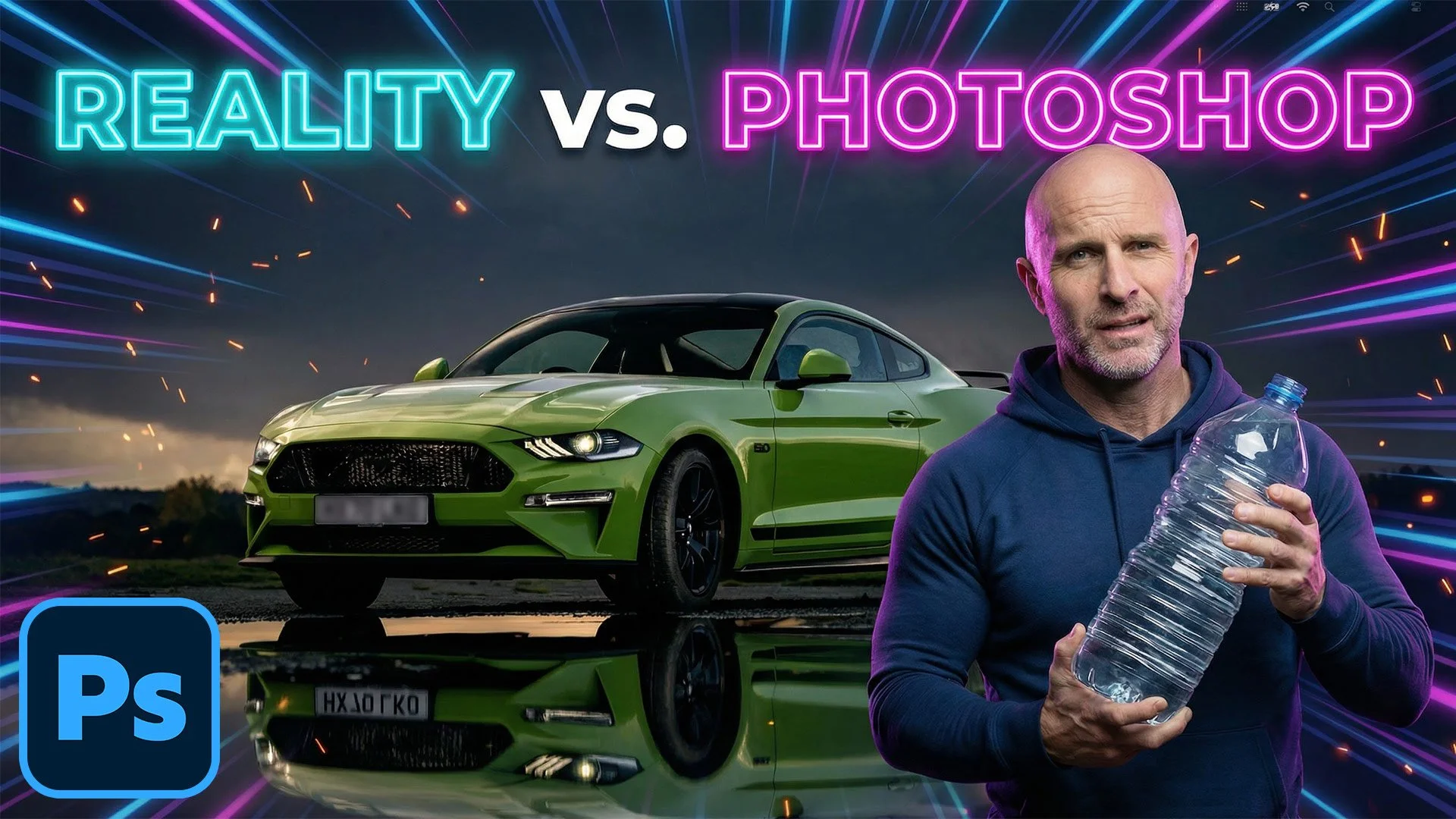
Car photography always looks that little bit more dramatic when there's a wet road reflection underneath the vehicle. But what do you do when the road is bone dry? In this guide, I'll walk you through two ways to fake a puddle reflection in Photoshop -- one traditional, one powered by AI -- and then I'll leave you with a question worth thinking about.
Method One: The Manual Approach
Step 1: Select the Car
Start by grabbing the Object Selection tool from the toolbar. In the options bar at the top of the screen, make sure the mode is set to Cloud for the best possible result, then click Select Subject. Photoshop will do a surprisingly good job of selecting the car in just a moment or two.
Step 2: Copy the Car onto Its Own Layer
With your selection active, press Command + J (Mac) or Control + J (Windows) to copy the car up onto a new layer. If you toggle every other layer off, you should see just the isolated car sitting cleanly on a transparent background.
Step 3: Flip It Upside Down
Go to Edit > Transform > Flip Vertical. This flips the car layer to create the basis of your reflection. Now grab the Move tool, hold down Shift (to keep movement perfectly vertical) and drag the flipped car downwards until the tyres of both the original and the reflection are just touching.
If things look slightly off-angle, go to Edit > Free Transform, move your cursor just outside the bounding box until you see the rotation cursor, and give it a gentle nudge until it lines up properly.
Step 4: Add a Black Layer Mask
Rename this layer "Reflection" to keep things tidy. Then, holding down Option (Mac) or Alt (Windows), click the Layer Mask icon at the bottom of the Layers panel. This adds a black mask that hides the layer entirely -- which is exactly what you want for now.
Step 5: Draw the Puddle Shape
Select the Lasso tool and make sure you click directly on the layer mask thumbnail (you should see a white border appear around it, confirming it's active). Now draw a rough, freehand puddle shape beneath the car's tyres -- it doesn't need to be perfect, natural-looking and irregular is actually better here.
Step 6: Fill with White to Reveal the Reflection
Go to Edit > Fill, set the contents to White, and click OK. The reflection will now appear only within the puddle shape you drew.
Step 7: Soften the Edges
Zoom in and you'll notice the puddle edge looks very sharp and unnatural. To fix that, go to Filter > Blur > Gaussian Blur and apply just a small amount -- around 3 pixels is usually enough. This softens the boundary and helps the reflection blend into the ground convincingly.
Finally, you can reduce the opacity of the Reflection layer slightly to make the whole thing look a little more subtle and true to life.
Method Two: Using Adobe Firefly's Generative Fill
If you want a quicker and arguably more realistic result, Photoshop's AI tools can do a remarkable job here.
Step 1: Load the Puddle Selection
Hold Command (Mac) or Control (Windows) and click directly on the layer mask from your first reflection layer. This loads the puddle shape back as an active selection, saving you from having to draw it again.
Step 2: Select the Background Layer
Click on the main image layer, so that Generative Fill works on the background rather than the reflection layer.
Step 3: Run Generative Fill
In the contextual taskbar, click Generative Fill and type a prompt along the lines of: a reflection of car in puddle of water. For the AI model, select Firefly (specifically the Firefly Built and Expand model released in January 2026). If you're on a Creative Cloud Pro account, this won't cost you any credits -- whereas models like Flux or Nano Banana can use anywhere between 20 and 30 credits per generation.
Click Generate.
Step 4: Choose Your Favourite Variation
Firefly will produce three variations for you to compare. Have a look through them and pick the one that looks most convincing. You'll likely notice that the AI does something quite clever: it reflects the sky in the puddle on the far side of the car, just as real water would. Achieving that manually in Photoshop would take considerably more time and effort.
Which Method Should You Use?
For a quick, dirty result, the manual method works well and gives you full control. But for something that genuinely looks like a photograph taken on a wet road, the AI approach is hard to argue with -- particularly because of how naturally it handles the environmental reflections in the water.
A Question Worth Thinking About
Here's something to consider. When photographing that car, there were really two options: bring bottles of water to pour around the car and create a real puddle on the dry road, or add the reflection later in post-production, either manually or with AI.
Both approaches result in a reflection that wasn't originally there. The only difference is when in the process you add it.
So what do you think -- is there a meaningful ethical difference between physically creating something on location and digitally adding it afterwards? When it comes to reflections specifically, does it matter?
Let me know your thoughts in the comments below.