adobe

Photography Education and the LIGHTROOM HELP-DESK | Rob Sylvan

This is the recording of a live broadcast where I chat with Rob Sylvan, photographer, camera expert, Canon product educator and author. Rob writes for Lightroom Killer Tips and is known as the Lightroom Help-Desk, so we talk about all things photography and Lightroom, including photography education. He also shares his tips for keeping your Lightroom organised and optimised, which is well worth hearing if your catalogue has grown over the years and become harder to manage.

links mentioned in the video:

Rob’s Website: robsylvan.com

Lightroom Killer Tips: lightroomkillertips.com

Rob Sylvan on Instagram: @sylvanworks

How to Print Course: ( LINK )

Omnicharge Portable Power Solutions: ( LINK )


💥 2 SIMPLE COLOUR GRADING Techniques in Photoshop

Colour grading doesn't have to be complicated, and in this video I show two simple techniques in Photoshop that offer an alternative way to colour grade your images. Both are about adding mood, atmosphere and a look to a picture, rather than simply correcting the colour. If you tend to rely on the same approach for every edit, these give you a couple more options to try on your own photographs.

• Get my NEWSLETTER SUBSCRIBER-ONLY video tutorials: bit.ly/gd-subscriber-only

How to FIX SKIN TONE in Lightroom 💥

In this video I show a simply but VERY EFFECTIVE way to Fix Skin Tone in Lightroom.

The video comes in 2 parts with Part 1 being available for everyone to watch where I go through the main technique.

Part 2 is for my Newsletter Subscribers Only and in that I go through things in more detail showing how many of the step srequired can be automated using technology within Lightroom PLUS some additional learning on masking and details of a a Preset Download I have made available.

Skin tones that look a little off can spoil an otherwise good portrait, and in this video I show a simple but very effective way to fix them in Lightroom. I go through the main technique step by step, so you can follow along with your own images and see exactly how the adjustments come together. It's a straightforward process, which means it's easy to make it part of your regular portrait edit.

MASTERCLASS in using LAYERS , BRUSHES and LAYER STYLES in PHOTOSHOP with Bert Monroy

This is the recording of a live broadcast where, by popular demand, we welcome back the incredible talent that is Bert Monroy. Bert takes us step by step through how to get the most out of layers, brushes, layer styles and more in Photoshop, and it really is a masterclass. Seeing how someone with his experience approaches these everyday tools is a great way to understand them better, and to see just how much they can do.

links mentioned in the video

Bert Monroy’s Website: bertmonroy.com

Bert Monroy’s YouTube Channel: youtube.com/bertmonroy

TRY THIS 🔥 Create a COLOURED LIGHTING EFFECT in LIGHTROOM

How to QUICKLY and EASILY create the Coloured / Gel Lighting Effect in Lightroom using Masks …

CREATING ARTISTIC MASTERPIECES using PHOTOSHOP and NO A.I. with Bert Monroy

This is the recording of a live broadcast where I chat with Photoshop legend and artist Bert Monroy about how he creates his incredibly detailed masterpieces of art using Photoshop. Bert also gives us a look at how he uses traditional Photoshop techniques, with no AI at all, to create life-like realism and effects. Watching him work, you get a real sense of the skill behind every piece, and just how much is possible with traditional techniques alone.

•Watch on YouTube to see the LIVE chat as it happened ( LINK )

links mentioned in the video

Bert Monroy Website: bertmonroy.com ( LINK )

Bert Monroy YouTube Channel: ( LINK )

The Making of Times Square (Full Length Tutorial - 14 hours)

Misty canal with an arched bridge, bicycles by the railings and bare trees with a few yellow leaves
Neon lit theatre entrance on a wet street at night
Old apartment buildings with chimneys and shuttered windows under a deep blue sky
Wall lantern on a clapboard wall beside a door with dappled shadows
Close-up of a red vintage truck's chrome headlight and grille

Adobe SIMPLIFIED Terms of Service - June 18th 2024

Following the uproar over Adobe's updated Terms of Service, on Tuesday 18th June 2024 Adobe released a simplified version, written to explain what all of the legal terminology actually means. In this video I go through that simplified wording to help make sense of it, and of what it means in plain terms for anyone using Adobe's apps for their creative work.

RELEVANT LINKS:

Simplified Terms of Service: ( LINK )

Terry White Video: ( LINK )

Jason Levine on X: ( LINK )

Paul Trani on Instagram: ( LINK )

* Note: For the video released prior to this CLICK HERE

Adobe Express Hacks Every Photographer Should Know | Dave Clayton

This is the recording of a live broadcast where I chat with graphic designer Dave Clayton and discover more about Adobe Express, the creative app for all. Dave shows how we can use it to quickly create graphics and social media posts, automate and schedule them, and add stylised captions to videos. Ultimately it's about helping us to be more creative, time efficient and productive, which is something any photographer sharing their work online can appreciate.

links mentioned in the video:

Adobe Express: (Access via Creative Cloud App on Desktop / Mobile) or: https://new.express.adobe.com

Dave Clayton’s Website: www.itsdaveclayton.com

Facebook: @itsdaveclayton

Instagram: @itsdaveclayton

Dave Clayton’s Newsletter Sign Up + FREE eBook Downloads: BIT.LY/INDESIGNBOOK

Nigel Thomas’ Landscape Photography Exhibition
Canolfan John Burns Centre, Kidwelly, Wales. SA17 5AB
Saturday 15th & Sunday 16th June 2024
10am - 5pm
email: nigetom@btinternet.com for more details

Ian Munro’s “Hope Foundation Dog Rescue” Fund Raiser: ( LINK )

Front and back cover of The Photoshop Workbook by Glyn Dewis featuring a rhino
Front and back cover of The Photoshop Toolbox by Glyn Dewis, published by Rocky Nook
Front and back cover of Photograph Like a Thief by Glyn Dewis in orange with a cartoon burglar
Front and back cover of The Photoshop Layers and Selections Workshop by Glyn Dewis and Dave Cross

Talking Lightroom and Photography with Adobe Lightroom Product Manager Katrin Eismann

This is the recording of a live broadcast where I'm joined by Adobe Lightroom Product Manager and photographer Katrin Eismann. We talk about her process for capturing stunning travel photographs, her personal projects and her kit, and we also take a look at what was Lightroom's latest technology for photographers at the time, along with some hints and tips for getting the best results. It's a great mix of photography and practical Lightroom advice from someone who knows the software inside out.

links mentioned during the broadcast

Katrin on Instagram: https://www.instagram.com/katrineismann/ ( @katrin_eismann )

Lightroom Academy: lightroom.adobe.com/academy

Adobe Community Forums: https://community.adobe.com/

Marc Muench Photography Workshops: muenchworkshops.com/workshops/

Iceberg floating in deep blue water under a dark cloudy sky
Silhouetted bare branches against a soft blurred golden background
Fashion model in a fringed green outfit posing against a concrete wall
Hand pouring a glass of golden liquid into blue water that glows in the light
Blurred figure of a woman in a dark dress walking through misty water

Generative AI Remove, Sony Tethering and more ... Lightroom UPDATE May 2024

So today (Tuesday 21st May 2024) Adobe made available some fantastic updates and enhancements to both Lightroom v 7.3 (including Mobile) and Lightroom Classic v 13.3 which amongst other things sees the integration of Adobe’s AI, Adobe Firefly and (finally) tethering support for Sony amongt others things.

So, here’s a run through of the changes from today in this recording of a LIVE Broadcast I did on the day of release, and also below I’ve written down all the detailsincluding useful links…

PERFORMANCE UPDATES

In addition to some bug fixes and stability improvements across all platforms, you’ll also notice a speed increase when using Denoise.

Also in addition to the updates and additions detailed below Adobe also mention …

  • HDR Optimisation

  • Instant Access to Photo Libraries in Lightroom Mobile and Desktop apps

  • Lightroom’s all new mobile editing experience streamlines the mobile toolbar to prioritise the most popular features, whilst making it faster and more intuitive to edit.


SLIDESHOW IN DESKTOP

It’s now possible to show images in a slideshow from within Lightroom Desktop.

To start a slideshow you access it via the View > Start Slideshow

Lightroom library grid of landscape and portrait photos with a menu open on the left

On release, the controls and the look of the slideshow are very limited with the images playing at full screen and being able to adjust whether the slideshow loops and adjust the speed of the slideshow to be Extra Slow, Slow, Medium and Fast.

Lightroom slideshow speed menu with Medium selected from Fast, Medium, Slow and Extra slow

CLOUD TO LOCAL STORAGE (DESKTOP)

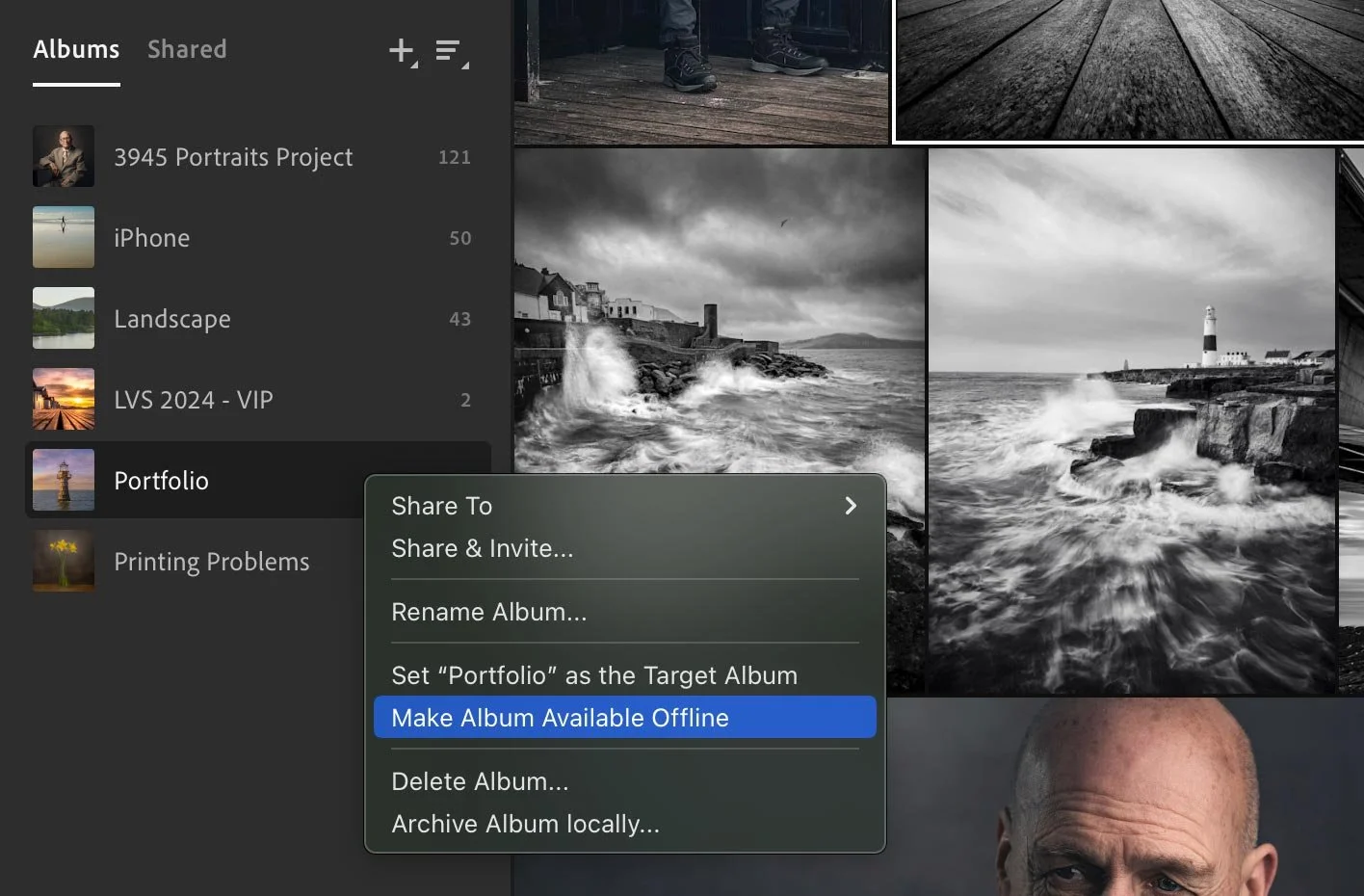
Until now it was only possible to have cloud based albums in Lightroom Desktop, but with this update that all changes because from now, we can make Albums available and viewable offline just like Collections in Classic where we could sync them to the cloud or not.

To do this simply right-click on an Album and choose Make Album Available Offline …

Lightroom album context menu with Make Album Available Offline highlighted

SONY TETHERING SUPPORT (CLASSIC)

It’s taken some time but finally Adobe have worked closely with Sony and as a consequence, Lightroom Classic now supports Sony Tethering.

Sony logo in black on a white background
Lightroom tethered capture bar showing camera settings

Sony Tethering in Lightroom Classic offers full control over main camera settings, capture and LIVE view

CURRENTLY SUPPORTED SONY CAMERAS …

Table of Sony Alpha camera models requiring Lightroom Classic 13.3 for tethering

The process for tethering to Lightroom Classic with a compatible Sony camera is a very simple process, working exactly the same as it does for other compatible brands.

• Note: Camera needs to be in Remote Shooting or PC Remote mode via USB Connection settings.

A full list of ALL cameras that are supported (not just Sony) can be found here: LINK


TONE CURVE IN VIDEO (DESKTOP)

I’m not someone that edits video within Lightroom but I know that there are many that do, so the addition of Tone Curve in Video for Lightroom Desktop is going to be a very welcome update.

Adobe state that …

  • You can now edit the Tone Curve when editing video in Lightroom Desktop

  • These edits are viewable across Mobile and Web

  • Videos now supports Presets with Tone Curve information


LENS BLUR ENHANCEMENTS

The Lens Blur Effect is finally out of Early Access and available to all, and Adobe states that its release also brings with it …

  • Copy and Paste Support

  • Added focus slider in Mobile

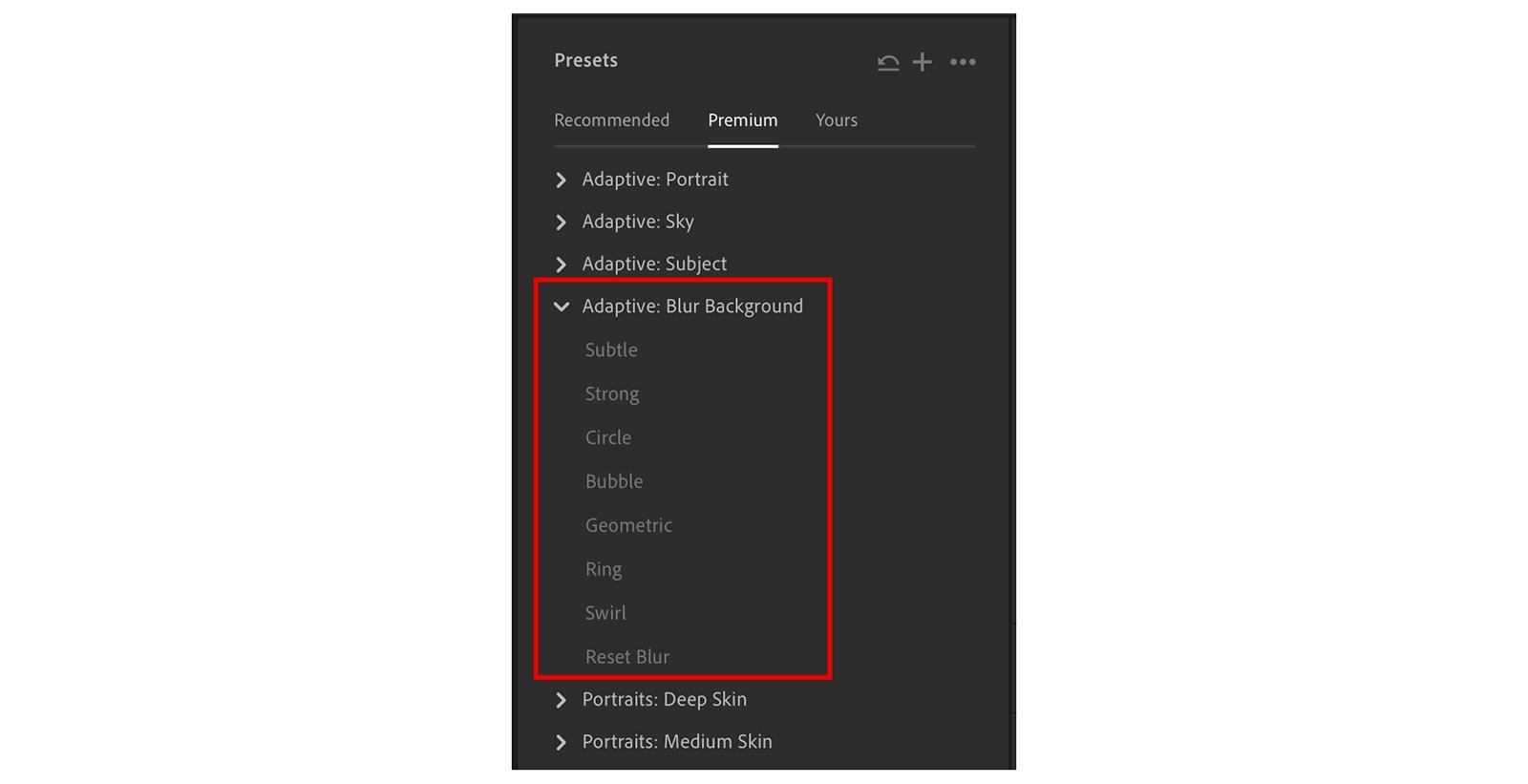
  • Support for Presets and New Adaptive Presets

  • Improvements to the subject detection and complex edges

Man in a checked shirt sitting on a black motorbike on a winding mountain road

Lens Blur

Man in a checked shirt on a black motorbike on a winding road in hilly countryside

NO Lens BLur

Lightroom mask overlay in orange and purple over a photo of a man on a motorbike

With Visualise Range turned on to show which areas of the image are in and out of focus

Lightroom Presets panel with the Adaptive: Blur Background presets highlighted in red

Lens Blur Adaptive Presets


GENERATIVE AI REMOVE

Adobe have now integrated their Adobe Firely AI as Early Access into Lightroom Desktop, Mobile, Web and Lightroom Classic for the purpose of … Removing distractions and unwanted objects from your photos

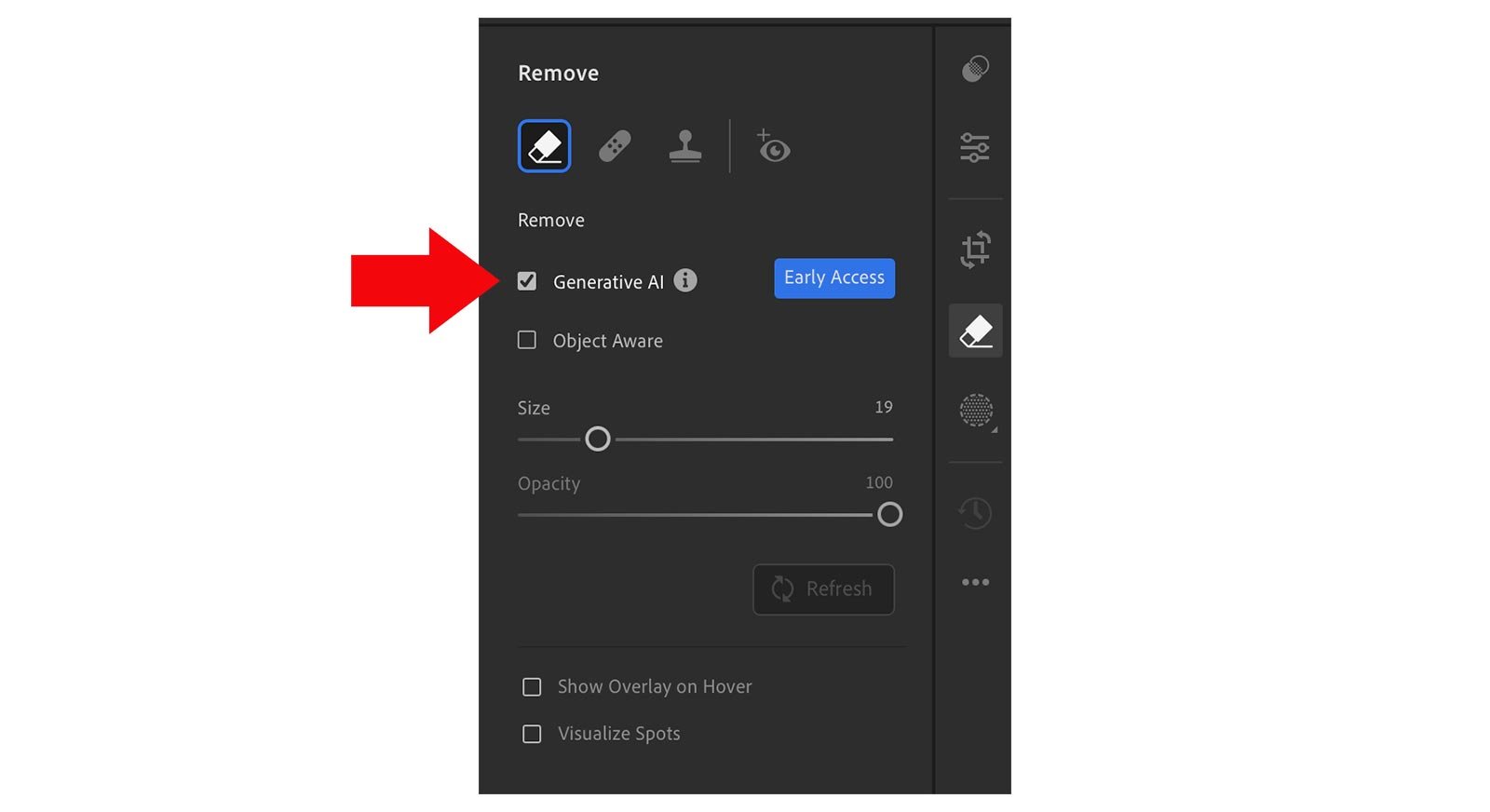
Found in the Remove section amongst the exisiting Remove Tool, Heal Tool and Clone Stamp Tool (and Red Eye Removal) you use it in conjunction with the Remove Tool by simply ticking the Generative AI checkbox …

Lightroom Remove panel with a red arrow pointing to the Generative AI option

Maximum Resolution of the ‘Removed’ area is currently 2K, so a very generous starting point considering this is to be used purely for removing unwanted distractions and objects …

Couple standing on a gravel drive leading to a castle under a blue sky

To use Remove with Generative AI simply brush generously over whatever it is that you want to remove.

You can then Add or Subtract from this area to refine it …

Gravel drive leading to a castle with the couple painted over in red for removal

3 variations are then given and you can click through to see which you prefer OR simply Refresh to try again until you get a result that you’re happy with …

Gravel drive leading to a castle with the couple removed using Generative AI

There is also an Object Aware checkbox which Adobe state is to to be used to Preserve Background Details whereby the AI will analyse the initial selection you made and identify what it is you want to remove without having to fill in the entire selection, meaning you could just brush around the outside.

Lightroom Remove panel with a red arrow pointing to the Object Aware option

So for example in the picture below, let’s say that I want to remove the cardboard box and string that the little boy has over his shoulder …

Boy in a flat cap and tweed sitting on wooden steps with his chin in his hands beside a small case

I’ll use Generative AI Remove but also use Object Aware, so then rather brush to select the entire box I’ll just quickly brush around the outside including the string …

Same photo of a boy on steps with the case beside him outlined in white for removal

The AI then looks at what I’ve drawn around to ee if it can identify the main object, and looking at the selection it made below it did a pretty good job …

Same photo of a boy on steps with the case painted over in red for removal

I then use the Add option in the Refine section to brush over the string that was missed, so that it’s included in the remove …

Same photo of a boy on steps with the case and its shadow painted over in red

… and this is the result

Boy in a flat cap sitting on wooden steps with the case removed using Generative AI

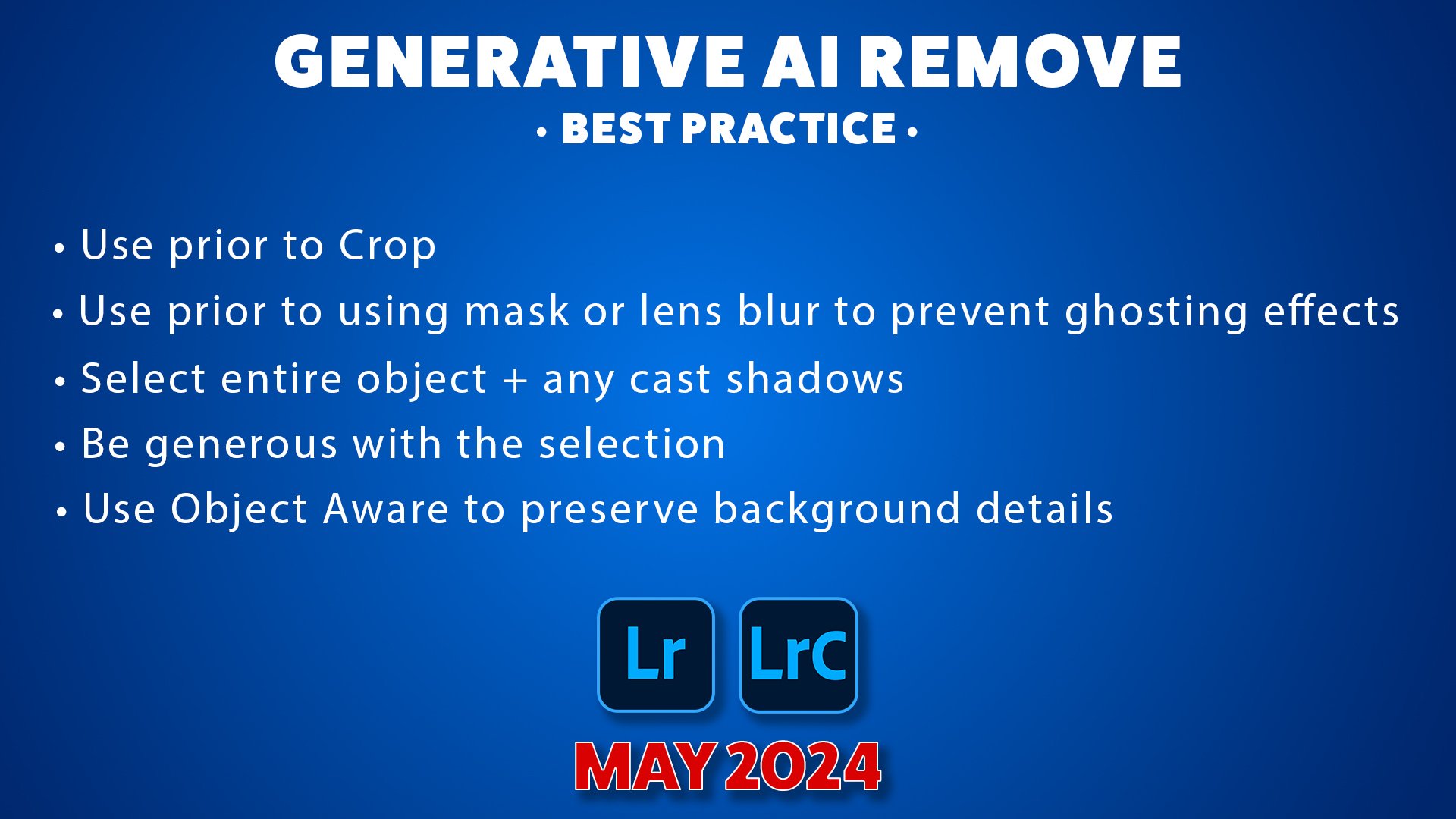
As with all features and tools there are ways to use them to produce more pleasing results, so here’s just a few for Generative AI Remove …

Generative AI Remove best practice list for Lightroom and Lightroom Classic, May 2024

There a couple of differences when using Generative AI Remove in Lightroom Desktop and Lightroom Classic and I show those in the LIVE Broadcast recording at the top of this page

Finally (for now) keep a look out for some more videos coming soon where I take a deeper dive into some of the new features, but in the mean time here’s a link to the official news release from Adobe ( LINK )
Cheers,
Glyn