Adobe

ArtCraft: Free Adobe Alternative, But Can You Trust It?

You've no doubt seen ArtCraft all over the internet over the last week or so; it's a set of free apps that look an awful lot like Photoshop, Lightroom, Premiere and the rest of Adobe's apps, and they've all been built using AI. There's been video after video, article after article and thousands of comments cheering it on, but having read through a lot of it, there are a few things I haven't seen anybody mention.

Before I get into it, I want to be upfront about where I'm coming from. I do occasional work for Adobe, recording tutorials for Adobe Learn, presenting and so on, and I use Creative Cloud every single day. I also use Claude, which is the AI that was used to build these apps, and I love it. I'm editing more and more of my videos in DaVinci Resolve rather than Premiere Pro, and I love that too, so I'm all for competition. I just want you to know where I stand so you can weigh up what I've got to say.

What's actually happened

A software developer called Brandon Thomas has released seven free apps under the ArtCraft name. PhotoCraft is his version of Photoshop, LightCraft is Lightroom and FilmCraft is Premiere, and there are versions of Illustrator, InDesign, After Effects and Acrobat as well. He says he built them using Anthropic's AI, Claude, and they're open source, which means the code is published for anyone to look at.

The reaction has been huge. GitHub is where software developers share their code, and people can give a project a star, a bit like a like on YouTube. Eleven days after it all came out, PhotoCraft alone had 44,000 of them. He also tried posting about it on the Adobe Reddit forum, but understandably that post didn't stay up for very long.

Early, very early

What's had a lot less attention is how finished it is. By PhotoCraft's own roadmap, it's at about 25% to 35% of what a professional needs for daily work. Only two of the seven apps are even labelled as early alpha; the rest are still in development. When it launched he promised it would match Adobe completely within a month, and when people started pointing out what was missing, that became 99% within months.

It's also not trying to hide where it comes from. PhotoCraft's own website describes it as "the open-source image editor you already know how to use", and one look at the screenshot tells you why: the menus, the tools down the side, the Curves panel, the Layers panel. You already know how to use it because it's been made to look like Photoshop, and that's the whole pitch.

What can Adobe actually do about it?

I'm not a lawyer, so take this as my understanding rather than legal advice. Copyright protects the actual code, the written instructions that make a program work, and things like the artwork and the icons, but it doesn't protect an idea or what a program does. If he really hasn't copied any of Adobe's code, which is what he says, a copyright case isn't straightforward.

An intellectual property attorney called Steve Hanson made a really good point about this in [his own video]([FILL IN: link to Steve Hanson's video]). He reckons copyright probably isn't where Adobe would go at all, and that it's more likely to be the contract, the terms you agree to when you sign up. Section 17 of Adobe's terms says, in Adobe's own words, that they don't allow you to recreate, or attempt to recreate, their products.

Then there's the look. There's something called trade dress in the US, and passing off here in the UK, which is about whether a product looks so much like another that people could be confused about who made it. The menus, the panels and even the keyboard shortcuts match Photoshop, and that's exactly the area people are pointing at.

So far Adobe hasn't said a word, and there's good reason it might stay that way. Taking a free, open-source project to court would hand it more publicity than it could ever buy, and the code is already out there for anyone to copy; people already have, and there's another free editor built on PhotoCraft's code. Even if ArtCraft stopped tomorrow, the apps wouldn't disappear.

I remember when Affinity Photo first came out and everyone was saying how close it was to Photoshop, in how it looked and what it could do. We all kind of thought something was going to happen, but nothing did, and today Affinity is owned by Canva and it's free. It's going to be really interesting to see what happens with this one.

Why he built it

This is the part I find really interesting. He's said Adobe charged him its cancellation fee more than once, and in his own words, "They charged me the 'cancellation fee' on multiple occasions and I've hated them ever since." Elsewhere he said he'd been "bit by the dark pattern cancellation fee one too many times."

So this didn't start as a better way to edit photographs; it started with someone who hates Adobe.

I do understand the frustration. In March this year Adobe agreed to a $150 million settlement in the US over how it sold and cancelled Creative Cloud subscriptions. Half of that was a penalty and half was free services for customers, and Adobe didn't admit any wrongdoing. Plenty of people have felt exactly what he felt, and Adobe brought a lot of this on itself, but I'd want to know a lot more about someone who built software out of a grudge before I put it on my computer, let alone gave them my card details.

Who's behind it

Brandon Thomas is a software developer with around 15 years' experience, and he's worked at Square, the payments company. Before ArtCraft he was CEO of a company called Storyteller.ai, and ArtCraft's contact email still goes to Storyteller. Storyteller's best-known product is FakeYou, a site for generating the voices of celebrities and characters using AI, and in 2022 Italy's data protection authority opened an inquiry into it because it could reproduce the voices of public figures, including Italy's Prime Minister, from whatever you typed in.

ArtCraft itself started out as a tool for making and editing AI-generated images and video, and that's still what it's selling.

How it's paid for

The apps are free. What ArtCraft sells is credits for AI image and video generation on a monthly subscription, at $10, $35 or $60 a month, using AI models from Google, OpenAI and others, including Google's Nano Banana, the same model Adobe has put into Lightroom's Prompt to Edit.

So a project that launched with the message of no more subscriptions is paid for by a subscription. To be fair, the site does say you can use the apps without paying, and it's actually a very similar idea to Affinity now, where the app is free and you pay Canva for the AI features. The difference is who's behind it. With Affinity it's Canva, a company you can look up and hold to account; here, it's someone who's told us he hates the company he's copying.

A question if you're worried about AI

There's been a lot of anger about AI in Adobe's apps, and about AI being trained on work photographers and artists never agreed to. I totally understand that; I've shared videos about my own concern over too much AI in Lightroom and Photoshop, and plenty of you have told me how you feel about it.

If that's you, what do you make of this? A set of apps built by AI, copying Adobe's software and paid for by selling access to AI image generators. I'm not saying it's wrong, I'm just asking whether it sits differently with you because it's aimed at Adobe.

A link versus an install

There's one more thing about all of this I just can't get past. We're all really careful about clicking a link in an email we're not sure about, yet installing software gives it far more access to your computer than clicking a link ever could, and thousands of people have installed this without a second thought. That's the bit I can't get my head around. Why would you be more careful with a link than with a program you're putting on your computer?

When you install software from someone you know nothing about, can you be 100% sure what's in it? I'm not saying there's anything in it that shouldn't be there, and there's no evidence of that at all, but can you be completely sure? I couldn't.

When someone's prepared to go this far over a grudge with a company, building copies of seven of its apps and giving them away, I'd also want to know how they'd treat me, someone they've never met, if I ever fell out with them or if they ever needed something from me.

Would I install it?

No, not as it stands. It's early alpha software, it's not clear what it'll look like in a year's time, and the person behind it has told us he hates the company he's copying. That doesn't mean he's done anything wrong, but think about what's on the computer you'd be installing it on. For me it's every photograph I've ever taken, but it's also my emails, my passwords and the same computer I log into my bank on. That's my whole day-to-day life, not just my pictures, and I'd want to know a lot more history behind something before I gave it that kind of access, and well before I handed over a card number.

If you're curious, there's a version that runs in your web browser, so you can have a look without installing anything at all.

Competition is good

I'm all for competition. Look at what's happened with cameras over the last few years, Canon, Nikon and Sony pushing each other, or Apple and Android. That's when we win, with better products and better prices.

You're free to use whatever you want; it's your choice, not mine. I only use what's fit for purpose, whoever makes it, which is exactly why I've moved more and more of my video editing over to DaVinci Resolve. Affinity, DaVinci Resolve and Capture One are all really good alternatives to Adobe and I'd encourage anyone to look at them. The difference is that there's a company behind each one with a history that you can look up, and that you can hold to account if something goes wrong.

Five questions before you install anything

Whatever you're thinking of installing, ArtCraft or anything else, these are the five things I'd ask first.

• Who's behind it, and what have they made before?

• How is it paid for? If it's free, how is the person making it earning a living?

• Is the installer signed by a named publisher? Your computer will usually warn you if it isn't, and that warning is worth reading rather than clicking straight past.

• Where do your files and your card details go?

• If it disappears tomorrow, can you get your work back out of it?

If you can answer all five and you're happy with the answers, go for it. If you can't, I'd wait.

Winchester, History and a Brilliant Worldwide Photo Walk

On Saturday the 3rd October I led the Winchester walk for this year's Worldwide Photo Walk, sponsored by Adobe, and what an amazing day it turned out to be.

An early start and a proper breakfast

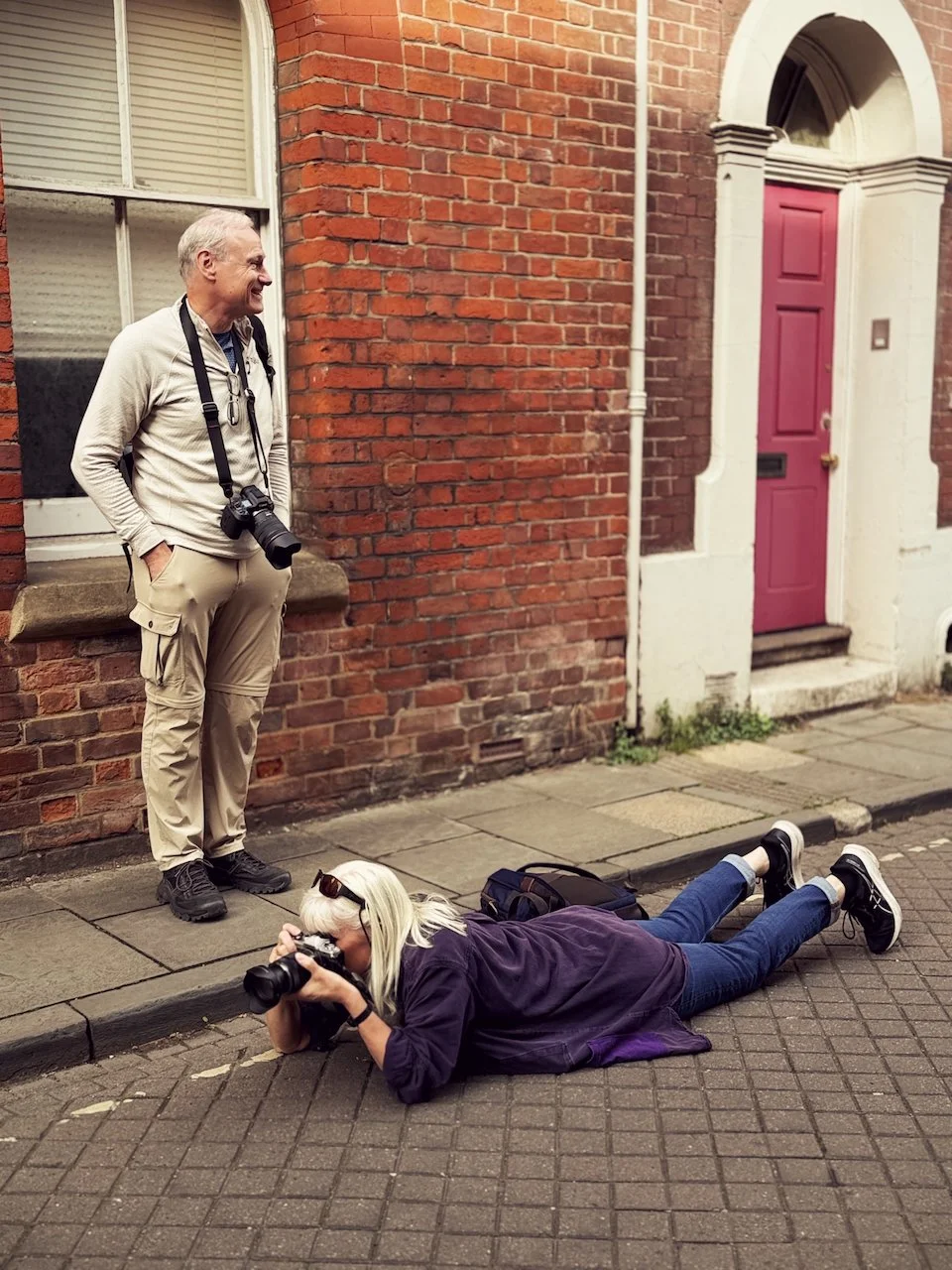
I arrived early with my wife Anne and my great friend Brian Dukes, and we sat down for a bit of breakfast before anything got going, and from there it was over to the Guildhall to meet everyone. The turnout was great, with more people turning up on the day than had registered, which is just so good to see. We got everyone together outside for a group photo and then we were off on the walk.

A little bit of planning

Ahead of the day I'd put together a PDF for everyone with points of interest, a bit of a route, some safety notices and the refreshment breaks, along with my phone number should anybody go astray.

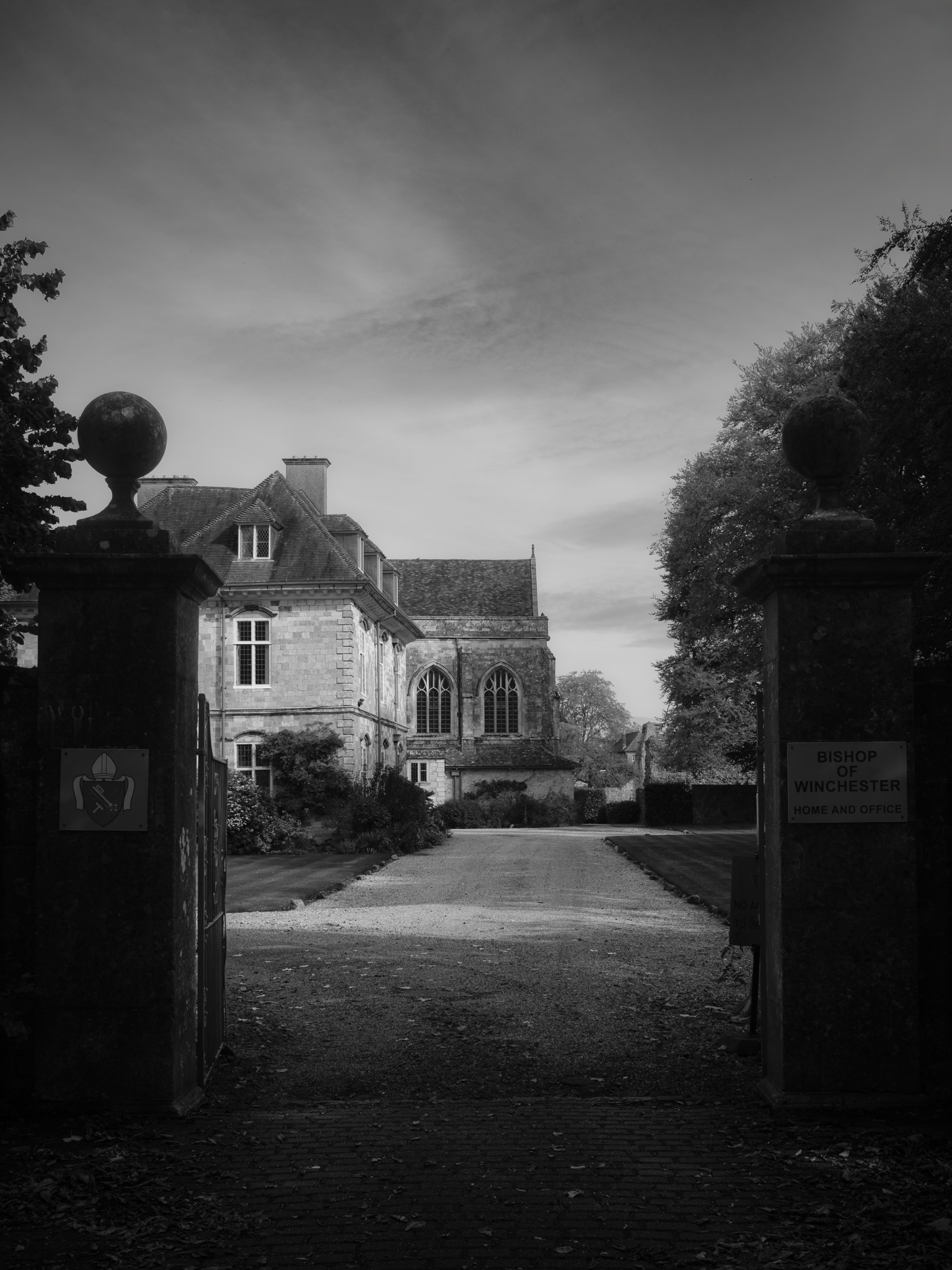
The plan was a loop of about a mile and a half from the Guildhall, down past King Alfred's statue to the City Mill, along the Weirs by the River Itchen, past Wolvesey Castle and up through Kingsgate and the Cathedral Close, before heading back along the High Street by the Buttercross. None of it is complicated, but when you've got a big group spreading out along narrow streets and riverside paths, it helps everyone to know there's a rough plan, somewhere to grab a coffee and a number to ring if you wander off chasing a shot.

My favourite capture from the day taken with my Fujifilm X100 VI fited with a 1/8th Black Mist Filter

So much history

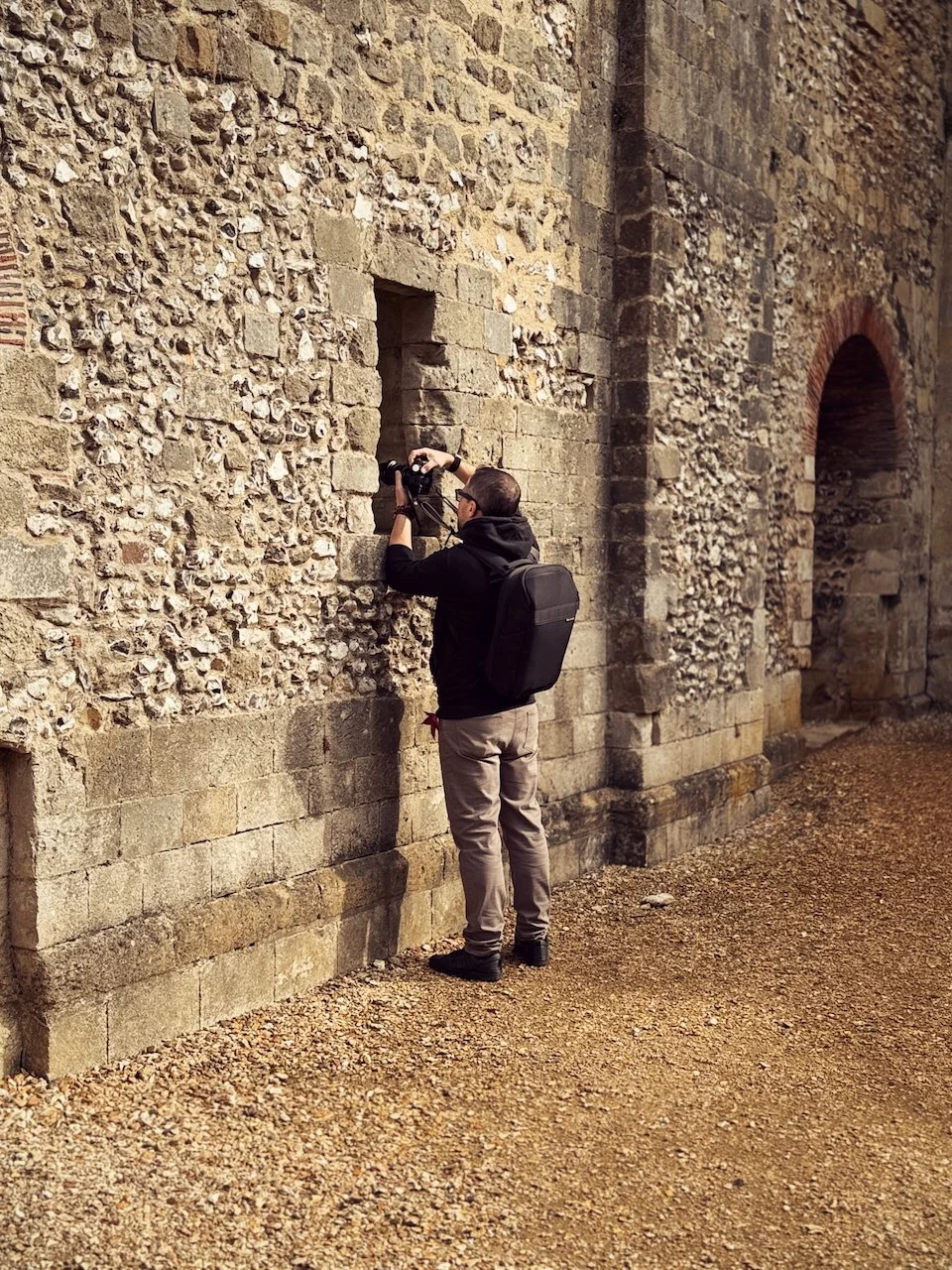
What a fabulous location Winchester is; the whole place was just fantastic, with so much history everywhere you point a camera. We didn't go inside the cathedral, but we spent some time outside taking pictures, and it's just an amazing building.

One of the lovely things about the day was having people in the group who were local, because they could point us in the direction of certain things we'd otherwise have walked straight past. That's the sort of thing you can't put in a PDF, and it made a real difference.

Three hours that flew by

It was just so good to see so many people out on a glorious day, chatting and taking photos and really clearly enjoying themselves. Three hours flew by.

Food, bikes and a bit of Lightroom

Afterwards we headed for some food at the South Downs Social, a bike-themed café in Winchester, and we all gathered together on tables upstairs. We talked about the day and what everyone's up to, but we also went through a little bit of Lightroom editing on the mobile phone, which felt like the right way to round things off; you've just spent a morning taking the photos, so it's nice to sit down together and see what you can do with them.

It was just a fantastic day. Winchester is definitely a location I'm going to go back to, and the day was so successful and felt so good and positive that it makes me want to go out and do more of these.

Thank you

A huge thank you to everybody that came along. Here's just a selection of some of the photos from the day, and I'm also posting my keeper image as well.

Adobe Now Owns Topaz: Is This GOOD News or BAD?

On the 23rd of September 2026, Adobe completed its purchase of Topaz Labs. If you use Photoshop, Lightroom or any of the standalone Topaz applications, the obvious question is: what does that mean for us?

Will we get better tools? Will more of the technology be included in what we already pay? And what happens if you prefer using Topaz on its own?

There are some answers, but there’s still plenty we don’t know. In the video above, I share my thoughts on the acquisition, where I can see some real benefits, and what I’d personally like Adobe to do next.

What Has Adobe Confirmed?

Adobe announced the proposed acquisition in June. The September announcement confirms that the deal has now gone through.

Adobe says the Topaz brand will remain, and its applications and models will continue to be available as standalone products. If you use Topaz separately, perhaps alongside a different editor, that’s encouraging.

It’s also worth clearing up the subscription question. Topaz introduced its newer subscription offering in September 2025, before this acquisition. Whatever your feelings about subscriptions, that change wasn’t introduced by Adobe buying the company.

Has My Opinion Changed?

Earlier this year, I made a video about the Topaz integration in Lightroom, and I was frustrated.

At the time, it felt as though Adobe could be taking the easier route by bringing in somebody else’s technology. Given Adobe’s experience and resources, I wanted to see what it could develop itself. I still would.

But I can also see the reasoning behind this purchase. Topaz has specialist knowledge and people who have spent years working on image and video enhancement. Bringing that experience into Adobe could be a sensible way to improve the tools we use.

That’s something I probably could have given more weight in my earlier video.

There is, however, one point I still stand by: when I’m working in Photoshop or Lightroom, I want the tools to feel like they belong there. I want them to work together, follow a consistent approach and give me enough control to get the result I’m after.

Changing who owns the technology doesn’t automatically achieve that. It takes development.

Where Could This Benefit Photographers?

The most obvious opportunity is a better editing experience.

Say you’ve cropped a photograph quite heavily and want to make a print. Having a suitable enlargement tool available inside the application you’re already using could be really useful—especially if you can judge the result properly and adjust the processing without a complicated round trip between applications.

That’s the kind of integration I’d welcome.

Adobe doesn’t have to invent every piece of technology from scratch for it to be valuable. What matters is whether bringing these teams together produces something better when we sit down to work on a photograph.

There’s also the possibility of more processing happening on our own computers. Adobe has highlighted Topaz’s NeuroStream technology, which helps demanding AI models run locally.

Depending on how Adobe uses it, that could reduce the need to upload files for processing. But it isn’t a promise that every feature will work offline, or that every computer will suddenly process everything quickly. We’ll have to see how it develops.

Give Us More Control

For me, one of the most useful places to start would be the controls.

The integrated Topaz tools haven’t offered the same experience as the standalone software. The controls have been limited, with what’s available differing between applications and models.

Having the technology available is useful, but I also want some say in the result.

We’ve all had that moment when an adjustment gets close, but isn’t quite right. Perhaps the effect is a little too strong, or some of the detail doesn’t look as natural as we’d like. That’s where being able to refine the processing makes a difference.

It doesn’t have to mean putting every possible slider on screen. A simple option is useful when it gives you what you need. When it doesn’t, I’d like the option to go further.

Adobe hasn’t announced that the acquisition will bring the extra controls I’m asking for. It’s something I’d like to see.

How Does It Fit Into the Lightroom Workflow?

In Lightroom, Generative Upscale creates a separate DNG file, leaving your original photograph intact. Adobe recommends applying it at the end of your editing workflow.

Understanding that you’re creating a new file matters when deciding how to fit the tool into your editing process. Over time, I’d like that process to become as flexible and clear as possible.

There’s also an important distinction between Lightroom and Lightroom Classic. A feature being available in one doesn’t automatically mean it’s available in the other.

At the time of writing, Adobe’s published FAQ says there are no plans to bring this particular Gigapixel integration to Lightroom Classic. That refers to the built-in integration; it doesn’t mean you can’t use the separate Topaz application with Classic.

What About Generative Credits?

This is where the practical questions become particularly important.

At the time of writing, Adobe’s published charges for the integrated tools are:

ToolFinished output sizeCredits per generationTopaz Gigapixel in Photoshop or LightroomUp to 25 megapixels10Topaz Gigapixel in Photoshop or LightroomAbove 25, up to 56 megapixels20Topaz Bloom in Photoshop1–9 megapixels35

These are Adobe generative credits for the integrated features. You can check the current rates in Adobe’s credit table.

If you have several thousand credits each month and use these tools occasionally, that might be perfectly manageable.

But imagine you have 200 credits remaining. At 20 credits a go, that gives you ten generations, assuming you don’t spend any elsewhere.

That’s ten attempts, rather than necessarily ten finished photographs you’re happy with. Generate another version and you use more of your allowance.

The 200-credit figure is just an example. Your allowance and access depend on your plan, so check your own account.

For me, this connects directly with the question of control. When each new generation uses part of your allowance, being able to get a result you’re happy with becomes particularly important.

Could Ownership Mean Better Value?

When one software company uses another company’s technology, there’s usually a commercial agreement behind it. That might involve licensing fees or usage charges.

We don’t know the details of Adobe’s previous agreement with Topaz, so I can’t say how much of the credit charge reflected that arrangement.

But now Adobe owns Topaz, it’s reasonable to ask whether that changes the calculation. Could fewer credits be required each time? Could more usage be included in our existing plans?

There are still costs involved in developing and running the technology. Ownership doesn’t make those disappear.

The acquisition announcement doesn’t promise lower credit charges, either. Better value is something I’d like Adobe to address, rather than something we’ve been told to expect.

Clear pricing, a practical allowance and more control over the result would make this integration more useful.

What I’d Like to See Next

I can see why Adobe has bought Topaz, and I can see opportunities for photographers to benefit.

Closer development between the teams could improve the tools. Local processing is interesting. Better integration could make editing easier. And continuing to offer standalone Topaz products preserves a choice that matters to plenty of photographers.

For me, the test will be what Adobe does next.

I want to see useful improvements, more flexibility and tools that feel like a complete part of Photoshop and Lightroom. If Adobe’s resources and Topaz’s expertise produce that, I’ll be very happy to give them credit.

What do you think? Would you like more of the standalone Topaz controls inside Photoshop and Lightroom, or does the simpler approach already give you what you need? And if you use Topaz separately, what would you most like Adobe to preserve or improve?

Let me know in the comments.

Details reflect the published information checked on 24 September 2026. Features, credit charges and plan allowances may change.

🪦 Is Adobe Killing Lightroom with Topaz?

A few days ago I posted a video about the latest Lightroom update, version 9.2, and one of the big headlines was the new generative upscale feature powered by Topaz Gigapixel. A lot of people were excited about it, and honestly, so was I at first. But now that the dust has settled, I've had a chance to really sit with it, and I'll be straight with you: something feels off.

I've been going through your comments and doing a lot of thinking, and there are a few things here that I just can't get past.

Are We Really Going Backwards on Non-Destructive Editing?

The non-destructive workflow is one of the things that makes Lightroom so brilliant. We've reached a point where we can do masking, lighting adjustments, special effects, all without ever leaving the app or touching the original file. It's genuinely impressive how far it's come.

But this Topaz integration throws a spanner in the works. It basically puts a full stop on your edit and spits out a brand new file, which is a destructive process. And here's the thing, we've been here before. Remember when Super Resolution had the same problem? Adobe actually listened back then and sorted it so we weren't drowning in extra DNG files. So why are we going in the opposite direction now?

Innovation or Just Outsourcing?

Adobe is supposed to be leading the way in creative software. They already have Super Resolution, and it works well. So rather than pushing that further, say, allowing a proper 4x upscale, they've decided to hand it off to a third party instead.

That doesn't feel like innovation to me. It feels like taking the easy route. Especially when you consider the price increases we've seen recently. You'd expect that extra revenue to go towards building better, more seamless tools, not just bolting on someone else's technology and calling it a feature.

The Credits Problem

This is the bit that really gets me. The version of Topaz built into Lightroom is incredibly stripped back compared to the standalone app. There's no preview, barely any controls, and it costs you generative credits every single time you use it.

Compare that to the standalone Topaz app, where you get a proper preview, far more control, and unlimited upscales as part of your monthly subscription. In Lightroom, you're essentially guessing and spending credits to find out whether the result is even usable. It makes you wonder whether this is genuinely designed to improve your workflow or whether it's just another way to drive credit sales.

Let's Not Lose Sight of What Matters

I'm a big fan of AI and what it can do for our editing. It can save time, open up new possibilities, and make certain jobs a lot easier. But it should be a tool that supports your creativity, not a shortcut that sidesteps it.

Lightroom has always been a platform I've championed, and I still believe in what it can be. But moves like this make it harder to recommend with a straight face. I don't want to see it turn into a hub for third-party plugins that slowly bleed you dry with credit charges.

I've built my career on Adobe software and I'll always back it when it deserves it. But I also think it's important to say something when things don't feel right.

So Adobe, if you're paying attention: we know what you're capable of. Give us tools that respect the way we work, rather than features that complicate it. And in the meantime, if I run out of credits, I'll quite happily go back into Photoshop and rely on the traditional skills that have served me well for years. AI is a brilliant tool. But it's not the whole craft.

Come on Adobe 🙏🏻 We NEED THIS FEATURE ⚠️

I've put together this short video because I need to ask a favour from anyone who uses Photoshop Camera Raw or Lightroom. There's a fundamental feature that's been missing for years, and it seriously impacts how we edit our images and the results we achieve.

The Missing Piece in AI Masking

The issue centres on masking, specifically the AI-generated masks available in the masking panel. Being able to select a sky or subject with one click is genuinely incredible, but there's a massive gap in functionality. We have no way to soften, blur, or feather those AI masks after they've been created.

Instead, we're left with incredibly sharp, defined outlines that sometimes look like poorly executed cutouts. This makes blending our adjustments naturally into the rest of the image much harder than it needs to be.

Years HAVE PASSED

Adobe introduced the masking panel back in October 2021. It changed the way we work and represented a huge step forward. Yet here we are, years later, still without a simple slider to soften mask edges.

If you want to blend an adjustment now, you're often stuck trying to subtract with a large soft brush, using the intersect command with a gradient, or employing other crude workarounds to hide the transition. It feels like excessive work for what should be a standard function.

The Competition Gets It Right

What makes this even more frustrating is seeing other software solve this problem elegantly. The new Boris FX Optics 2026 release includes AI masking controls where a single slider softens and blurs the mask outline, and it works incredibly well. Luminar has been offering this functionality for quite a while too.

These tools understand that a mask is only as good as its edges. When the competition provides ways to feather and refine AI selections, the absence of this feature in Adobe's ecosystem feels glaringly obvious.

Adobe's Strengths and Opportunities

Don't get me wrong. I appreciate that Adobe constantly pushes boundaries. We've witnessed tremendous growth over recent years, with developments from third-party AI platforms like Google's Gemini, emerging models, and innovations from Black Forest Labs with Flux and Topaz Labs. It's an exciting time to be a creator.

But I wish Adobe would take a moment to polish what we already have. Adding flashy new features is great, but refining the core workflows we use every single day would be a massive leap forward for all of us.

How You Can Help

Rather than simply complaining about this issue, I've created a feature request post in the Adobe forums. It's been merged with an existing thread on the same topic, which actually helps consolidate our voices into one place.

Here's what I need you to do: click the link below to visit the post and give it an upvote by clicking or tapping the counter number in the upper left. If we can get enough visibility on this, Adobe might finally recognise how much the community wants and needs this feature.

( LINK )

I believe refining existing tools is just as important as inventing new ones. Thank you for taking the time to vote. It really does make a difference when we speak up together.

Choosing the Right AI Model in Photoshop: A Credit-Smart Guide

If you've opened Photoshop recently, you've likely noticed that Generative Fill has received a significant upgrade. The platform now offers multiple AI models to choose from, each with distinct capabilities. However, there's an important consideration: these models vary considerably in their generative credit costs.

Understanding the Credit Structure

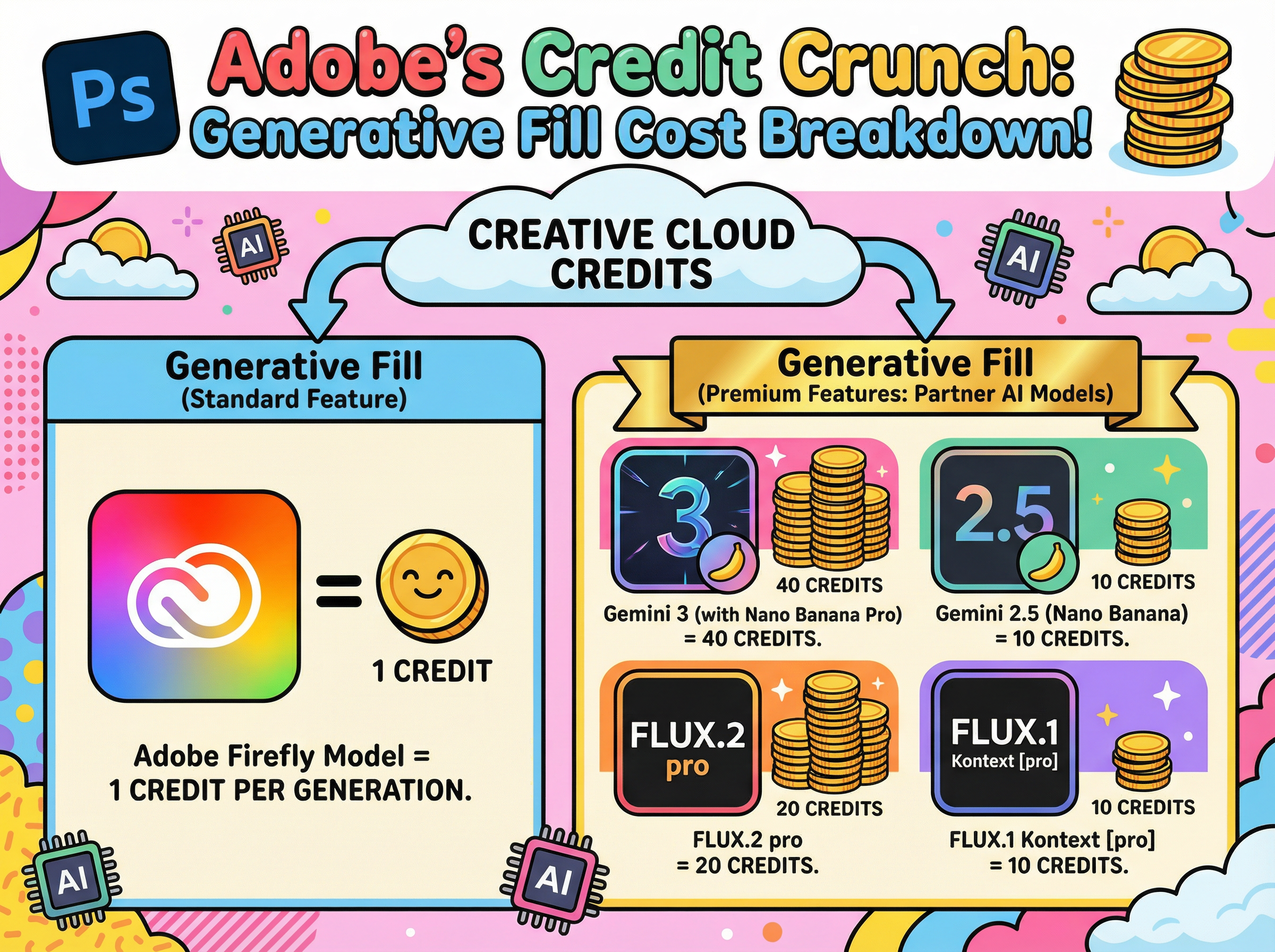
Adobe's proprietary Firefly model requires only 1 credit per generation, making it the most economical option. The newer partner models from Google (Gemini) and Black Forest Labs (FLUX), however, are classified as premium features and consume credits at a substantially higher rate. Depending on the model selected, you can expect to use between 10 and 40 credits per generation.

For users looking to maximize their monthly credit allocation, selecting the appropriate model for each task becomes an essential consideration.

Firefly: Your Go-To Workhorse (1 Credit)

Firefly serves as the default option and remains the most practical choice for everyday tasks. At just 1 credit per generation, it offers excellent efficiency for routine editing work. Whether you need to remove unwanted objects, extend backgrounds, or clean up imperfections, Firefly handles these tasks effectively.

Additionally, it benefits from full Creative Cloud integration, Adobe's commercial-use guarantees, and Content Credentials support. For standard production workflows, it's difficult to find a more cost-effective solution.

The Premium Players

The partner models represent a significant increase in cost, but they also deliver enhanced capabilities. Adobe operates these models on external infrastructure, which accounts for their higher credit requirements. These models excel at handling complex prompts, challenging lighting scenarios, and situations requiring exceptional realism or fine detail.

The credit costs break down as follows:

  • Gemini 2.5 (Nano Banana): 10 credits

  • FLUX.1 Kontext [pro]: 10 credits

  • FLUX.2 Pro: 20 credits

  • Gemini 3 (Nano Banana Pro): 40 credits

All of these models draw from the same credit pool as Firefly, but they deplete it considerably faster.

When to Use What

Gemini 2.5 (Nano Banana) occupies a middle position in the model hierarchy. It performs well when Firefly struggles with precise prompt interpretation, particularly for complex, multi-part instructions. This model also excels at maintaining consistent subject appearance across multiple variations.

FLUX.1 Kontext [pro] specialises in contextual integration. It analyses existing scenes to match perspective, lighting, and colour accurately. When adding new elements to complex photographs, this model provides the most seamless integration, making additions appear native to the original image.

FLUX.2 Pro elevates realism significantly. It generates outputs at higher resolution (approximately 2K-class) and demonstrates particular strength with textures. Areas that typically present challenges, such as skin, hair, and hands, appear notably more natural. For portrait and lifestyle photography requiring professional polish, the 20-credit investment may be justified.

Gemini 3 (Nano Banana Pro) represents the premium tier at 40 credits per generation. This "4K-class" option addresses one of Firefly's primary limitations: text rendering. When projects require legible signage, product labels, or user interface elements, Nano Banana Pro delivers the necessary clarity.

A Practical Approach to Model Selection

Default to Firefly (1 credit) for standard edits, cleanup tasks, and basic extensions

  1. Upgrade to Gemini 2.5 (10 credits) when improved prompt interpretation or likeness consistency is required

  2. Select FLUX.1 Kontext (10 credits) when lighting and perspective matching are priorities

  3. Deploy FLUX.2 Pro (20 credits) when realism and texture quality are essential

  4. Reserve Gemini 3 (40 credits) for situations requiring exceptional text clarity and fine detail

The guiding principle is straightforward: begin with the most economical option and upgrade only when project requirements justify the additional cost.

I Erased This in Seconds + Are you WASTING Credits???

In this video ... a look at how to use Generative Fill in Photoshop to remove the seemingly impossibly whilst still maintaining the structure of the original image PLUS an explanation of Generative Credit Deductions from Creative Cloud Accounts.

ADOBE just changed ChatGPT FOREVER 💥 But Why???

Adobe has just rolled out one of the most significant updates we've seen in a while by integrating Photoshop, Express, and Acrobat directly into ChatGPT. And here's the kicker: these features are currently free to use, no Creative Cloud subscription required.

Why This Matters

This is a fascinating strategic play. ChatGPT has roughly 800 million active users, many of whom recognize the Photoshop brand but find the actual software intimidating or prohibitively expensive. By embedding these tools inside a chat interface where people already feel comfortable, Adobe is dismantling that barrier to entry. They're essentially converting casual users into potential creators through familiarity and ease of use.

What the Integration Actually Does

The capabilities are surprisingly robust for a chat-based tool. You can upload an image and ask Photoshop to handle basic retouching or apply artistic styles. The masking feature is particularly impressive, intelligently selecting subjects without manual input. Adobe Express generates social media posts or birthday cards from simple text prompts, while the Acrobat integration handles PDF merging and organization without leaving the conversation.

The Bigger Picture

Make no mistake: this isn't replacing the full desktop software. It's a streamlined, accessible version optimized for speed and convenience. Users who need granular control or heavy processing power will still require the complete applications.

This is a textbook freemium strategy. Adobe is giving users a taste of their engine, creating a natural upgrade path. Once someone hits the limitations of the chat interface, they're just one click away from the full experience. It's a smart way to widen the funnel and meet users exactly where they are.


🚨 Adobe’s New Cloud Selection Technology: Hype or Reality?

One of the areas Adobe has been relentlessly improving in both Photoshop and Lightroom is selections. Over the years, the tools have become smarter, faster, and more automated. Today, we can make incredibly intricate selections with just a single click. At least, that is what Adobe says.

But if you are anything like me, you will know that demo images shown on stage or in marketing videos always look perfect. They are the kind of photos you would expect to work well in a demo: clean backgrounds, well defined edges, controlled lighting.

That is not real life.
So the question is: what happens when we use these tools on our own photos?

Recently, I tested Adobe’s new Cloud Detailed Results option for Select Subject using nothing more than some quick shots I had taken on my iPhone. The results were genuinely impressive.

Device vs. Cloud: What Is the Difference?

When you click Select Subject in Photoshop, you now have a choice:

  • Device – the selection is processed locally on your computer.

  • Cloud Detailed Results – the file is sent to Adobe’s servers, where the AI analyzes the image and sends back a more refined selection.

The device option is fast but often rough around the edges. The cloud option takes a little longer, but the results are noticeably more accurate.

Putting It to the Test

To really see the difference, I used a handful of everyday photos. Nothing staged, just casual iPhone shots. Here are a few examples:

Motorbike Portrait

With the device option, edges around wheels, helmets, and clothing looked rough and patchy. Switching to the cloud option instantly cleaned things up. Spokes, frames, and even tiny gaps were handled beautifully.

Tree with Branches

This was the kind of subject that used to take several different techniques combined. The cloud option managed to capture the branches and trunk in one go. Yes, there were a few areas that could be tidied up with a brush, but the heavy lifting was done.

Bicycle Spokes

Ordinarily, this is a nightmare for selections. Yet the cloud option picked out individual spokes, valves, and gaps between them. Minimal cleanup needed.

Setting Your Default

If you want Photoshop to always use the cloud option, head to Preferences > Image Processing. Under Select Subject and Remove Background, choose Cloud Detailed Results. From then on, every time you use those tools, Photoshop will default to the cloud method unless you manually switch.

Final Thoughts

I will admit I was skeptical. On demo images these things always look good, but I did not expect my casual iPhone shots to stand up so well. The results from Cloud Detailed Results were consistently sharper, cleaner, and more accurate than anything the device option gave me.

And just to clear up a common question: this does not use your generative AI credits. It is simply sending your image to Adobe’s servers for analysis and returning a selection.

Selections have always been one of the most tedious parts of editing. This new technology does not just save time, it also frees up creative energy. Instead of fighting with edges and masks, you can focus on the fun part: being creative.

Exciting times ahead, and if this is what Adobe is offering now, I cannot wait to see how much better it gets.

Project Indigo: Adobe Release NEW Pro Camera App for Mobile

A Research-Based Mobile Camera App

OVERVIEW

Project Indigo is a free experimental camera application developed by Adobe Labs, available for iOS devices starting from the iPhone 12 Pro and all non-Pro models beginning with the iPhone 14.

The app is intended as a platform for exploring advanced photography workflows on mobile devices. It combines traditional manual camera controls with computational imaging methods to improve photo quality and give users greater flexibility over how images are captured and processed.

Image Processing and Output

Unlike typical smartphone camera apps that rely heavily on automatic adjustments and stylised enhancements, Indigo emphasises subtle, globally tuned image processing. It also supports capturing both JPEG and RAW (DNG) formats, with computational benefits applied to both. This allows users to maintain editing flexibility while still benefiting from improved noise handling and dynamic range.

One of the core features of Indigo is its multi-frame image capture system. Instead of taking a single photo, Indigo records a short burst of up to 32 frames per shot. These frames are underexposed and then computationally aligned and merged to reduce noise and preserve shadow detail. This technique is applied even when shooting in RAW formats, uncommon for mobile photography apps, and the result of which enables cleaner, more editable files with fewer artifacts.

Manual Controls

The app includes full manual controls, giving users the ability to adjust:

  • Shutter speed

  • ISO

  • Focus (including manual focus override)

  • White balance (with both temperature and tint sliders)

  • Number of frames to capture per burst

These settings allow photographers to fine-tune their exposure and image quality, and to optimize for different conditions such as low light or motion.

Specialised Shooting Modes

Indigo also introduces dedicated capture modes for specific photographic techniques. The Long Exposure mode allows users to create effects like light trails, or light painting using a mobile phone, without needing an actual long shutter time. This though I hasten to add is unlike Long Exposure in such apps as EvenLonger or ReeXpose where we simply choose a time period for the long exposure from 0.5 seconds up to Bulb Mode (ReeXpose) or 1 second to 24 hours (EvenLonger), and the app then creates the long exppsure.

Another feature, Super-Resolution zoom, enables extended zoom up to 10x on the 15 and 16 Pro Max model. It is model dependant how much you get however you can use it to pinch and zoom too and the results are actually impressive. This technology is definitely going to affect sales of add-on zoom lenses.

Super-Resolution zoom is active for 10x+ zoom levels, all the way up to 25x. What it does is it increases the effective resolution by 2x horizontally and vertically (4x in pixels). As a result of this, at 10x, instead of a 3MP image you get 12MP, and at 20x instead of 0.75MP you get a 3MP image

Lightroom Integration

For users working within the Adobe ecosystem, Indigo integrates directly with Lightroom Mobile. Images can be exported to Lightroom with a single tap. In the case of DNG files, Indigo embeds tone and color metadata that Lightroom can interpret and apply as default settings—though users retain full control to adjust or reset these as needed.

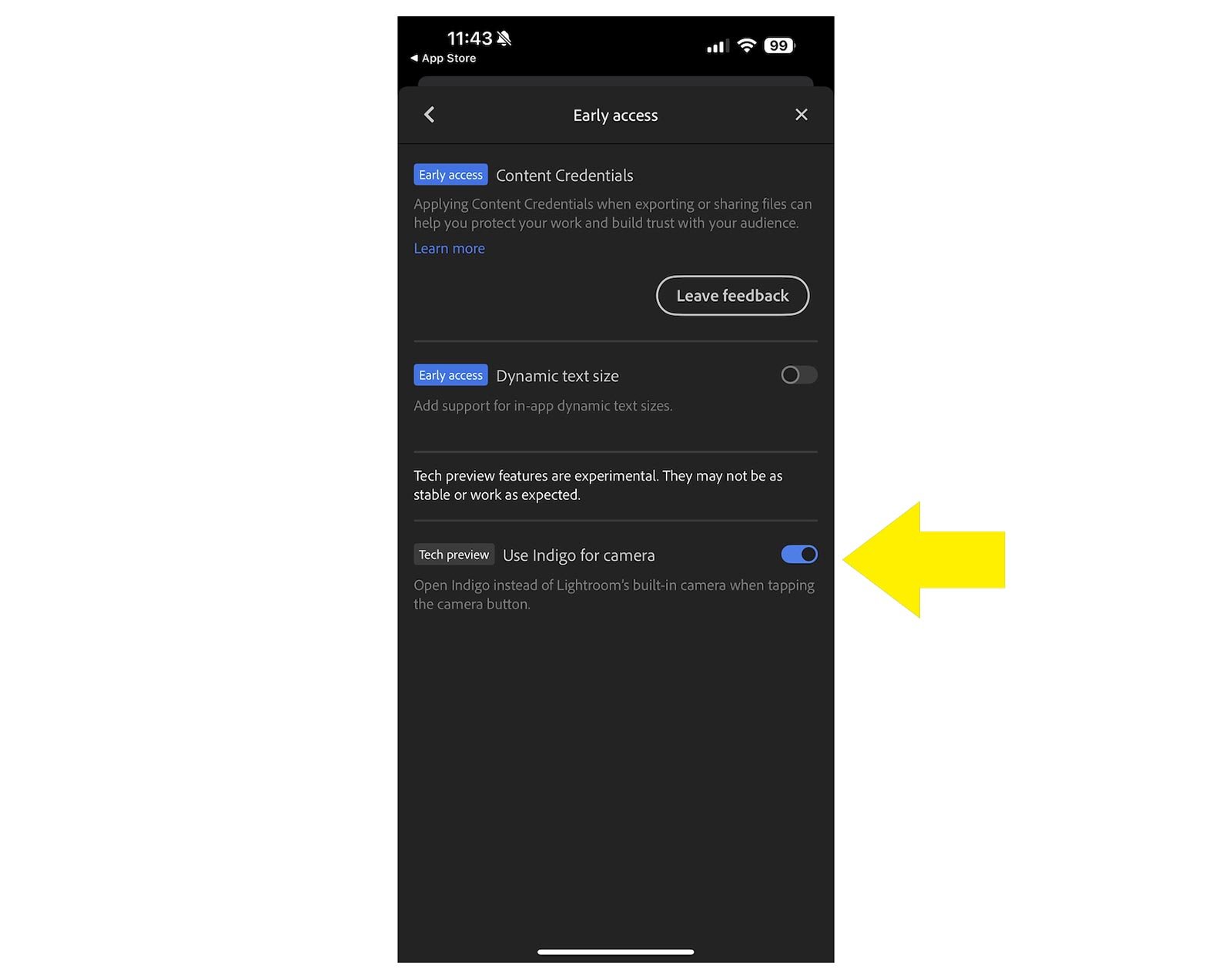
You can also set the Project Indigo camera to be used within Lighroom Mobile.

To do this make sure you have updated the Lightroom Mobile App. Once updated go the App settings from within the Lightroom Mobile App and then go to the EARLY ACCESS section and turn on the Use Indigo for Camera (Tech Preview)

Experimental Features

The app also includes access to experimental tools, that currently include AI DeNoise and Remove Reflections.

Personally I’d prefer to see these in the Lightroom Mobile App instead of inside the Camera App itself.

Planned Features and Roadmap

Looking ahead, Adobe plans to expand Indigo with several features:

  • An Android version of the app

  • Additional tone presets and photographic "looks"

  • Support for portrait, panorama, and video capture

  • Exposure and focus bracketing modes for use cases like astrophotography

INITIAL FEEDBACK

By far my favourite feature so far is the Super Resolution Zoom, but there are definitely things that I would want adding such as Burst Mode and a Long Exposure function that work very similar to EvenLonger and ReeXpose, so fingers crossed these appear sooner than later.

OVERHEATING

However, on release day I’ve already been receving feedback from folks saying that they are getting an overheating warning appear on their iPhone after only a short period of use.

This I discussed with the development team at Adobe during the time before this was released hen I was testing the app. I too noticed my phone getting much warmer than normal.

It was explained to me that this is in part due to the the fact that the App uses a different process when handling files in that it makes use of other hardware within the phone. Also because the heat dispersal of the iPhone 15 Pro Max which I currently have is known for not being good.

I have heard from folks using the 16 Pro Max and reporting the same warning appearing even though it has improved heat dispersal, so fingers crossed this is something Adobe are able to iron out in the near future.

Check out the official Project Indigo Blog Post for more information …