Finally set up my Linktree Page 😃

So a couple of days ago I finally got round to setting up my Linktree Page, having decided to make the move from Biosite which I find limiting … and a little clunky.

Here’s my unique URL: linktr.ee/glyndewis

But … What is Linktree ?

In today’s digital world, managing multiple online profiles and content can be overwhelming. That’s where a Linktree comes in with a simple, effective way to organise and showcase all your important links in one place.

Linktree is a free (or premium) platform that allows you to create a personalised landing page with multiple clickable links.

Instead of sharing numerous URLs across different social media bios, email signatures, or websites, you can share just one Linktree URL, and when people click it, they’re directed to a page that displays all your relevant links prominently … all in one place.

Why Use a Linktree?

  • Centralised Access: Gather all your online content: social media profiles, blogs, shops, portfolios, videos etc in one easy-to-navigate page.

  • Save Space: Perfect for platforms with character limits, like Instagram bios.

  • Enhance Engagement: Direct followers precisely where you want them, be it your latest YouTube video, online store, or newsletter sign-up.

  • Professional Appearance: Make your online presence look organized and polished.

Who Can Benefit?

  • Creators and Influencers

  • Entrepreneurs and Small Business Owners

  • Artists and Musicians

  • Anyone with multiple online platforms looking for a convenient way to share their content.

Getting Started

Setting up your Linktree is straightforward: sign up, customize your profile, add your links, and share your unique Linktree URL. You can even customize the appearance to match your branding.

Final Thoughts

A Linktree simplifies the way you connect with your audience by providing a one-stop link that showcases everything you do. It’s a powerful tool to boost your online presence and make navigation easier for your followers.

Simples 😃

BenQ PD2730S - The 5K Upgrade My Desk Was Missing ✅

The BenQ PD2730S is a 27-inch 5K monitor that's become a fantastic addition to my desk, for everything from video editing to everyday tasks. At 5120 x 2880 it works out at 218 PPI, so images look incredibly sharp, and it covers 100% sRGB, 100% Rec.709 and 98% DCI-P3, factory calibrated to Delta E 2 or less. There's a Nano-Matte anti-glare coating, HDR10 support, the Hotkey Puck G3 and Thunderbolt 4. The HDR and speakers are modest, but it's a strong alternative to the Apple Studio Display, and it even has my signature engraved on the base.

VARIANCE - Powerful NEW FEATURE in Camera Raw you MIGHT have Missed!!! (June 2025)

Variance arrived in Camera Raw with the June 2025 release, and it's one of those features that's easy to miss. It's an incredibly powerful tool for manipulating colour, and in this video I explore what it can do. I look at two ways it helps in particular: smoothing out skin tones so they look more even, and enhancing the colours in your photos, which makes it well worth getting to know if you edit in Camera Raw.

JUNE 2025 UPDATE ‼️ REMOVE PEOPLE with ONE TAP + more in Lightroom Mobile 📱✨

The June 2025 update brought two additions to Quick Actions in Lightroom Mobile, and in this video I walk through both of them. The first is Distraction Removal for People, a tool that removes people from your photo with just one tap. The second is Scene Enhance, which also sits in Quick Actions. I show you where to find them and how they work, so you can try them for yourself the next time you're editing on your phone.

HOW I Edit THIS Portrait in 2025 – Full Lightroom Workflow (No Photoshop!)

Not long ago, retouching a stylised portrait like this one was something I'd only have done in Photoshop. In this video I show how I now do the whole edit in Lightroom instead, with no Photoshop at all. The key is making big use of Lightroom's masks, and I take you through my full workflow step by step, so you can see just how much of this kind of retouching is possible without ever leaving Lightroom.

Project Indigo: Adobe Release NEW Pro Camera App for Mobile

A Research-Based Mobile Camera App

OVERVIEW

Project Indigo is a free experimental camera application developed by Adobe Labs, available for iOS devices starting from the iPhone 12 Pro and all non-Pro models beginning with the iPhone 14.

The app is intended as a platform for exploring advanced photography workflows on mobile devices. It combines traditional manual camera controls with computational imaging methods to improve photo quality and give users greater flexibility over how images are captured and processed.

Project Indigo camera app listing in the App Store

Image Processing and Output

Unlike typical smartphone camera apps that rely heavily on automatic adjustments and stylised enhancements, Indigo emphasises subtle, globally tuned image processing. It also supports capturing both JPEG and RAW (DNG) formats, with computational benefits applied to both. This allows users to maintain editing flexibility while still benefiting from improved noise handling and dynamic range.

One of the core features of Indigo is its multi-frame image capture system. Instead of taking a single photo, Indigo records a short burst of up to 32 frames per shot. These frames are underexposed and then computationally aligned and merged to reduce noise and preserve shadow detail. This technique is applied even when shooting in RAW formats, uncommon for mobile photography apps, and the result of which enables cleaner, more editable files with fewer artifacts.

Manual Controls

The app includes full manual controls, giving users the ability to adjust:

  • Shutter speed

  • ISO

  • Focus (including manual focus override)

  • White balance (with both temperature and tint sliders)

  • Number of frames to capture per burst

These settings allow photographers to fine-tune their exposure and image quality, and to optimize for different conditions such as low light or motion.

Specialised Shooting Modes

Indigo also introduces dedicated capture modes for specific photographic techniques. The Long Exposure mode allows users to create effects like light trails, or light painting using a mobile phone, without needing an actual long shutter time. This though I hasten to add is unlike Long Exposure in such apps as EvenLonger or ReeXpose where we simply choose a time period for the long exposure from 0.5 seconds up to Bulb Mode (ReeXpose) or 1 second to 24 hours (EvenLonger), and the app then creates the long exppsure.

Another feature, Super-Resolution zoom, enables extended zoom up to 10x on the 15 and 16 Pro Max model. It is model dependant how much you get however you can use it to pinch and zoom too and the results are actually impressive. This technology is definitely going to affect sales of add-on zoom lenses.

Super-Resolution zoom is active for 10x+ zoom levels, all the way up to 25x. What it does is it increases the effective resolution by 2x horizontally and vertically (4x in pixels). As a result of this, at 10x, instead of a 3MP image you get 12MP, and at 20x instead of 0.75MP you get a 3MP image

Project Indigo camera app on an iPhone, with arrows pointing to the shooting controls

Lightroom Integration

For users working within the Adobe ecosystem, Indigo integrates directly with Lightroom Mobile. Images can be exported to Lightroom with a single tap. In the case of DNG files, Indigo embeds tone and color metadata that Lightroom can interpret and apply as default settings—though users retain full control to adjust or reset these as needed.

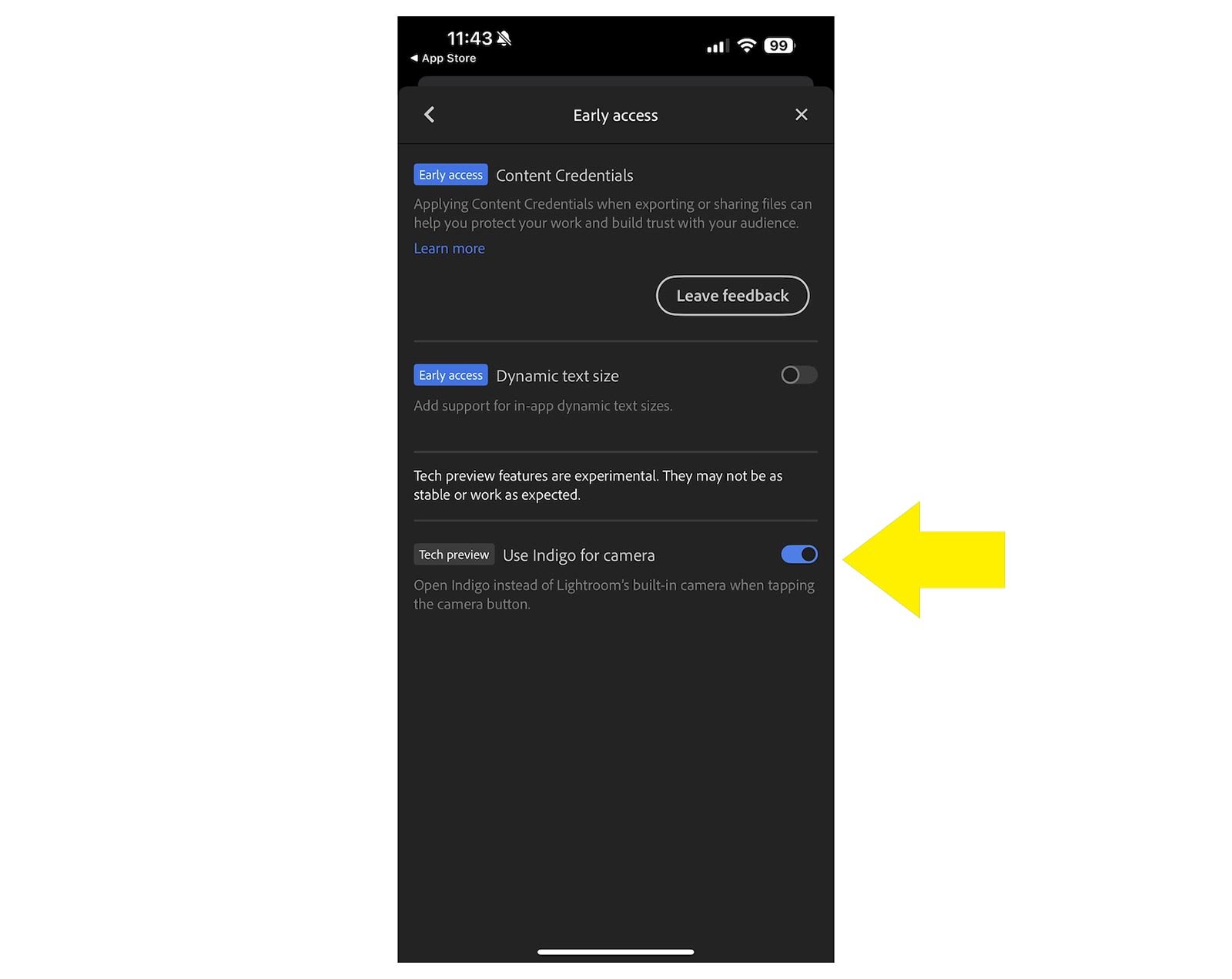
You can also set the Project Indigo camera to be used within Lighroom Mobile.

To do this make sure you have updated the Lightroom Mobile App. Once updated go the App settings from within the Lightroom Mobile App and then go to the EARLY ACCESS section and turn on the Use Indigo for Camera (Tech Preview)

Project Indigo settings screen on an iPhone, with an arrow pointing to a setting

Experimental Features

The app also includes access to experimental tools, that currently include AI DeNoise and Remove Reflections.

Personally I’d prefer to see these in the Lightroom Mobile App instead of inside the Camera App itself.

Planned Features and Roadmap

Looking ahead, Adobe plans to expand Indigo with several features:

  • An Android version of the app

  • Additional tone presets and photographic "looks"

  • Support for portrait, panorama, and video capture

  • Exposure and focus bracketing modes for use cases like astrophotography

INITIAL FEEDBACK

By far my favourite feature so far is the Super Resolution Zoom, but there are definitely things that I would want adding such as Burst Mode and a Long Exposure function that work very similar to EvenLonger and ReeXpose, so fingers crossed these appear sooner than later.

OVERHEATING

However, on release day I’ve already been receving feedback from folks saying that they are getting an overheating warning appear on their iPhone after only a short period of use.

This I discussed with the development team at Adobe during the time before this was released hen I was testing the app. I too noticed my phone getting much warmer than normal.

It was explained to me that this is in part due to the the fact that the App uses a different process when handling files in that it makes use of other hardware within the phone. Also because the heat dispersal of the iPhone 15 Pro Max which I currently have is known for not being good.

I have heard from folks using the 16 Pro Max and reporting the same warning appearing even though it has improved heat dispersal, so fingers crossed this is something Adobe are able to iron out in the near future.

Check out the official Project Indigo Blog Post for more information …

Interviewed by London Camera Exchange at the South West Photo Show

At the South West Photo Show in Exeter I sat down with Pete Rawlinson of London Camera Exchange for this interview. We talked about my 39-45 Portraits Project, the series honouring Second World War veterans through timeless portraiture, and the stories and inspiration behind it. Pete also asked about the way photography is changing, and I shared how I've embraced AI editing tools to help my creative process while still staying true to my own style.

How to MASK HAIR PERFECTLY for Background Changes in LIGHTROOM 💥

Getting a clean mask around hair is one of the trickiest parts of changing a background, and in this video I show how to do it properly in Lightroom. The secret is to work in reverse. Rather than reaching for the Background mask option first, I build the mask the other way round, which gives a far better result around the hair and lets you isolate the background cleanly, ready to be changed.

Why I'm using this MASKING TOOL in Lightroom MORE THAN EVER!

There's one masking tool in Lightroom I'm finding myself using more than ever, and this video shows why. I work through three things in the edit, starting with fixing the distortion caused by shooting on a wide angle lens. From there I convert the image to black and white using the Adaptive Profiles, which are incredibly powerful, before moving on to masking and showing how to get better, more accurate results from Lightroom's masks.