The Fisherman's Tale 🐟 New Compositing Workflow

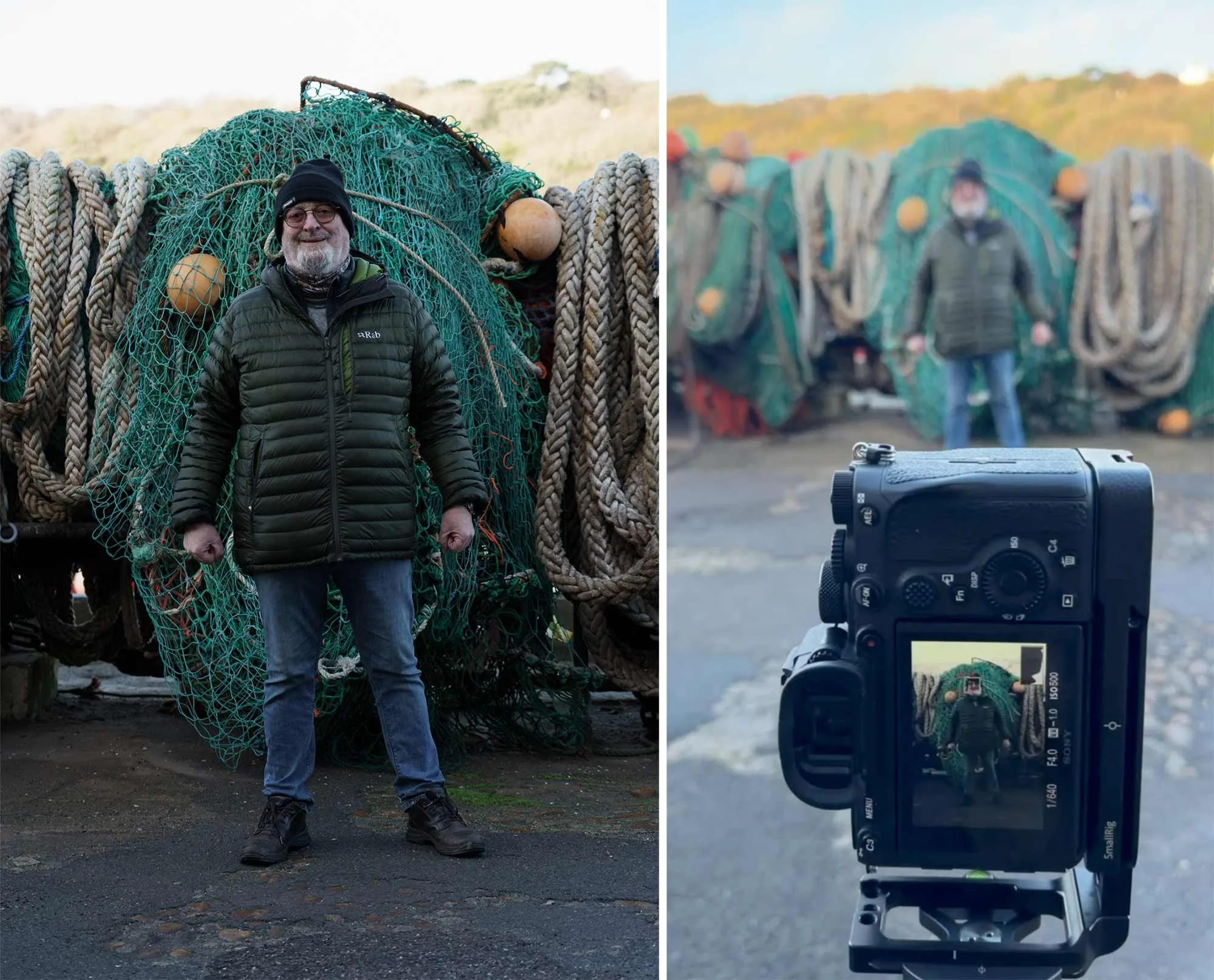
Yesterday morning I popped out for breakfast and to meet up with a friend, Steve.

After a great bite to eat at one of my favourite haunts, Town Mill Bakery (Lyme Regis) I sprung it on him that I had an idea for a picture I wanted to put together and that I needed him to be the subject.

The idea was to create a portrait of a Fisherman and to do this with a combination of Photography, Lightroom, Photoshop and AI, to test out a new workflow.

So, here’s the resulting image, and below is a breakdown of the steps involved using Lightroom, Photoshop, Google Gemini AI and Magnific (Upscaler)

The Process

  • Taking the portrait of Steve with the desired background

  • Initial Edits in Lightroom

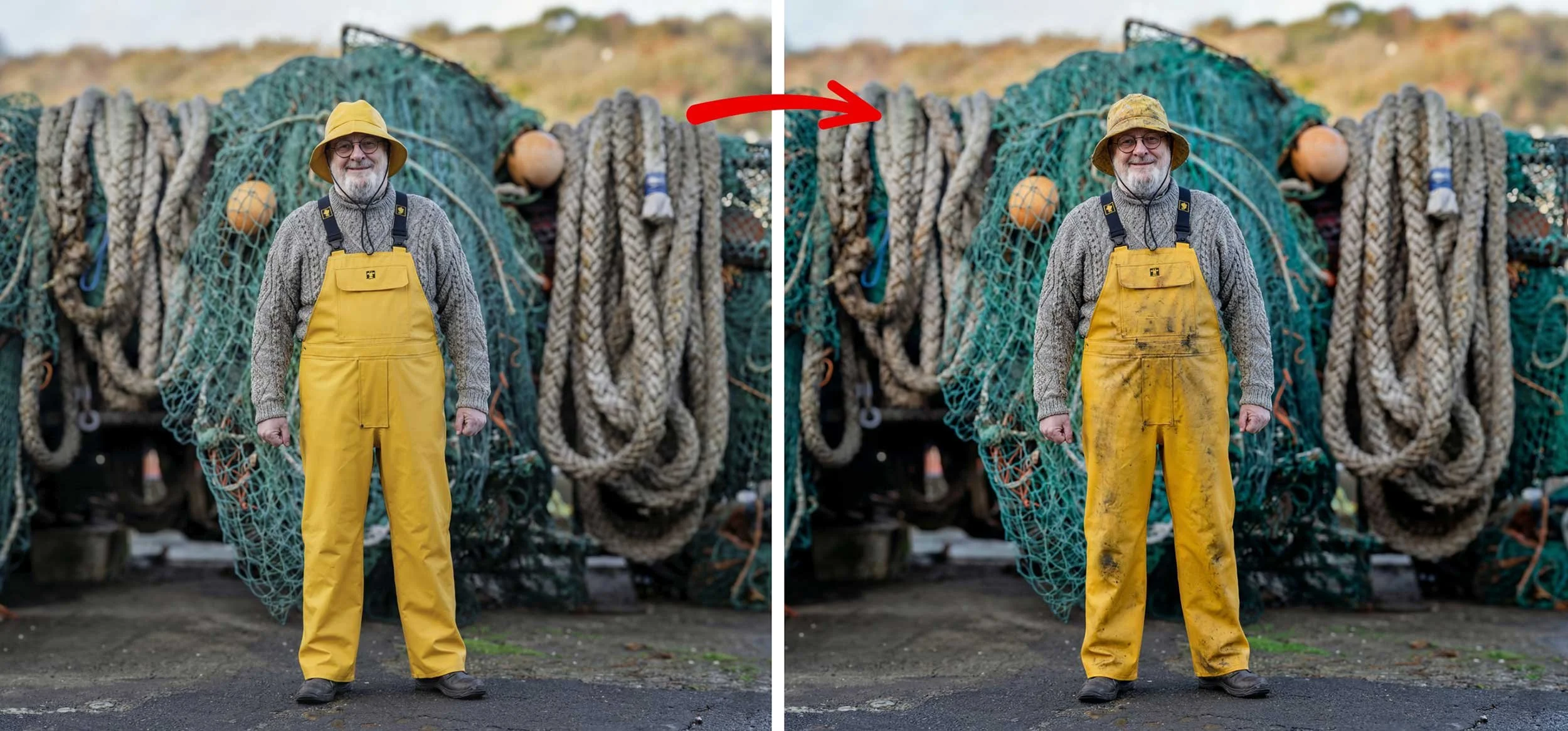
  • Export into Google Gemini AI and add Stock Photographs of Fisherman’s clothing onto Steve. Create image in 4K and then Upscale 2x

  • Create aging, weathering on the Overalls and Hat using Gemini AI and then selectively paint this onto Steve using Masks in Photoshop

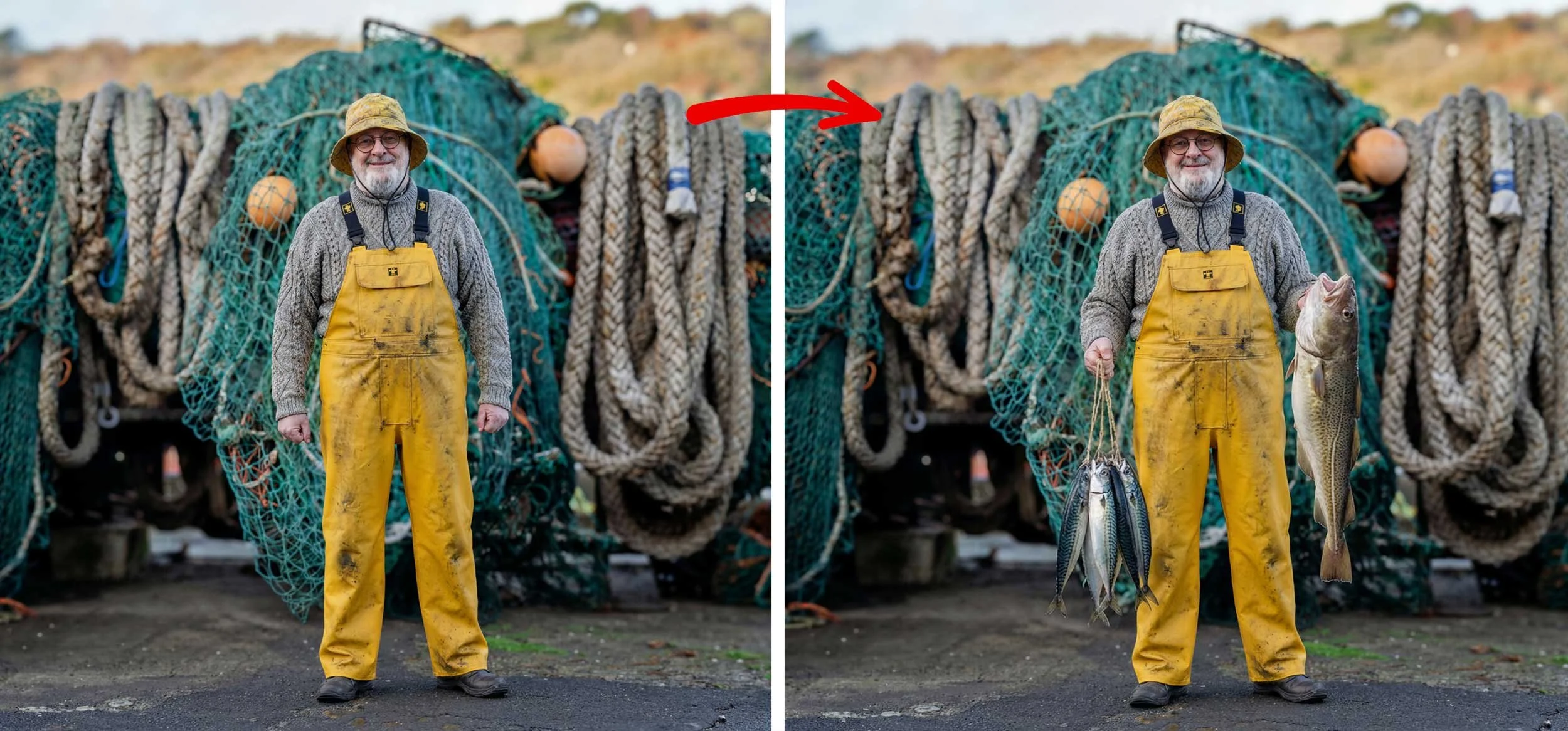
  • In Gemini AI generate the fish and Steve’s new arm position, then mask this into the main image in Photoshop

Extend Background in Photoshop and add finishing touches in Lightroom including Colour Grading, Adjusting Lighting, Lens Blur, Adding Grain etc …


🚀 AI: Creative Leap, NOT Deception

The headlines are full of outrage: AI is ruining photography, destroying trust, and spreading lies. The critics claim that generative tools are the death knell for visual truth, weaponizing deception on a scale we've never seen.

But let's pause. This argument is fundamentally flawed. It misdiagnoses the problem and unfairly demonizes the most powerful creative tool invented in a generation.

AI isn't the origin of the lie; it's the radical acceleration of the human desire to tell a more compelling story.

The Real History of "The Lie" in Photography

To claim that AI introduces deception to photography is to ignore the entire history of the medium. Visual manipulation has always been an inherent part of the creative process.

Consider the foundation of photojournalism: narrative construction.

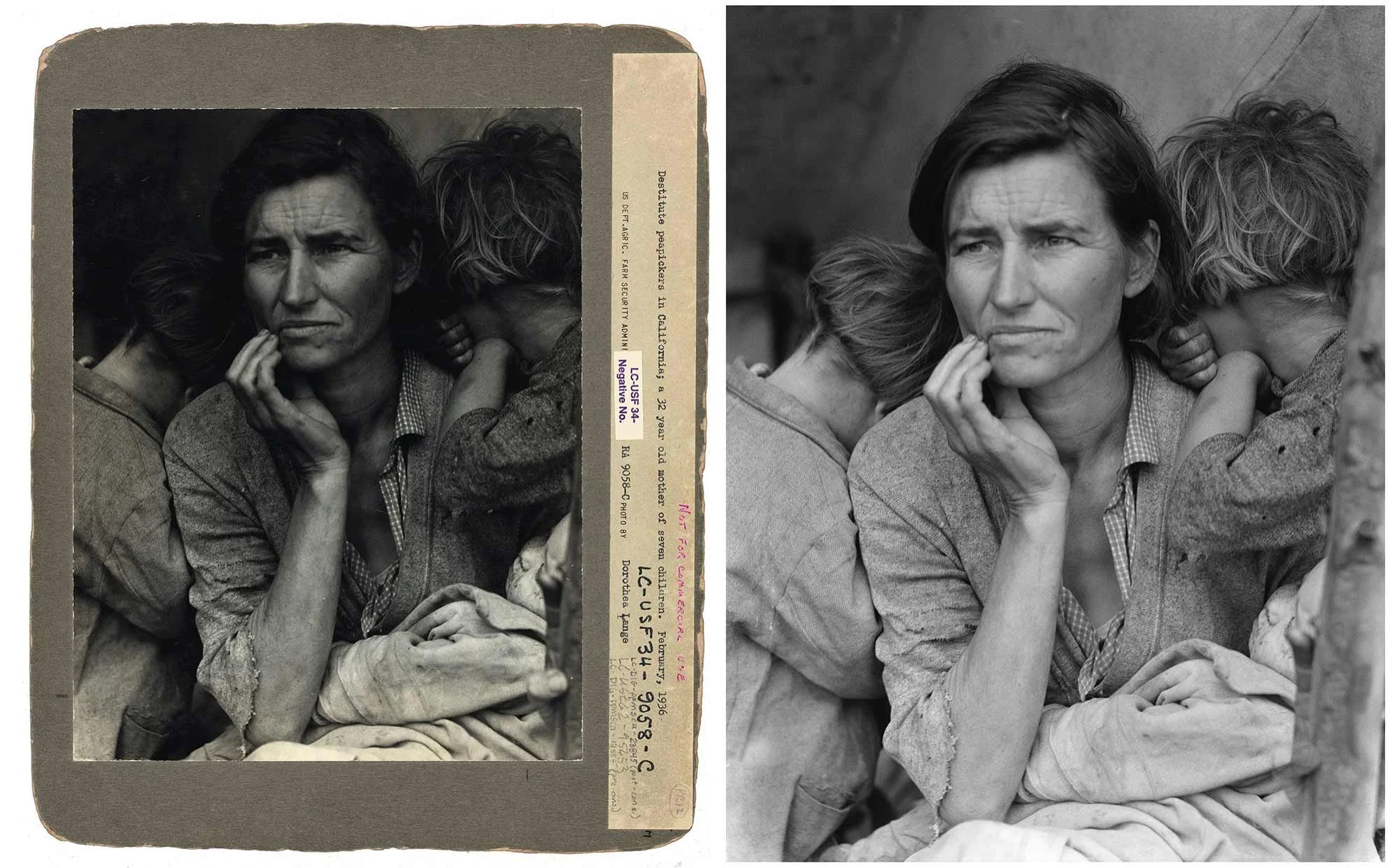
The "Migrant Mother" (1936): Dorothea Lange's iconic image is hailed as a moment of truth, yet she meticulously constructed it. She cropped out the husband and teenage daughter to create a solitary, suffering figure. She physically directed the children to turn away. This wasn't a lie about poverty, but it was a masterful, intentional editing job designed to maximize emotional impact. It was truth made more powerful through manipulation.

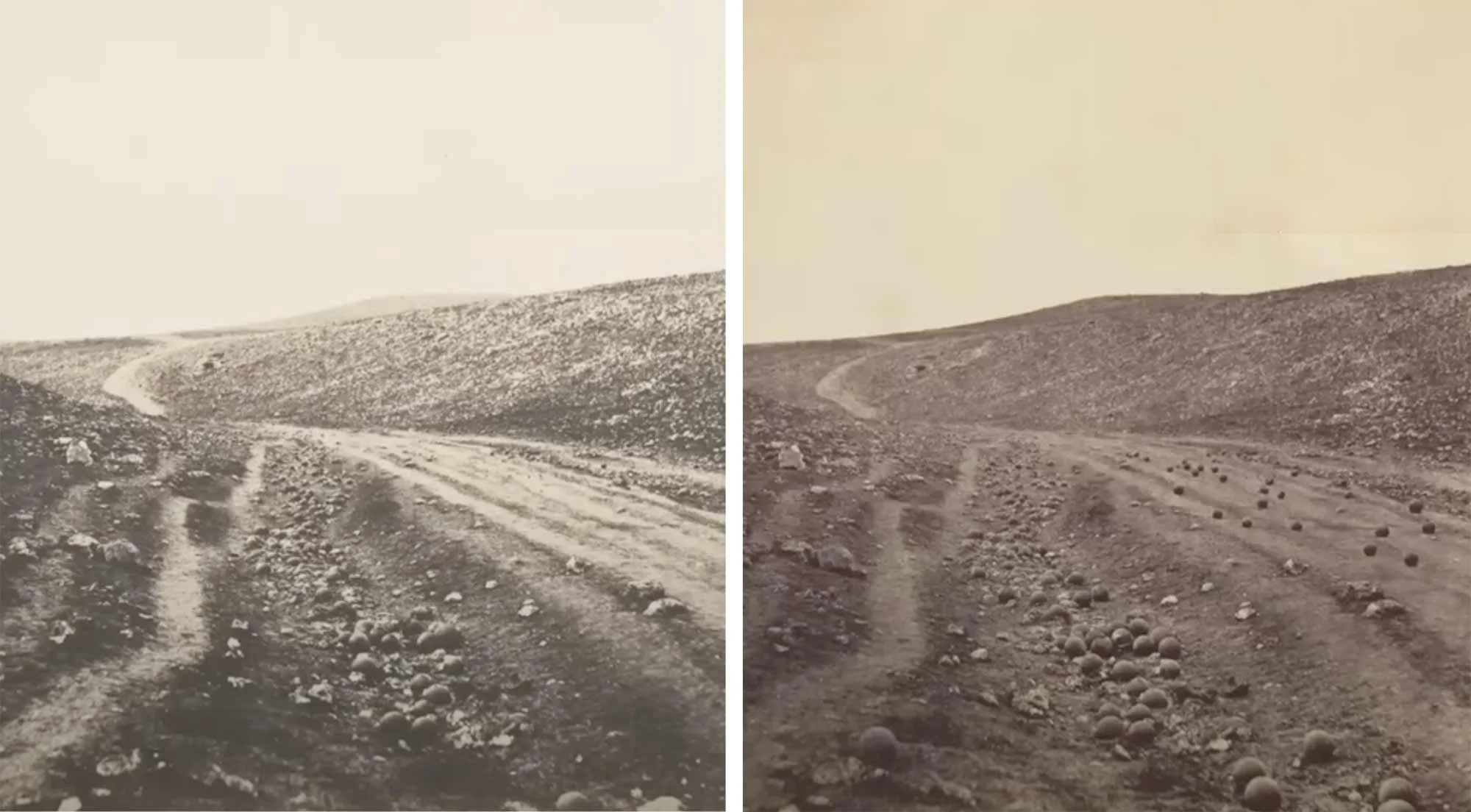
"Valley of the Shadow of Death" (1855): During the Crimean War, Roger Fenton is believed to have literally moved cannonballs onto the road to make the scene look more dramatic and dangerous. The technology was primitive, but the intent to shape reality for a better picture was exactly the same as today's AI tools.

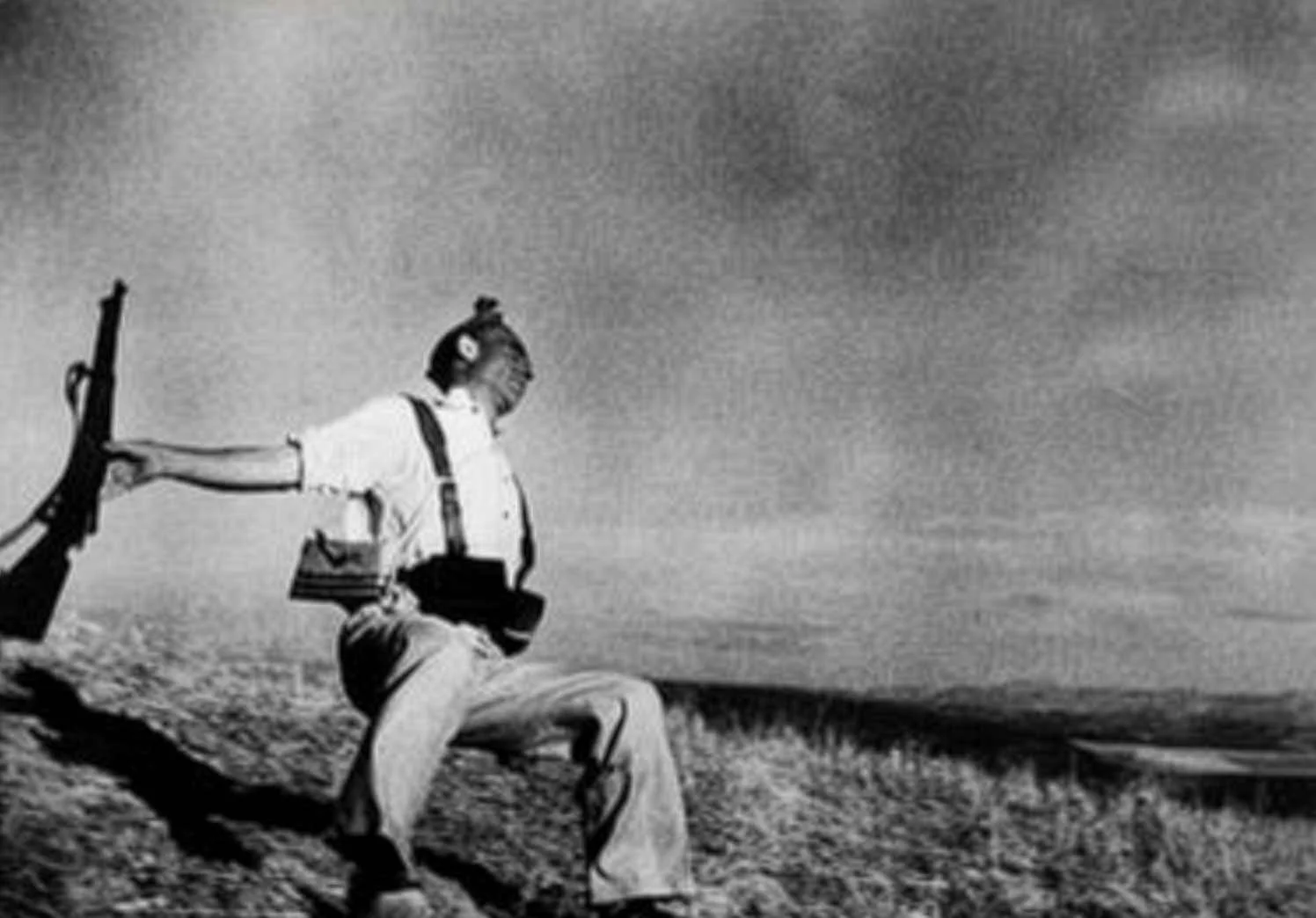
"The Falling Soldier" (1936): Robert Capa’s famous war photo is widely accepted as having been staged to capture an image of heroism and death that was too fleeting or dangerous to capture authentically.

These historical examples show that photographers have been physically arranging reality, staging scenes, and using darkroom techniques to tell the story they wanted to tell for over a century. The core issue has never been the camera or the software; it has always been the editorial judgment of the person behind it.

The Crop Tool Was Always More Dangerous Than AI

We also must remember the power of basic, low-tech deception. Long before generative fill, simple techniques were used to create outright political and social lies:

Intentional Cropping: The infamous photo of the toppling of the Saddam Hussein statue in 2003 was widely published using a tight crop to imply a massive, cheering crowd. The reality, revealed in a wide-angle shot, was an almost empty square. A simple crop created a massive global political narrative that contradicted the facts on the ground.

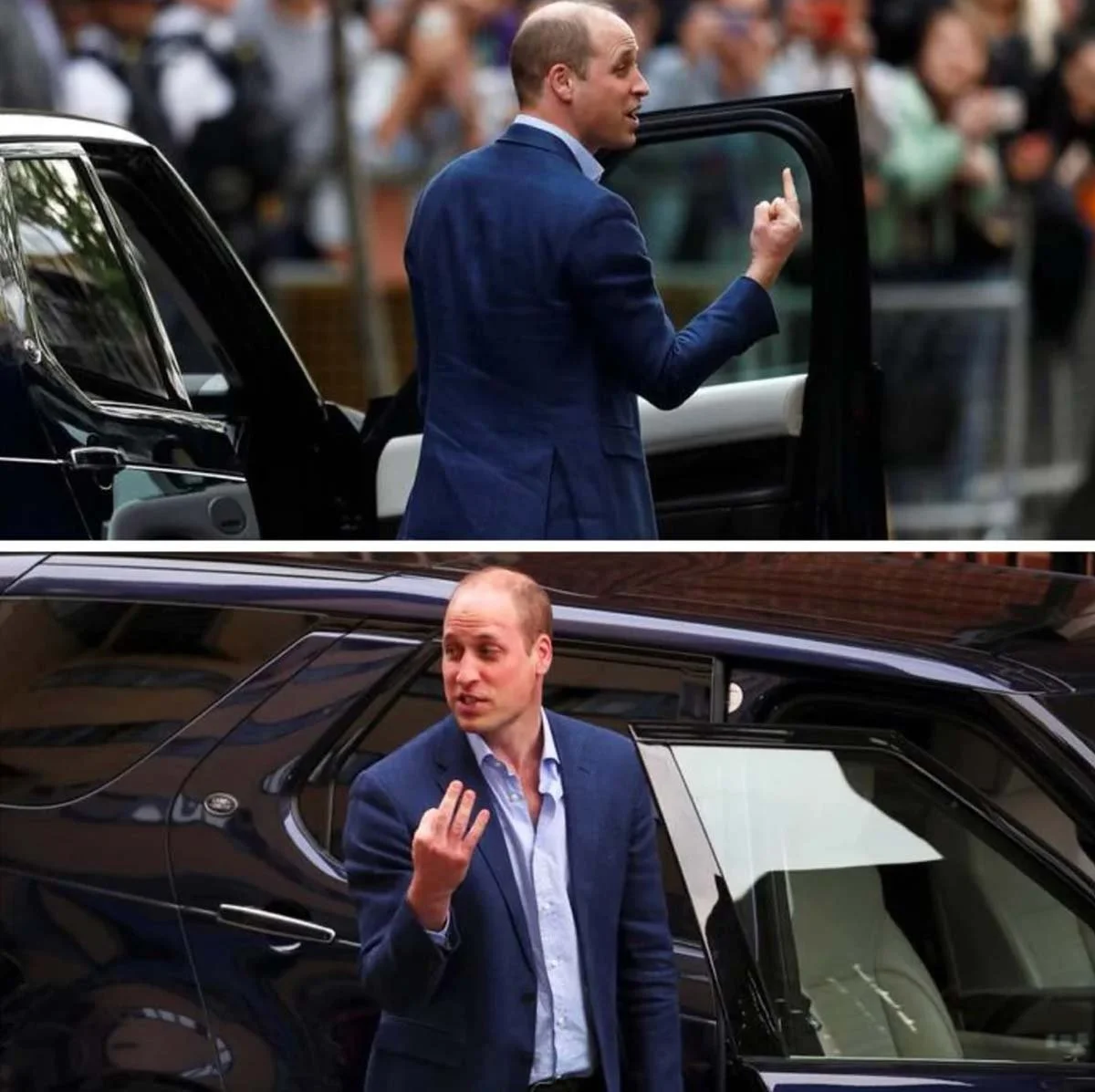
Perspective Tricks: The photo appearing to show Prince William making a rude gesture was simply a trick of perspective, hiding fingers to create a completely false narrative of aggression.

These are not complex manipulations. They are intentional deceptions using the most basic tools of photography: angle and crop. If simple tools can be used to propagate such significant lies, why is the focus solely on AI?

AI: The Ultimate Creative Democratizer

The fear surrounding AI is largely rooted in its speed, scale, and accessibility, not its capacity for invention.

AI is not primarily a tool of deception; it is a profound creative liberation.

  1. It Democratizes Vision: AI allows a person who cannot afford expensive equipment or complex training to visualize concepts instantly. It lowers the barrier to entry for creative expression to the point of a text prompt.

  2. It Expands Possibility: For professional photographers and artists, AI is not a replacement but an enhancer. It can instantly remove unwanted elements, seamlessly extend a scene, or realize complex conceptual ideas that would have previously taken days or weeks of painstaking work.

  3. It Forces Honesty: The very existence of perfect AI fakes means the public must now learn to treat all images, even traditional photos, with a new level of healthy skepticism. This shift forces better media literacy and demands higher ethical standards from those who publish images.

The problem is not the tool that can generate a manipulated image; the problem is the person who chooses to present that manipulated image as an unvarnished, factual truth. Blaming AI for deception is like blaming a pen for writing a lie. The pen is merely a tool.

Ultimately, AI is forcing us to acknowledge the truth about photography: it has always been an art of subjective framing, editing, and narrative construction. The ethical debate must move away from demonizing the technology and focus instead on demanding transparency and integrity from the people who use it.


ChatGPT's Brutual Words on the Future of Photo Editing

I recently sat down with ChatGPT to discuss the future of AI in photo editing. But this wasn’t the usual polite, agreeable AI conversation. I asked for the "On Edge" take - no fence-sitting, just the brutal truth.

The consensus? The days of manually pushing pixels are numbered. We are moving from a world of technical craftsmanship to one of creative direction.

Here is the unvarnished reality of where photo editing is heading.

1. The "Mixed Bag" Reality Check

If you think AI is just going to make everyone a creative genius, think again. The future is a double-edged sword.

  • The Pro: Tasks that used to take hours will take seconds. The grunt work is disappearing.

  • The Con: We are about to see a flood of "cookie-cutter" edits.

  • The Hard Truth: AI will widen the gap between "okay" and "truly skilled." When anyone can press a button to get a polished image, technical skills stop being the differentiator. The real separation will be pure creative vision. If you’ve been relying on technical tricks rather than an artistic eye, you might feel exposed.

2. Photoshop as a "Cockpit" Not a Workbench

We are already seeing Adobe integrate third-party tools (Google’s models, Black Forest Labs’ Flux, Topaz) directly into Photoshop. This is a strategic power move to keep Adobe as the "hub" of the ecosystem.

But how will the interface evolve?

Expect Photoshop to shift from a manual workshop to a Command Center.

  • Current State: A toolbox where you manually tweak curves, levels, and stamps.

  • Future State: A cockpit of "AI Co-pilots." You will direct intelligent agents to execute tasks.

You will say, "Give this a cinematic mood," and one AI will handle the grading. You’ll say, "Fix the skin texture," and another handles the retouching. You are no longer the mechanic; you are the Creative Director.

3. The New Skill Gap: Prompting vs. Sliders

This is the part that makes old-school retouchers nervous. The slider days are fading; the era of "describe what you want" is taking over.

The differentiator is no longer how well you know a hidden menu in Capture One or Lightroom. It is about how you steer the AI.

Old Skill Set / New Skill Set

The secret sauce is now the instructions you give. The AI can’t imagine on its own; it needs your taste to guide it away from the generic and toward the unique.

4. Adapt or Die: A Note to Educators and Pros

For those whose entire business model relies on teaching people how to use sliders and manual tools, this is a major shake-up. But it’s not doom and gloom—it’s a pivot.

  • For Educators: Stop teaching button-pushing. Start teaching creative thinking, prompt crafting, and vision. Move from being a technical instructor to a creative mentor.

  • For Retouchers: AI gets you 90% of the way there, but it lacks the "human touch." Become the specialist in that final 10%—the subtle artistic decisions and finesse that an algorithm misses.

5. The "Generated Pixel" Controversy

Camera clubs and traditionalists are rightfully concerned. When an image contains pixels the photographer didn't capture, is it still photography?

The advice is simple: Don't fight the tide, surf it.

We need transparency and clear categorization:

  1. Pure Capture Categories: Strictly no generated pixels.

  2. AI-Augmented Categories: Open experimentation.

Photography has evolved before (film to digital), and this is just the next step. By separating the categories, we preserve the tradition of the craft while allowing space for the new wave of digital art.

The Bottom Line

The future isn't about the software tools vanishing; it's about them moving to the background. The sliders will likely remain tucked away for the die-hards, much like manual mode on a camera, but the workflow will be AI-first.

If you are worried about AI taking your job, remember this: The tool is changing, but the eye remains. AI can generate an image, but only a human can know if it’s right.

Affinity Software Announcement - 30th October 2025

Affinity, now Affinity by Canva has unified its three separate applications (Designer, Photo, and Publisher) into a single app and made it permanently free.

🔑 Key Details

🎨 Unified Application

Instead of three separate applications, Affinity now offers one unified app that consolidates:

  • Vector design tools (formerly Designer)

  • Photo editing tools (formerly Photo)

  • Layout and publishing tools (formerly Publisher)

💰 Pricing Structure

  • Core App: Completely free with no feature restrictions, no trial periods, or hidden costs

  • AI Features: Available exclusively to Canva Pro subscribers ($14.99/month or $119.99/year)

🤖 AI Capabilities (Canva Pro Required)

Users with Canva Pro accounts can access Canva AI tools directly within Affinity through the Canva AI Studio:

  • Generative Fill

  • Expand & Edit

  • Remove Background

  • Additional Canva AI features

💻 Platform Availability

  • Mac & Windows: Available immediately

  • iPad: Scheduled for release in 2026

🔐 Account Requirements

A free Canva account is required to download and use the application.

📚 Background

  • Canva acquired Affinity in March 2024 for $380 million

  • In early October 2025, Affinity stopped selling all existing software versions

  • This announcement represents a shift from Affinity's previous paid perpetual license model

🚨 Understanding Adobe's Generative Credits (October 2025)

Adobe's new credit-based system powers AI features across Photoshop, Lightroom, Firefly, Express, and Premiere. Here's what you need to know.

What Are Generative Credits?

Monthly tokens included with Adobe plans that act as currency for AI features:

  • Credits are consumed each time you use AI tools

  • Reset monthly (no rollover)

  • Can purchase add-ons if you run out

  • Different features use different credit amounts

🟢 Standard Features

Everyday Adobe Firefly AI tools:

  • Generative Fill, Expand, Background (Photoshop)

  • Remove People, Distraction Removal (Lightroom)

  • Text-to-Image, Generate Backgrounds (Firefly)

🔵 Premium Features (multiple credits)

Advanced AI requiring more computing power:

  • Third-party models (Google Gemini 2.5, FLUX.1)

  • AI Video/Audio generation

  • Topaz Labs Denoise/Sharpen

  • High-resolution upscaling

🚨 Current Promotion

28 October – 1 December 2025:

Unlimited generations on all AI models for Creative Cloud Pro, Firefly Standard/Pro/Premium plans.


Key Takeaways

✅ Standard = Everyday Firefly tools (often unlimited)

✅ Premium = Third-party AI models (uses more credits)

✅ Credits reset monthly, no rollover

✅ Unlimited promo runs until 1 December 2025

✅ Creative Cloud All Apps best for heavy Premium feature users

How to Create a Photo Book using Blurb by Judy Lindo

Recently in The Photography Creative Circle Community, member Judy Lindo hosted a fabulous LIVE session where she showed step by step how to create a photo book using Blurb and Lightroom Classic.

Judy, who has experience as an editor for a photography group called the "City Clickers," guided attendees through the process, covering essential steps like planning, photo selection, book layout, and sequencing images for optimal narrative and visual flow.

Discussions included the technical aspects of using Blurb's interface, including book settings, page layouts, text options, and background customization, and practical advice on cost-saving formats like the Zine, as well as managing the book's print-on-demand nature and marketing options.

✅ Check out the audio overview below …

To check out the full 1 ½ session hour video recording, jump into The Photography Creative Circle Community on SKOOL with the 7 Day Free Trial …

Photoshop Compositing Hack with Harmonize

If you use Photoshop for compositing, you’ve probably tried out the Harmonize feature currently in Photoshop beta. It’s a great addition when blending objects into a scene, adjusting color and adding shadows to make everything look more natural. The problem is, Harmonize isn’t really designed for people - it tends to break down on human subjects.

But I’ve found a handy workaround that makes Harmonize incredibly useful when compositing people, particularly when it comes to the hardest part: creating realistic contact and cast shadows.

Why Shadows Are the Hardest Part

When you’re compositing, matching colors is one thing, but making sure the subject looks truly grounded in the scene is another. Shadows - both contact shadows right under the feet, and cast shadows stretching into the scene - are what really sell the effect. Without them, the subject looks like they’re floating.

Testing Harmonize on People

Harmonize works brilliantly on objects, but when applied to a person it usually ruins detail and texture. For example, in a composite with a Viking figure photographed in the studio, Harmonize messed up the fine detail in the image but still attempted to generate shadows. Not perfect, but promising.

The Workaround: Adding a Fake Light Source

Here’s where the trick comes in. By adding a fake light source into the background before running Harmonize, the results improve dramatically.

  • Duplicate your background layer.

  • With a soft white brush, paint a bright “light spot” in the sky area.

  • Run Harmonize again with your subject layer active.

This extra light influences how Harmonize interprets the scene and produces stronger, more believable contact and cast shadows.

Keeping Only the Shadows

Of course, we don’t want the strange coloring Harmonize often applies to people. To fix this:

  1. Rasterize the Harmonize layer to make it editable.

  2. Apply the layer mask so only the visible result remains.

  3. Add a black layer mask to hide everything.

  4. With a white brush, paint back just the shadows from the Harmonize layer.

Now you have realistic shadows under your subject, without losing the original detail and color of the person.

Bonus Tip: Dealing with Flyaway Hair

Compositing hair can be a nightmare. Instead of spending hours trying to cut out every strand, I’ve had success using Generative Fill.

  • Make a quick selection of the hair area.

  • In Generative Fill (Firefly Image 3 model), type something like “long brown wavy hair blowing in the wind”.

  • Photoshop generates natural-looking variations that save a ton of time.

Final Thoughts

Harmonize might not be built for people yet, but with this compositing hack it becomes a powerful tool for one of the trickiest parts of the job — shadows. Add in the Generative Fill trick for hair, and you’ve got a much faster way to create composites that look believable.

Give it a try and see how it works in your own projects.

Editing a Photo in Lightroom + Photoshop ... on an iPad

Not too long ago, I never would have considered editing my photos on an iPad. It always felt like something I should save for my desktop. But things have changed. Both Lightroom and Photoshop on the iPad have improved massively, and these days I often use them when traveling. More and more, this mobile workflow is becoming a real option for photographers.

In this walkthrough, I’ll show you how I edited an image completely on the iPad, starting in Lightroom, jumping over to Photoshop when needed, and then finishing off with a print.

Starting in Lightroom on the iPad

The photo I worked on was taken with my iPhone. The first job was the obvious one: straightening the image. In Lightroom, I headed to the Geometry panel and switched on the Upright option, which immediately fixed the horizon.

Next, I dealt with a distraction in the bottom left corner. Using the Remove Tool with Generative AI switched on, I brushed over the wall that had crept into the frame. Lightroom offered three variations, and the second one was perfect.

With those fixes made, I converted the photo to black and white using one of my own synced presets. A quick tweak of the Amount slider gave me just the right level of contrast.

Masking and Sky Adjustments

The sky needed attention, so I created a Select Sky mask. As usual, the AI selection bled slightly into the hills, so I used a Subtract mask to tidy things up. It wasn’t perfect, but it was good enough to move forward.

From there, I added some Dehaze and Clarity to bring detail back into the clouds. A bit of sharpening pushed the image further, but that also revealed halos around a distant lamppost. At that point, I knew it was time to send the photo into Photoshop.

Fixing Halos in Photoshop on the iPad

Jumping into Photoshop on the iPad takes a little getting used to, but once you know where things are, it feels very familiar.

To remove the halos, I used the Clone Stamp Tool on a blank layer set to Darken blend mode. This technique is brilliant because it only darkens areas brighter than the sample point. With a bit of careful cloning, the halos disappeared quickly.

I then added a subtle “glow” effect often used on landscapes. By duplicating the layer, applying a Gaussian Blur, and changing the blend mode to Soft Light at low opacity, the image gained a soft, atmospheric look.

Back to Lightroom and Printing

With the edits complete, I sent the image back to Lightroom. From there it synced seamlessly across to my desktop, but the important point is that all of the editing was done entirely on the iPad.

Before printing, I checked the histogram and made some final tweaks. Then it was straight to print on a textured matte fine art paper. Once the ink settled, the result looked fantastic — no halos in sight.

Final Thoughts

I’m not suggesting you should abandon your desktop for editing. Far from it. But the iPad has become a powerful option when you’re traveling, sitting in a café, or simply want to work away from your desk.

This workflow shows what’s possible: you can straighten, retouch, convert to black and white, make sky adjustments, refine details in Photoshop, and even prepare a final print — all from the iPad. And of course, everything syncs back to your desktop for finishing touches if needed.

Exciting times indeed.

The Weekly Creative - Monday, 22nd September 2025

A Quick, No-Fluff update from Glyn Dewis that Keeps your Creativity CurrenT

Read Issue 2: 👉🏻 CLICK HERE

🎨 Photoshop & Lightroom Updates

📱 Mobile Apps (iPhone + Android where available)

🤖 AI in Creativity

🎒 Gear & Kit

🔧 Firmware Updates

🥇 Community Highlight

Click the link to receive The Weekly Creative Newsletter each Monday
👉🏻 https://glyndewis.kit.com/weekly-creative 👈🏻

AI Just Changed How We ENHANCE EYES in PHOTOSHOP 💥

Two Ways to Add Detail to Dark Eyes in Photoshop

If you’ve ever edited a portrait where the eyes are so dark there’s no detail to recover, you’ll know how tricky it can be. Brightening them often makes things look worse, leaving the subject with flat, lifeless eyes.

In the video above, I walk you through two powerful techniques that solve this problem:

  • A reliable method using Photoshop’s traditional tools

  • A newer approach that uses AI to generate realistic iris detail

Here’s a quick overview of what you’ll see in the tutorial.

The Traditional Photoshop Method

This approach has been in my toolkit for years. It doesn’t try to recover what isn’t there. Instead it creates the impression of natural iris texture.

By adding grain, applying a subtle radial blur, and carefully masking the effect, you can fake detail that looks convincing. A touch of colour adjustment finishes the look, leaving you with eyes that feel alive instead of flat.

It’s a manual process but it gives you full control, and the result is surprisingly realistic.

The AI-Powered Method

Photoshop’s Generative Fill takes things in a different direction. With a simple selection around the iris and a prompt like “brown iris identification pattern”, Photoshop can generate natural-looking iris textures, the kind of fine patterns you’d expect to see in a close-up eye photo.

Once the AI has created the base texture, you can enhance it further using Camera Raw:

  • brighten the iris

  • increase contrast, clarity, and texture

  • even add a little extra saturation

Add a subtle catchlight and the transformation is incredible. The eyes go from lifeless to full of depth and realism in seconds.

Why These Techniques Matter

Eyes are the focal point of most portraits. If they’re dark and featureless, the whole image suffers.

These two techniques, one traditional and one modern, give you reliable options to fix the problem. Whether you want the hands-on control of Photoshop’s tools or the speed and realism of AI, you’ll be able to bring that essential spark back into the eyes.